Guide · 6 steps
Decide how long print files are kept, take a copy, and have it deleted.
Before a district signs, someone asks four questions: what do you keep, for how long, can we have it back, and how do we make you delete it. In KyberCopy the answers are on one page, Settings, Data and privacy. This guide is for the administrator or IT lead who has to answer them, and for the owner who signs for the data.
You will need
- An administrator or owner account; teachers and the copy room are not shown Data and privacy
- The owner's account for the download and for asking for deletion
- Your district's own rule for how long student work may be kept, if it has one
Step 1: Open Settings, Data and privacy
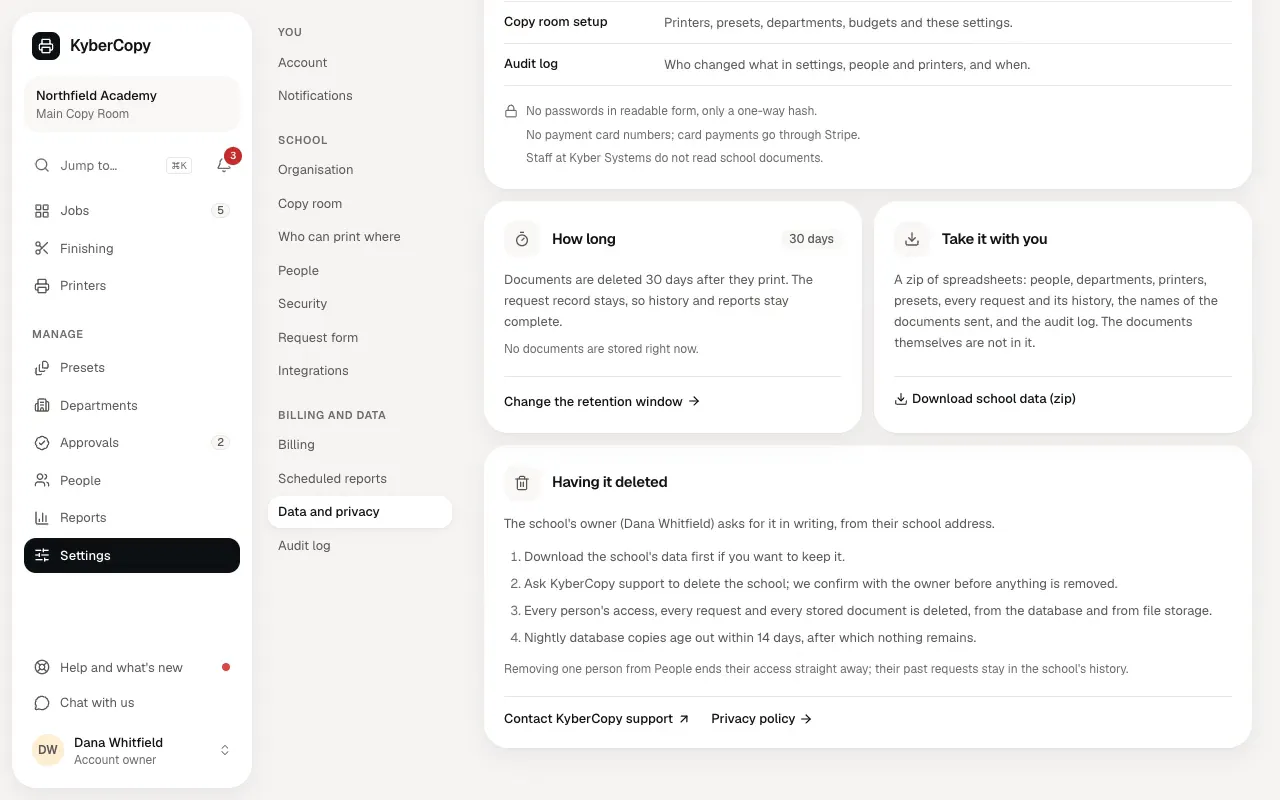
It sits under Billing and data in Settings. Four panels answer the four questions: What is stored, How long, Take it with you and Having it deleted.
An administrator or owner sees the page. Anyone else who opens the address is sent back to their own Settings.
Settings, Data and privacy in the demo school, seen by its owner. Step 2: Read what is stored, and what is not
Five things are kept: Documents, the files sent for printing until the retention window ends; Requests, who asked, the title, notes, settings, copies, cost and each step; People, with name, email, role and department; the Copy room setup; and the Audit log.
Under them, three lines say what is not: “No passwords in readable form, only a one-way hash.” “No payment card numbers; card payments go through Stripe.” “Staff at Kyber Systems do not read school documents.”
Step 3: Choose how long documents are kept
How long shows the school's window, 30 days unless someone has changed it. Change the retention window opens Copy room, Requests, where Delete files after takes a number of days after printing, one day at the least. Save it and it applies to every file still held.
The days count from when a request finished, was cancelled or failed; a request still in the queue keeps its file. A sweep each night removes files past the window from storage first, then marks them gone. Only the document goes: the request record stays, so history and reports stay complete.
Delete files after, on the demo school's Requests tab. Step 4: Take a copy of the school's data
Download school data (zip) gives a zip of spreadsheets: people, departments, printers, presets, every request, the names and sizes of the documents sent, each request's history and the audit log, with a README that says what each file holds.
Each file is a CSV with a header row, in UTF-8, times in UTC and money in cents. Document contents are not in it, and neither are passwords, sign-in tokens, relay tokens or payment card data.
Step 5: Know that the download is the owner's
The zip lists every person's email and every request's title, so only the school's owner can download it. An administrator sees Owner only on that panel and the reason, with the owner named: “Only the school's owner can download it, because it lists every person's email and every request's title. Ask Dana Whitfield.”
The address itself refuses anyone but the owner, so a copied link does not get round it.
The same page for a demo school administrator: the download is the owner's. Step 6: Have the school deleted, or one person removed
The owner asks in writing, from their school address. Download the data first if you want to keep it, then ask KyberCopy support; we confirm with the owner before anything is removed. Every person's access, every request and every stored document is then deleted, from the database and from file storage, and nightly database copies age out within 14 days, after which nothing remains.
For one person, not the school: removing them from People ends their access straight away, and their past requests stay in the school's history.
Read next
- SecurityHow the relay connects, how each school is kept apart, backups, and what is not done yet.
- For ITThe relay, sign-in, the audit log and data on one page.
- Secure staff sign-inTwo-step sign-in for the administrators who can see this page, and the audit log.
- For districtsWhat a district asks before more than one campus signs.
- Invite your staffRoles decide who sees Data and privacy; set them when people join.
Follow this guide with us on the call.
On the demo call we work through the steps on this page in the demo school, with your printers' names and your staff's departments, and answer what the guide does not.
Book a demo