Guide · 7 steps
Check the copy room is ready to print.
Before the first teacher sends a job, and any morning printing seems quiet, one page answers whether the copy room can print. Copy room, Status lists everything that has to be true, says which one to fix first, and has checks you can run that test the real relay, printers and email without printing anything or creating a job.
You will need
- An administrator or owner account; Copy room settings are not shown to anyone else
- A relay and at least one printer added, or the page will tell you to add them first
- Your own email inbox open, for the outgoing email check
Step 1: Open Settings, Copy room
Choose Settings, then Copy room. It opens on Status, the first entry under Copy room, before any of the policy pages, because the first question is whether printing works at all.
Only administrators and owners see it. Anyone else who follows a link to it is taken back to their jobs.
Step 2: Read the headline first
The dark box at the top says “Not ready to print yet” when something stops printing, and how many things: for example, “1 thing below needs sorting out before a teacher can send a job.” When nothing blocks, it says “Ready to print” instead, with “Everything is configured and connected.” when there is nothing left to improve, or a count of optional things that could be.
It is one sentence on purpose. If it says ready, teachers can send jobs now, whatever else is listed below.
The demo school with its relay stopped: one thing blocks printing, and it is drawn as the step to do next. Step 3: Fix the step marked next
Under Setup, each check is a step with one sentence about it. A tick means it is done. A step that stops printing carries a red Blocks printing chip, one that would help but is not needed carries Optional, and a feature that is switched off or not available carries Off, which is never counted against you.
The step drawn as next is the first one that blocks printing, or the first optional one when nothing blocks. Most carry a button to where it is fixed, such as Set one up or Check it for the relay, Add a printer, Create one for presets, or Invite.
Step 4: Know what each check looks at
Relay connected passes only if a relay has checked in within the last two minutes; one that was seen yesterday will not print today's job. Printers ready counts printers that are switched on and have reported what they can do, and Print presets counts the choices teachers pick from.
Staff and teachers asks for more than just you, and a Second administrator step appears when only one person can change settings, because nobody else can when they are away. Google sign-in, Outgoing email and Email requests follow. Recent failures appears only when jobs failed in the last week and turns optional above three, and Departments appears when charge back is on but nobody has a department.
The same demo school a minute later, with the relay running again. Step 5: Run Check it works for the relay and printers
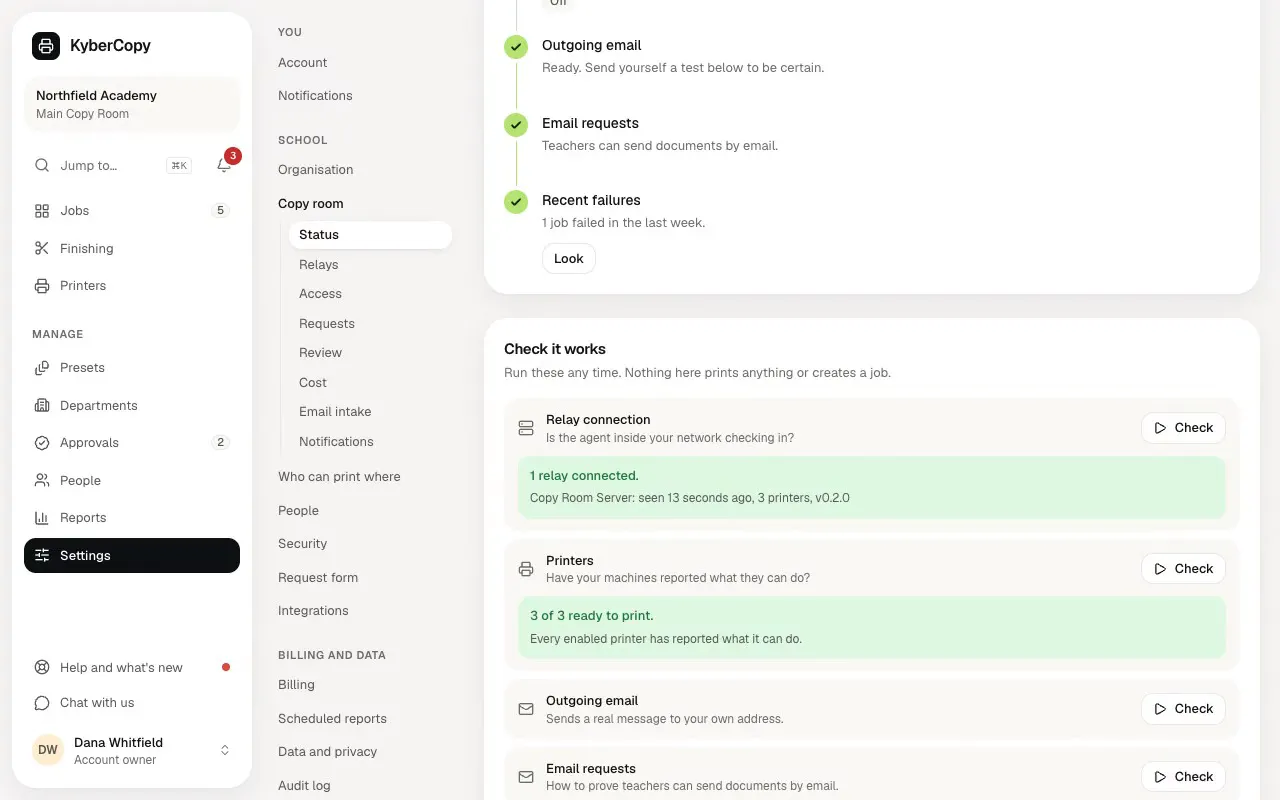
Under Check it works, each row has a Check button. “Run these any time. Nothing here prints anything or creates a job.” Relay connection names each relay that is checking in, how long ago it was seen, how many printers it serves and its version; a stopped one says when it was last seen and that the agent may have stopped.
Printers says how many of your printers are ready to print and names any that are not reporting, which usually means switched off or unplugged.
Three checks run in the demo school. None of them printed anything. Step 6: Send yourself the test email
Outgoing email's Check sends a real message, through the same sender teachers' emails use, to your own address, headed Your email is working. The result says who it was sent to.
Sent is not the same as arrived, so look in your inbox and your spam folder. If it only lands in spam, tell us: that is fixed on our side, not yours.
Step 7: Prove email requests with a real forward
Email requests' Check does not pretend to send anything. It gives your school's intake address and asks you to forward any email with a PDF attached: it should appear in the queue within a minute, with a reply saying what was read. If nothing arrives, the forward is not set up yet.
If email requests are switched off, it says so and asks you to turn them on first.
Read next
- Connect printers with the relayWhen Relay connected or Printers ready blocks: install, pair and keep the relay running.
- Set up email print requestsTurn on email intake and add the forward the email requests check asks for.
- Write print presetsGive teachers named choices so Print presets is ticked.
- Set up your school and request limitsName, logo and time zone, then what a request may ask for.
- Invite your staffAdd copy room staff and a second administrator.
- Network printer offline?The usual reasons a printer stops answering the relay, and how to tell which.
- Print job stuck in the queue?When the checks pass but a job still will not move.
- For ITWhat the relay needs from your network, and what it never asks for.
Follow this guide with us on the call.
On the demo call we work through the steps on this page in the demo school, with your printers' names and your staff's departments, and answer what the guide does not.
Book a demo