Guide · 5 steps
Set up email print requests.
Many teachers already email the copy room. Email intake turns those messages into requests in the queue, without taking over your mail: you forward one mailbox to an address KyberCopy owns, and removing the forward switches it off.
You will need
- The mailbox teachers already send to, such as copyroom@ your school
- Rights to add a forward on that mailbox
- Staff already added to KyberCopy, since only members can send
- An administrator account in KyberCopy
Step 1: Turn on email intake
In Copy room settings, on the Requests tab, turn on email requests. Keep the web portal on as well unless you mean to close the request form.
Optionally fill in Accept email only from with your school's domains, one per line, so mail from anywhere else is refused.
Step 2: Copy your intake address
The Email intake tab shows your copy room's own forwarding address with a Copy button. Teachers never see it; they keep sending to the address they know.
Email requests set up in the demo school, every step done. Step 3: Add one forward
In your mail system, add a forward from the copy room mailbox to the intake address. Keep a copy in the mailbox if you want a record on your side.
Your MX record is never changed, so nothing else on your domain is affected.
Step 4: Send a test from a teacher's address
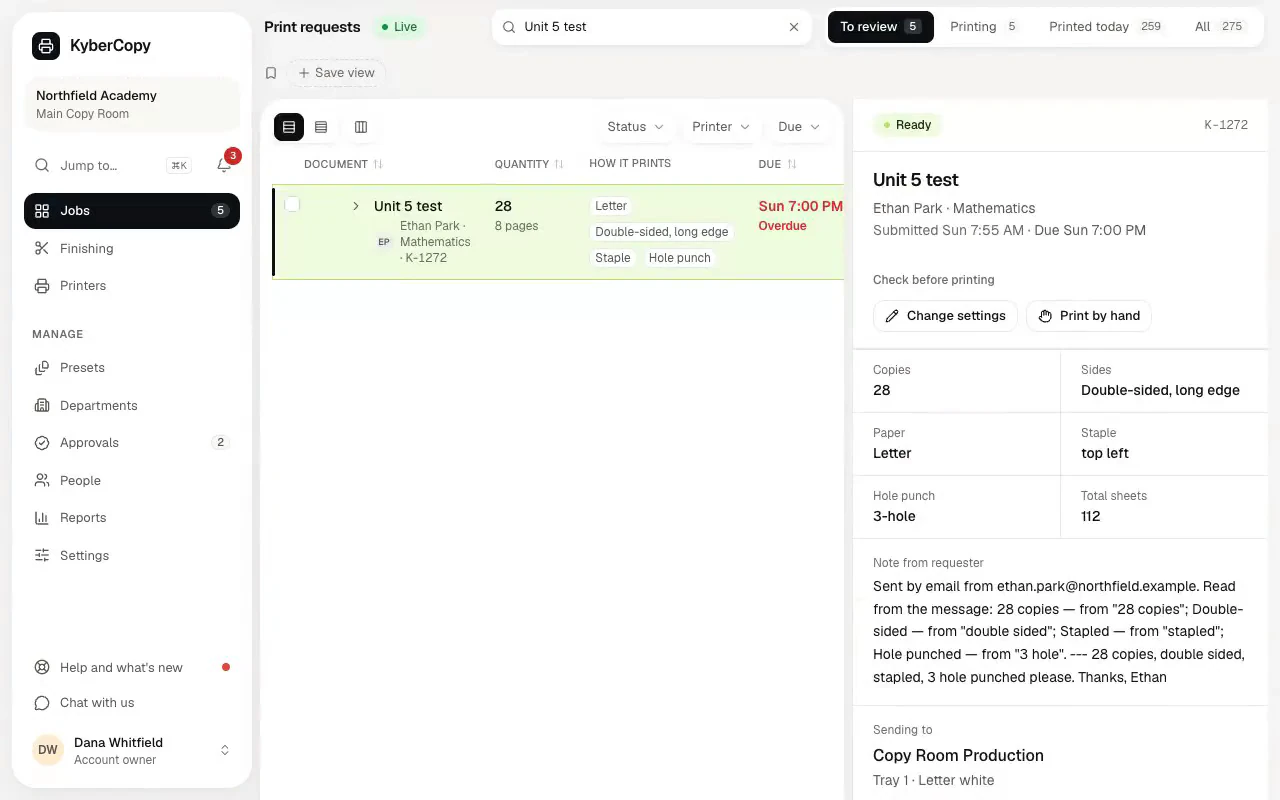
Send a document from an address that belongs to someone in KyberCopy, with plain instructions such as 28 copies, double sided, stapled. The last setup step ticks itself when the first email arrives.
The job lands in the queue with a note listing each setting that was read and the words it came from. A message from someone who is not a member is refused and the sender is told why.
A demo teacher's emailed request in the queue, with what was read and from which words. Step 5: Check what the teacher gets back
The sender gets a reply with the request number, the number of copies read and what else was understood, so a misread is caught before anything prints. With no copy count at all, the job is set to one copy and the reply says so.
The reply a demo teacher gets, listing what was read from the email.
Read next
Follow this guide with us on the call.
On the demo call we work through the steps on this page in the demo school, with your printers' names and your staff's departments, and answer what the guide does not.
Book a demo