Guide · 7 steps
Approve or decline your department's print requests.
If you hold a department's print budget, some of its requests stop and wait for you before the copy room sees them. This guide covers your side: where those requests come from, how to read what each one costs against what is left, how to decide one or a dozen at once, and what the teacher is told.
You will need
- A KyberCopy account in your school, named as a department's budget holder on the Departments page
- The department's budget for the period, if you want to see what is left
- A few minutes on the days requests arrive; nothing prints until you decide
Step 1: Know which requests wait for you
An administrator names one budget holder per department and, if they like, a figure on Only hold requests over. A request from your department that costs more than that figure waits for you; with no figure, every request from the department waits.
Your own requests never wait for you. A request whose cost cannot be worked out waits, because unknown is not the same as cheap. Departments with nobody named never hold anything.
Art's budget holder and hold limit in the demo school. Step 2: Open the request from the email or the bell
When a request is held you get an email whose subject starts Approval needed:, naming the teacher, the department, about how many sheets and the estimated cost. Approve or decline opens the Approvals page in your school's KyberCopy.
Inside KyberCopy the bell says how many requests are waiting for your approval, and for administrators Approvals in the side rail carries the same count. Approvals shows only your departments' requests; an administrator or owner sees every department's, so a request is never stuck while you are away.
The email a demo school budget holder gets when a request waits on her. Step 3: Read the cost against what is left
Each card gives the title, reference, who sent it and when, then copies, pages, sheets, colour and the needed-by date. On the right is the cost, with how much the department has left after this or, in red, how far it would go over.
The bar underneath shows the same three figures as lengths: spent so far, this request, and what would be left. Spent counts finished work since the department's budget period started, or since 1 January when no start date is set.
Two Art requests waiting in the demo school, both over budget. Step 4: Approve, and it goes to the copy room
Approve sends the request to the copy room's queue, where it is checked and printed like any other. Your yes says the department can pay for it; the copy room still decides when and on which printer.
The card closes and the next one moves up into its place with the focus on it, so a run of approvals can be done from the keyboard.
Step 5: Decide several at once, and watch the total
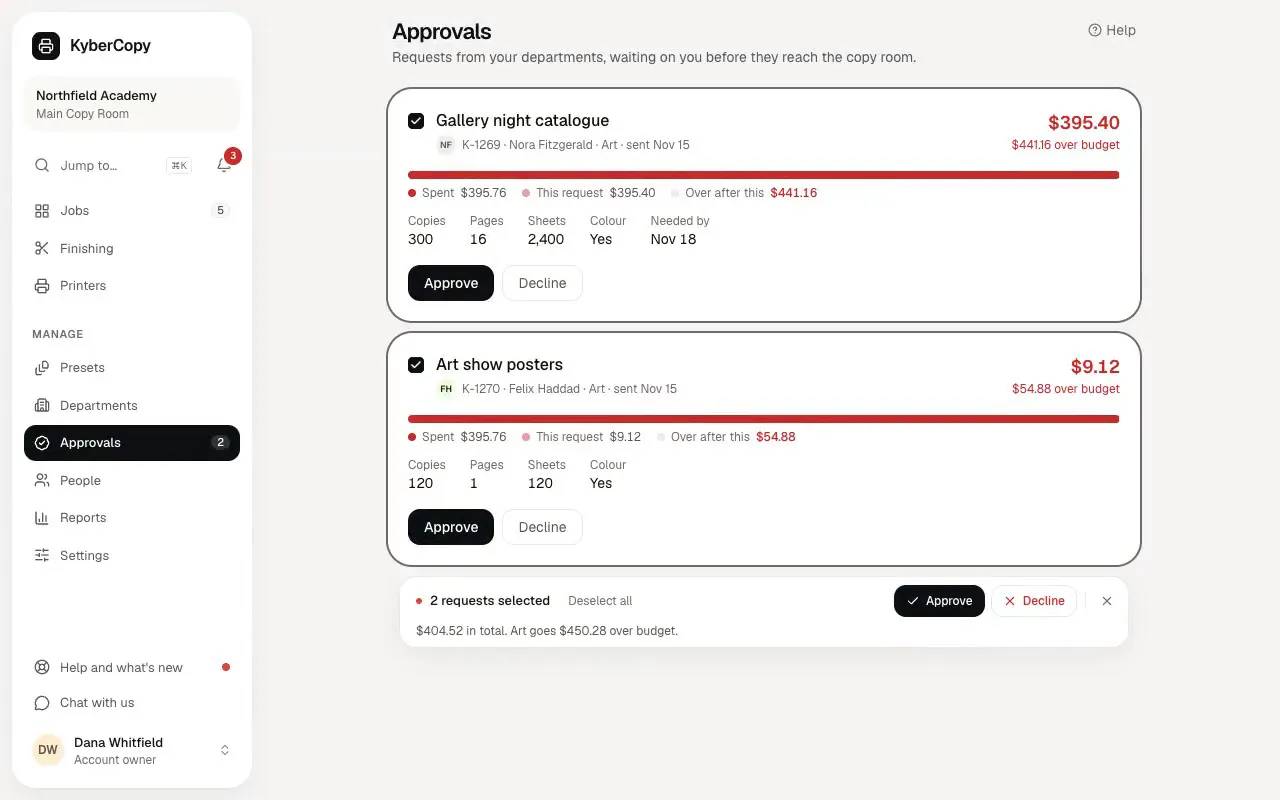
Tick the box on each card, or Select all, then Approve or Decline once. Before you press, the tray adds up the ticked requests and names any department they would take over budget together, even when each one fits alone.
The requests are decided one after another, top to bottom. If one was already decided by someone else, it stays ticked and on screen, and the line under the tray says how many were refused.
Two requests ticked in the demo school; the tray adds them up before anything is sent. Step 6: Decline with a reason the teacher will read
Decline opens a box asking why not; the teacher sees what you write. Declining several at once asks for one reason, and every teacher in the batch reads it. A reason is not required, but a no without one usually turns into a corridor conversation.
A declined request is cancelled, not paused: nothing prints. The teacher gets an email whose subject starts Not approved:, with your reason, and their request page says Not approved. To print a smaller version, they send a new request.
What the demo teacher reads when the budget holder says no, reason included. Step 7: Check what was decided
Decided recently, under the waiting requests, lists the last fourteen days of approvals and declines for your departments: who decided, for whom, when, and the reason given. It is where to look when a teacher asks whether you saw their request.
The teacher hears either way: an approval sends them an email whose subject starts Approved:, saying the request has gone to the copy room.
Read next
- Set department budgets and approvalsFor the administrator: rates, budgets, budget holders and hold limits.
- Print approvalsHow approval works across the school, on one page.
- Department budgetsThe budget each card is measured against, and the 80% and 100% emails.
- Bill printing back to departmentsWhere approved and printed work ends up: the monthly chargeback.
- School print budget templatePlan the department's budget for the year in a spreadsheet.
- Print approval formThe same decision on paper, for jobs or schools not yet in KyberCopy.
- Printing cost per pageWhere the cost on each card comes from.
Follow this guide with us on the call.
On the demo call we work through the steps on this page in the demo school, with your printers' names and your staff's departments, and answer what the guide does not.
Book a demo