Guide · 8 steps
Control who can print where, from every channel.
Most schools want nearly everyone's work to go to the copy room and copy room staff to print it, with a few people allowed a printer of their own. This guide sets that up on Who can print where: a group for the copy room's machines, where everyone may send, which channels always wait for staff, exceptions, and a check before saving. Then it shows the copy room choosing which machine prints each job.
You will need
- An administrator or owner account, to change the rules
- The school's printers already added to KyberCopy
- A copy room staff account, to print what waits
Step 1: Know what happens before you turn rules on
Open Settings, Who can print where. Only administrators and the account owner see it.
Until Use printer rules is switched on and saved, nothing changes: "Off: everyone may send to every printer from every channel, as before. Set things up below, then turn this on." Every school starts that way, so you can build the rules first.
Step 2: Make the Copy room group
A group is printers in one place. People send to the group; copy room staff choose the machine. Choose Add a group; the first one is named Copy room for you. Tick its printers, such as the copy room's large machine and its smaller one.
Then, under Everyone, tick the Copy room group: "Where anyone at the school may send work. Usually just the copy room."
The demo school's Copy room group: two machines, one place to send work. Step 3: Make Claude and Slack always wait for the copy room
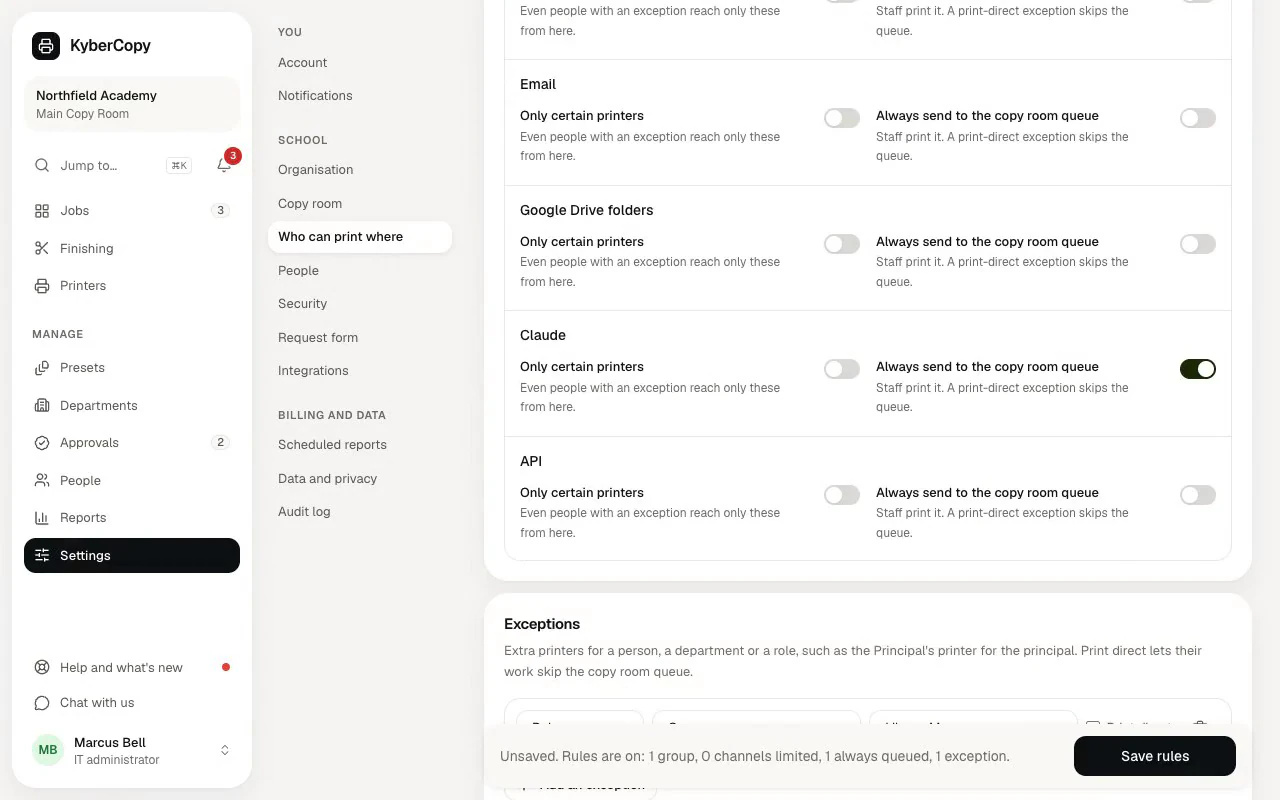
Under Channels, each way of sending work has two switches: the KyberCopy website, Email, Google Drive folders, Claude, Slack and the API.
Turn on Always send to the copy room queue for Claude and for Slack. Work from them is never printed by itself; staff print it. Only certain printers narrows a channel further: "Even people with an exception reach only these from here."
Claude and Slack set to always wait for the copy room in the demo school. Step 4: Add an exception with Print direct
Choose Add an exception and pick a person, a department or a role, and the extra printer or group they may also use, such as the Principal's printer for the principal.
Tick Print direct and their work skips the copy room queue, even from a channel that always queues.
An exception in the demo school: owners may also use Library Mono, and print there directly. Step 5: Check a person before saving
Pick anyone under Check a person to see what they could send to from each channel "with the rules on this page, saved or not". A printer that waits says "(waits for the copy room)".
Check a person in the demo school, read from the rules on the page before they are saved. Step 6: Turn the rules on and save
Switch on Use printer rules and choose Save rules. Saving is refused, with the reason, if everyone would have nowhere to print, or if a Google Drive print folder would stop printing to its printer; add an exception for the folder's owner first. Every save is in the audit log.
From then on KyberCopy's server checks every job, from every channel. A printer someone may not use is left out of their lists, and a job sent to one anyway is refused with one sentence: "Your school has not given you that printer. Send it to the copy room, or ask your KyberCopy admin."
Step 7: In the copy room, choose the machine with Print on
A job whose printer is in a group shows Print on, with each machine in the group and how it is doing: Ready, jobs ahead, Offline or Waiting for relay. One is marked suggested: never a machine that is down or cannot do the job; a job with finishing, colour or 100 sheets or more goes to the most capable machine; otherwise the one with the fewest jobs ahead.
Pick the other machine and press Print to move the job there. Its settings are checked again on the new machine and the sender's printer rules are checked again; Change settings offers the same printer choice.
Print on in the demo school: both copy room machines, how busy each is, and the suggested one. Step 8: If a job fails, use Try on
A failed job offers Try on the other machine, which moves it and prints it again in one step. The job history says where it went, and the teacher sees which machine it is printing on or printed on.
Read next
- Who can print where in the help centreThe short version, every switch and what saving refuses. (help centre, opens in a new tab)
- Work the copy room queueThe rest of the copy room's day, from the tabs to the pickup shelf.
- Print from ClaudeHow staff send work from Claude, which these rules can hold for the copy room.
- Print from a Google Drive folderDrive folders, and why saving checks they keep printing.
- For ITPrinters, the relay and who may reach each one.
- Printer usage policyWrite down the rules these settings hold, and the ones they cannot, for staff to read.
Follow this guide with us on the call.
On the demo call we work through the steps on this page in the demo school, with your printers' names and your staff's departments, and answer what the guide does not.
Book a demo