Guide · 6 steps
Work the copy room queue.
This is the copy room's side of every request, from the moment it arrives to the moment a teacher collects it. Each step is one thing the person at the machine does.
You will need
- A copy room staff account in KyberCopy
- At least one connected printer
Step 1: Open the queue and pick a tab
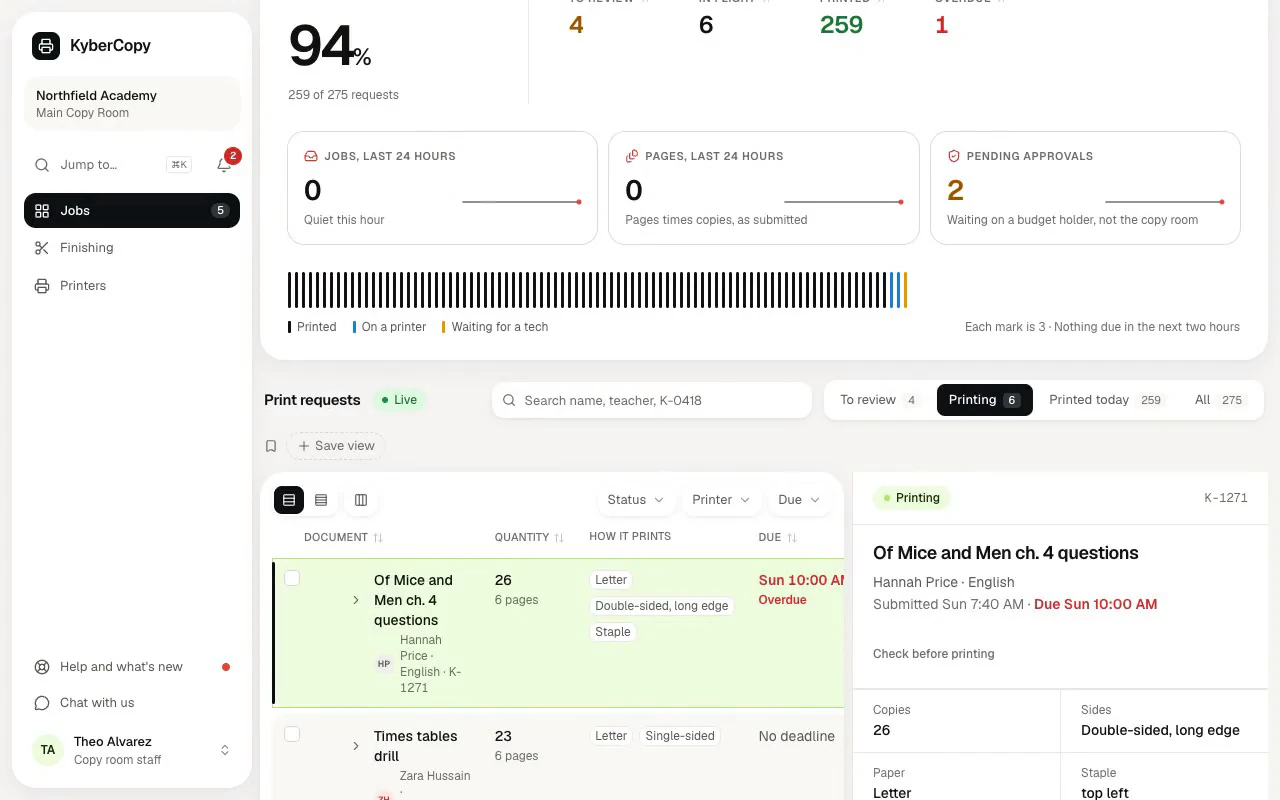
The Jobs page is the queue. To review holds work waiting on a person, Printing is everything in flight, Printed today is finished work and All is everything, failed jobs included.
Jobs waiting on a budget holder are not here yet; they reach the queue once approved.
The queue in the demo school. Urgent and overdue work sits first. Step 2: Work top to bottom
The queue already sorts urgent first, then by the time each job is needed. Search takes a teacher's name, part of a document name or a request number.
Step 3: Check the job, then print
Open a job to see its settings, any note from the teacher and the tray it will use; if that tray is below a quarter full, a warning says so before a long run. Press Print, or the P key.
When a teacher meant 35 and typed 350, change the settings before printing. On a large job, print one copy to check first.
Step 4: Hold a job with a reason
If something needs asking, hold the job and say why. The teacher sees the reason on their own list, and you release it when the question is answered.
Step 5: Finish by hand from the board
Laminating, binding and cutting wait on the finishing board. Press Start when you pick one up and Done when it is finished; the teacher is not told the job is ready until the last step is done.
The finishing board in the demo school. Step 6: Shelf it and mark it picked up
Print a cover sheet, put the copies on a numbered shelf and the teacher's list says which shelf. Mark the job picked up when it leaves the room.
What a teacher in the demo school sees once a job is on its shelf.
Read next
- For copy roomsThe queue, the printers and the day summary.
- Check print jobs before printingWhich jobs wait for a person, the sheet limit and a single test copy before a long run.
- Track laminating and binding requestsThe finishing board in full: stations, Start and Done, and when the teacher is told.
- For teachersWhat the teacher sees while you work their job.
- Working the queue in the help centreEvery button on the Jobs page, including bulk actions. (help centre, opens in a new tab)
- Printing job ticketThe paper version of this page: a ticket per job, from intake to pickup, and a log.
- Exam week copy planHow to plan the queue for exam week, three weeks out to the day.
- Toner inventory templatePart numbers and reorder points for the supplies the queue runs on.
- Printer maintenance checklistWhat to check each day and what to note before a service call.
- How to print a bookletChecking a booklet job before it runs: page count in fours and the short edge flip.
- How to print on 11x17 paperWhich printer has the tabloid tray, before an 11x17 job reaches the wrong one.
- Printer not printing double sided?What to check when a double-sided job in the queue comes out one sided.
- Stapled and 3-hole punched copiesWhere the staple and holes go, and why a copier sometimes skips them.
Follow this guide with us on the call.
On the demo call we work through the steps on this page in the demo school, with your printers' names and your staff's departments, and answer what the guide does not.
Book a demo