Guide · 8 steps
Track laminating, binding and cutting from request to shelf.
Laminating, binding and cutting happen after the printer, often at another machine and by another person. That is where requests get lost: a phone call nobody wrote down, a job sent back to the teacher still waiting at the laminator. This guide covers how those requests come in, how the person at the laminator or binding bench works them, and when the teacher is told.
You will need
- A copy room staff account, to work the Finishing page
- An administrator account, to check the setting
- The hand services your copy room offers, such as laminating
Step 1: Check hand finishing is switched on
In Copy room settings, on the Requests tab, Track hand-finishing steps is on by default: "Lamination, binding and cutting appear as queue steps after printing."
No printer is ever sent this work. It is tracked beside the print job so the queue says truthfully what is ready and what is not.
Step 2: Know what each service says
Each hand service has a name, the station where the work happens, and a unit it is counted in: per sheet, per document or per job. It can also carry a turnaround and the most one request may ask for.
The demo school offers three: Laminating at the Laminating area, per sheet; Comb binding at the Binding bench, per document; and Cutting at the Binding bench, per job. Laminating and comb binding ask the teacher to allow a day.
Step 3: Let teachers ask on the request form
Below the copy count, the form asks "Anything done by hand?": "Done by copy room staff after printing. Leave blank if you just need copies." The teacher ticks a service, says how many and can add a detail such as "Just the cover page".
A per-sheet service starts at the copy count, others at one. A service with a day's turnaround shows "allow 1 day" beside its name, and a request at the limit is told "is the most the copy room can take at once. Ask them if you need more." Prices show only in a school that charges back, with "Finishing adds about" the total.
Finishing, a note and urgent, at the bottom of the demo school's form. Step 4: Catch the ones that arrive by email
A teacher who emails "please laminate the cover" is not ignored and not guessed at. Laminating, binding, folding, trimming or delivery in an email puts the job on hold with a note starting "COULD NOT DO:" and the words it found, so a person reads it before anything prints.
Whoever releases it can ask the teacher, or point them at the form next time so the step is recorded.
Step 5: Work from the Finishing page
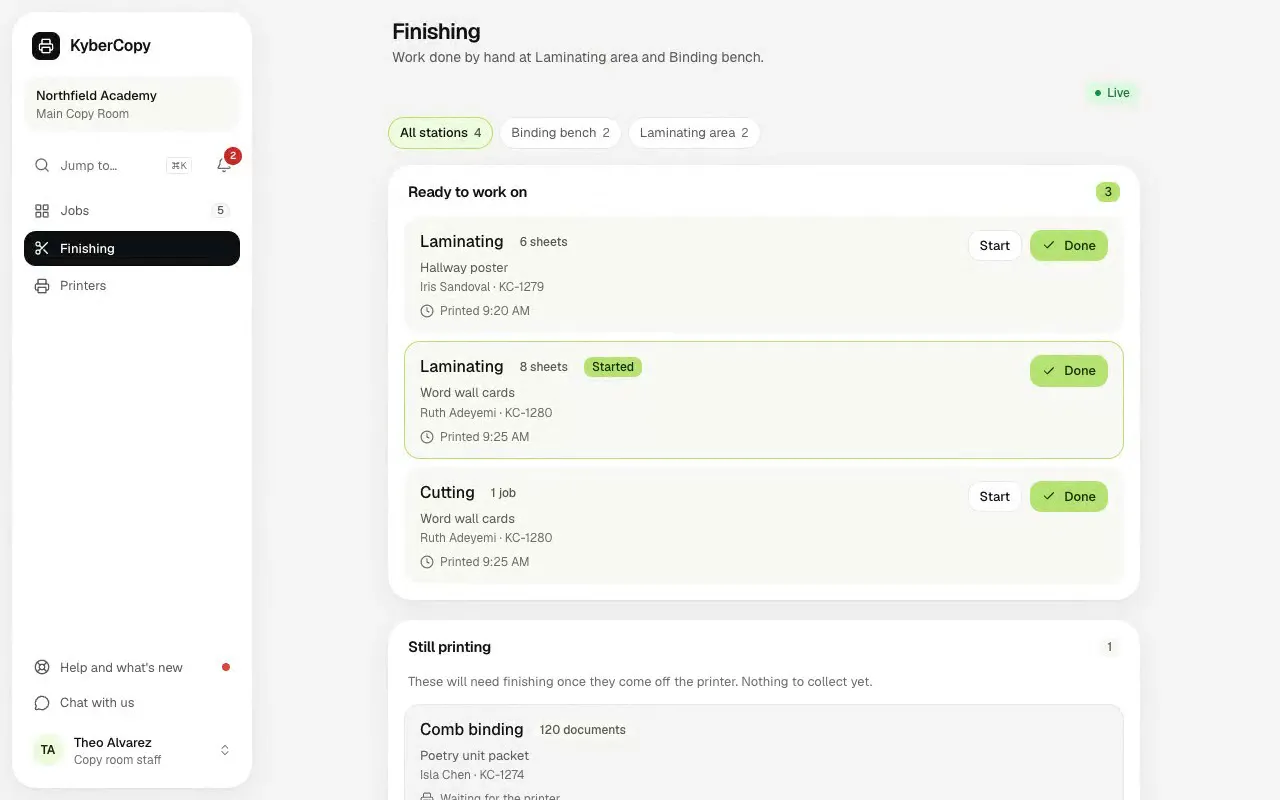
Finishing in the side navigation is the station board, for copy room staff and administrators. Each step shows the service, how many, the job, the teacher and the request number, and any detail the teacher wrote.
Ready to work on comes first: printed and physically waiting. Still printing follows, with "These will need finishing once they come off the printer. Nothing to collect yet." A step due within a day, or already late, is marked Urgent.
The demo school's finishing board: printed work first, then what is still at the printer. Step 6: Give each station its own screen
When work is waiting at more than one station, chips across the top show each one with its count. Choose Laminating area and the board shows only laminating; the choice is kept in the page address, so a screen bookmarked to it opens there after a reload or a power cut.
The board refreshes itself every thirty seconds, stops while the tab is hidden and says Live while it is up to date. Drag it down to refresh at once.
One station in the demo school, the view a laminator's screen keeps. Step 7: Press Start, then Done
Press Start when you pick a step up, so others see it marked Started. Press Done when it is finished and it leaves the board at once.
Pressed Done by mistake? Undo is offered for eight seconds and puts the step back as it was. A refresh never moves the list while a button is being pressed.
Step 8: Tell the teacher only when it is all done
A job with a hand step is not ready when it comes off the printer. The teacher is told it is printed only once every hand step on it is Done, so nobody walks down for copies still at the laminator.
If the last Done is undone, the step goes back on the board, but the teacher has already been told; the message says so: "The teacher was told it is ready. Undo puts it back on the board only."
Read next
- Work the copy room queueThe rest of the copy room's day, from the tabs to the pickup shelf.
- How to run a school copy roomWhere finishing fits among the eight steps of a copy room.
- For copy roomsThe queue, the finishing board and pickup shelves together.
- Send a print requestThe teacher's side of the form, hand finishing included.
- Hand finishing in the glossaryWhat counts as hand finishing, and the words around it.
- Finishing steps in the help centreThe short version of how hand services are asked for and tracked. (help centre, opens in a new tab)
- The station board in the help centreEvery part of the Finishing page, for a wall display. (help centre, opens in a new tab)
- Copy request form for teachersA paper form with a place for laminating and binding, for schools not on KyberCopy yet.
Follow this guide with us on the call.
On the demo call we work through the steps on this page in the demo school, with your printers' names and your staff's departments, and answer what the guide does not.
Book a demo