Guide · 6 steps
Filter the queue, save the view, and print a batch at once.
The queue guide covers one job at a time. This one is for the busy morning: the copy room tech who works the overdue jobs first, keeps the colour printer's work in its own list, and prints five worksheets with one press. Everything here changes what you see, never the job, until you press Print, Hold or Cancel.
You will need
- A copy room staff account in KyberCopy
- A desk or laptop screen for the selection basket and the layout buttons; a phone gets its own tray
Step 1: Narrow the list with Status, Printer and Due
Above the list sit three filters. Status offers the states in the tab you are on, such as Ready and On hold; Printer names each printer, and No printer yet for a job not given one; Due sorts work into Overdue, Due within two hours, Due later and No deadline. Each one lists only what is in the list now, with how many jobs each would show.
A filter in use shows a red dot and its count. Clear takes every filter off at once, and on a desk it also says how many jobs the filters are hiding, such as Clear · 3 hidden. The filters ride in the page address, so a refresh, the back button or a link pasted to the next shift opens the same list.
The demo school's queue cut to overdue work, saved as a view. Step 2: Save the view you come back to
Once a tab, a search or a filter is set, Save view appears after the tabs. Give it a name, such as Overdue first or Colour today, and it becomes a pill; one press puts the tab, search and filters back together. Saving the same view again renames it rather than adding a second pill.
You can keep eight views. Removing one offers Undo. Views are kept for you, in this browser, so two techs who share a copy room computer each keep their own, and they do not follow you to another machine.
Step 3: Fit more rows, and hide the columns you never read
On a desk, the two buttons at the left of the toolbar switch between Comfortable and Compact rows. Compact puts each job on one line, so a busy morning fits on one screen; Comfortable lets each title and its finishing chips wrap.
Columns turns off Quantity, How it prints or Due. Document and Status are marked Always and cannot be hidden, because a row without the job's name or its state cannot be acted on safely. A sort on a column you hide is dropped. Both choices are kept for you in this browser.
Step 4: Tick a batch, then read the basket before pressing
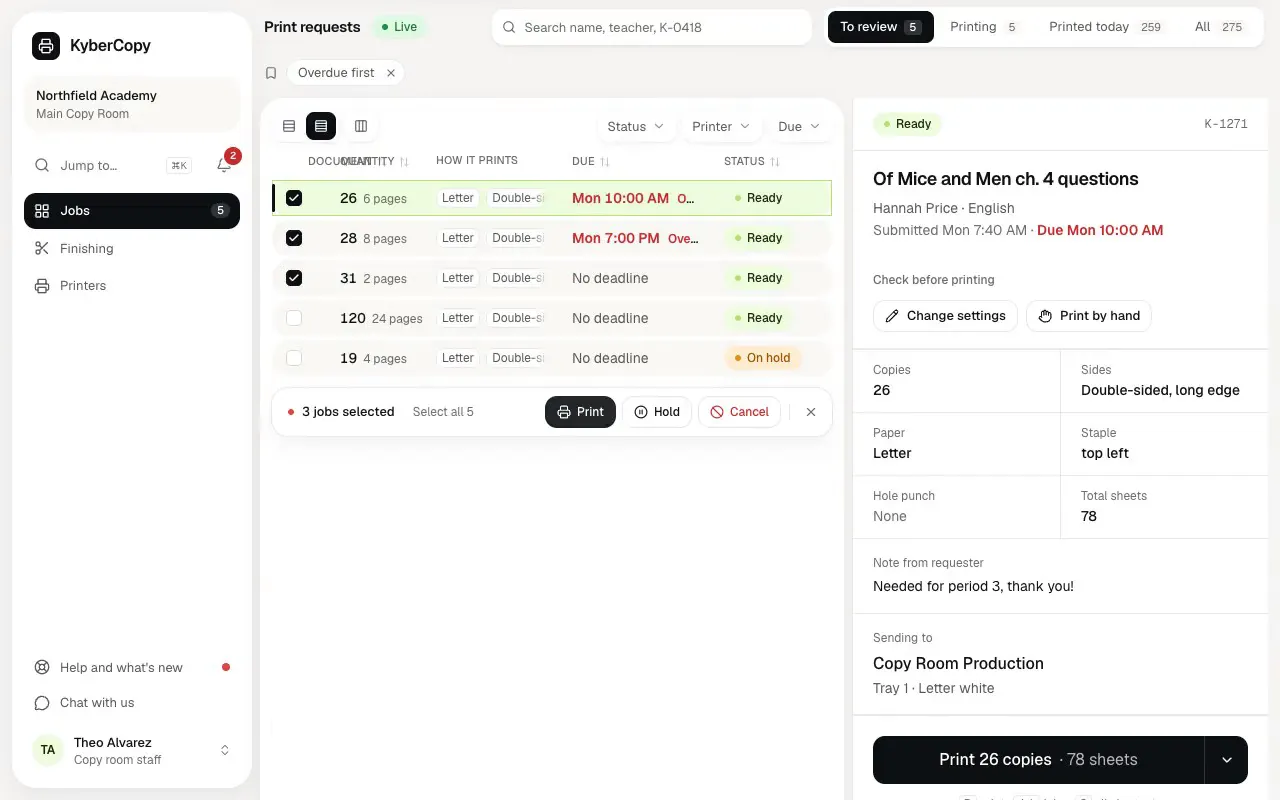
Each row has a tick box. On a desk the selection basket rises under the list, saying how many jobs are selected, with Select all for the list on screen, then Print, Hold and Cancel. A phone gets a tray with the same three buttons.
A batch only touches the jobs each action applies to: Print takes Ready and On hold jobs, Hold takes Ready ones, and Cancel takes Ready, On hold and Failed ones. When that differs from the number ticked, the button says so, such as Print 3 beside 4 jobs selected. Ticks the filters are hiding are named too, and Esc clears the selection.
Three jobs ticked in the demo school, in Compact rows. Step 5: Know which batch actions can be undone
Hold and Cancel on a batch offer Undo: Undo takes held jobs off hold again, and puts cancelled jobs back where they were. Print offers no Undo, because a released job can be on a printer within seconds; stopping a run is done from the job itself.
Cancel asks first. The box says how many jobs it will really cancel, such as Cancel 3 jobs?, with Keep them beside a slider, Slide to cancel them, so a slip of the mouse cannot cancel a morning's work.
Step 6: Work the queue from the keyboard
Press ? anywhere in KyberCopy, or choose Keyboard shortcuts from your name's menu, for the full list. In the queue, the up and down arrows move between requests, P prints the selected one, / jumps to search and Esc clears and leaves it. Command K, or Ctrl K on Windows, opens the jump menu to find a job, a printer or a person by name.
Shortcuts pause while you are typing in a field, so a P in a file name or a note stays a letter. P only prints a job that is Ready or On hold, and it leaves Command P to the browser's own print dialog.
The shortcuts sheet in the demo school, opened with ?.
Read next
- Work the copy room queueOne job at a time: the tabs, checking a job, holding with a reason and the pickup shelf.
- Check print jobs before printingWhich jobs wait for a person before any batch can print them.
- For copy roomsThe queue, the printers and the day summary.
- Print job stuck in the queue?When a printed batch does not come out: Printing, Failed and Try again.
- Printing job ticketThe paper version of a job, from intake to pickup.
- Run the copy room from a phoneAway from the desk: queue cards, the job sheet and the thumb tray for a batch.
Follow this guide with us on the call.
On the demo call we work through the steps on this page in the demo school, with your printers' names and your staff's departments, and answer what the guide does not.
Book a demo