Guide · 7 steps
Check print jobs before they print.
Most copy room mistakes are cheap to catch and expensive to print: 350 copies typed for 35, a test stapled on the wrong edge, a scan with a sideways page. This guide sets the rule for which jobs wait for a person, then walks the checks that person makes before pressing Print.
You will need
- An administrator account, to set the review rule
- A copy room staff account, to check and release jobs
- At least one connected printer
Step 1: Choose which jobs wait for review
In Copy room settings, on the Review tab, answer When should jobs wait for review? Always means every job waits for a tech. By preset means only presets marked to skip review go straight through. Never sends every job straight to the printer queue.
By preset is where a new school starts, and it suits most: a one-page worksheet does not need a look, a test packet does.
The demo school's review rule: by preset, and anything over 500 sheets waits. Step 2: Keep a sheet limit, whatever the rule
Always review jobs over a number of sheets holds a large job for a person even when the rule above would let it through. It starts at 500 sheets, so a mistyped 5,000 copies never goes straight to a machine.
A job whose pages could not be counted is treated as over the limit and waits too, so an odd file cannot slip past it.
Step 3: Mark the presets that can skip review
On the Presets page, open a preset and tick Skip copy room review. It only takes effect when the rule is By preset, and the sheet limit still applies.
The presets list shows Skips review beside each one that does, so the copy room can see the rule at a glance.
Step 4: Let teachers see what will happen
Before a teacher sends, the request form says which way the job will go: "Goes straight to the copy room's print queue." or "Will wait for the copy room to review it before printing."
A teacher who knows a job will wait can leave more time for it, and nobody is surprised by a hold.
Step 5: Open the job and look at the pages
In the queue, open a job waiting on the To review tab. Under Check before printing, each document is listed with its first pages side by side, and View opens any page without leaving the queue. A sideways or blank page shows here before paper is spent on it.
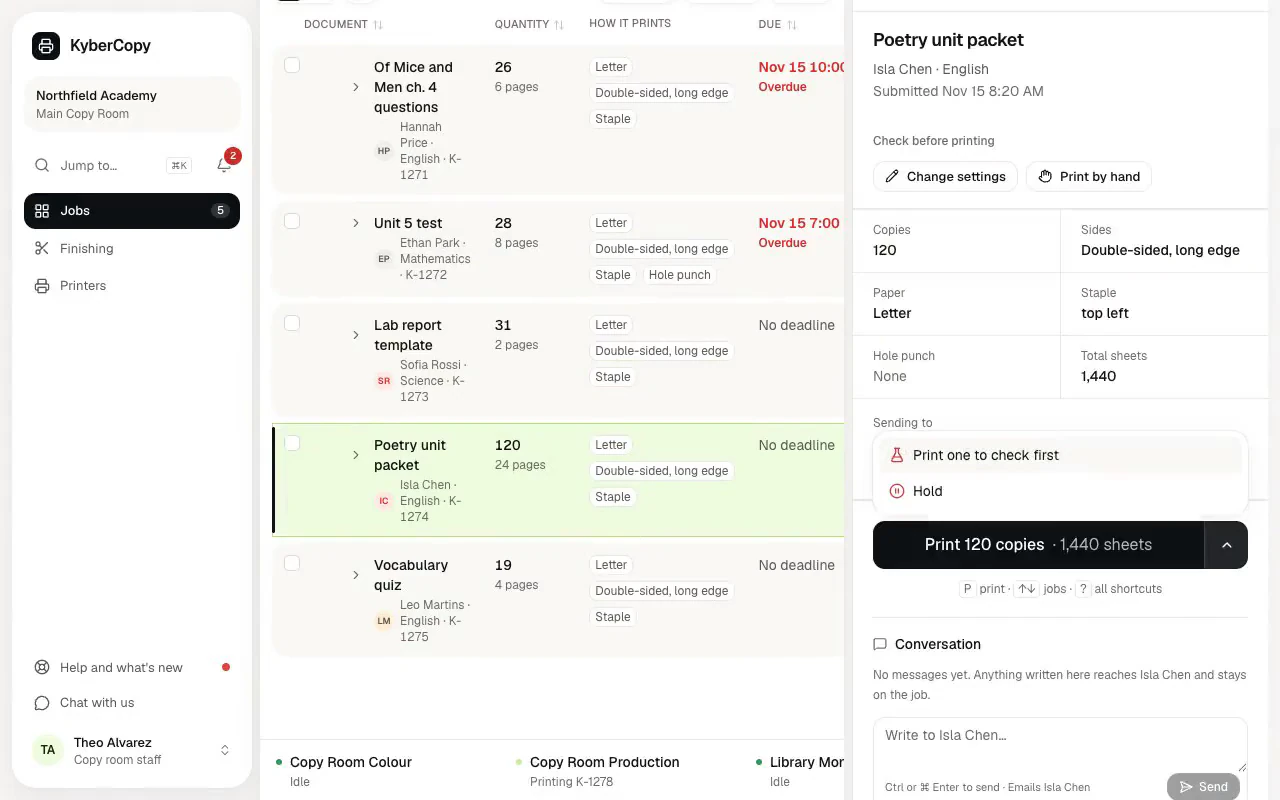
Read the copies, sides, paper, staple and total sheets against the note from the teacher. If the paper tray is below a quarter full, a warning says so before a long run.
Step 6: Print one copy to check first
On a job of 20 sheets or more, the menu beside Print offers Print one to check first. One copy goes to the printer; when it comes out, the job goes back on hold with "Test copy printed. Check it, then press Print for the full run."
Check the staple landed where it should and the holes miss the text, then press Print for the rest. The job shows when it was last checked.
A 1,440-sheet job in the demo school, one click from a single test copy. Step 7: Fix it, hold it or take it by hand
Change settings corrects copies, sides, colour or staple without sending the job back, when Techs may change settings before releasing is ticked; administrators can always change them. Every change goes in the job's history.
When something needs asking, Hold the job and say why; the teacher sees the reason. Print by hand takes a job off automatic printing for card stock or anything you want to watch, and Mark printed records the sheets used.
Read next
- Work the copy room queueThe rest of the day in the queue, from the tabs to the pickup shelf.
- Write print presetsThe presets that decide what skips review, written and checked against every printer.
- Working the queue in the help centreEvery button on a job, including Check before printing and bulk actions. (help centre, opens in a new tab)
- For copy roomsThe queue, the finishing board and the day summary.
- Copy room policy templateWrite down which jobs wait for a check and how much notice they need.
- Printer not printing double sided?What to look for when the test copy comes out one sided.
- Stapled and 3-hole punched copiesWhere the staple and holes should land on the copy you check.
Follow this guide with us on the call.
On the demo call we work through the steps on this page in the demo school, with your printers' names and your staff's departments, and answer what the guide does not.
Book a demo