Guide · 7 steps
Read a printer's week: uptime, faults and what is loaded.
The printer card says what a machine can do. The question a copy room brings to one printer is different: is it well, has it been well this week, what is loaded in it and who last heard from it. Every printer has a Details sheet that answers those in that order. This guide reads one, section by section, with the demo school's machines.
You will need
- Any account in the school can open a printer's Details; Recent jobs is shown to the copy room and above
- A relay connected, so the printers are checked and their health is recorded
Step 1: Open Details on the printer
On Printers, each card has Test, Details and a Configure button. Press Details and the sheet opens from the right, named after the printer and where it is. On a phone the button shows only its icon. A printer found in the jump menu, Command K or Ctrl K on Windows, opens straight into the same sheet.
The sheet only reads. Address, trays and the relay are changed on the card under Configure, so there is one place to change each thing.
A printer card in the demo school, with Details beside Test. Step 2: Read Status first
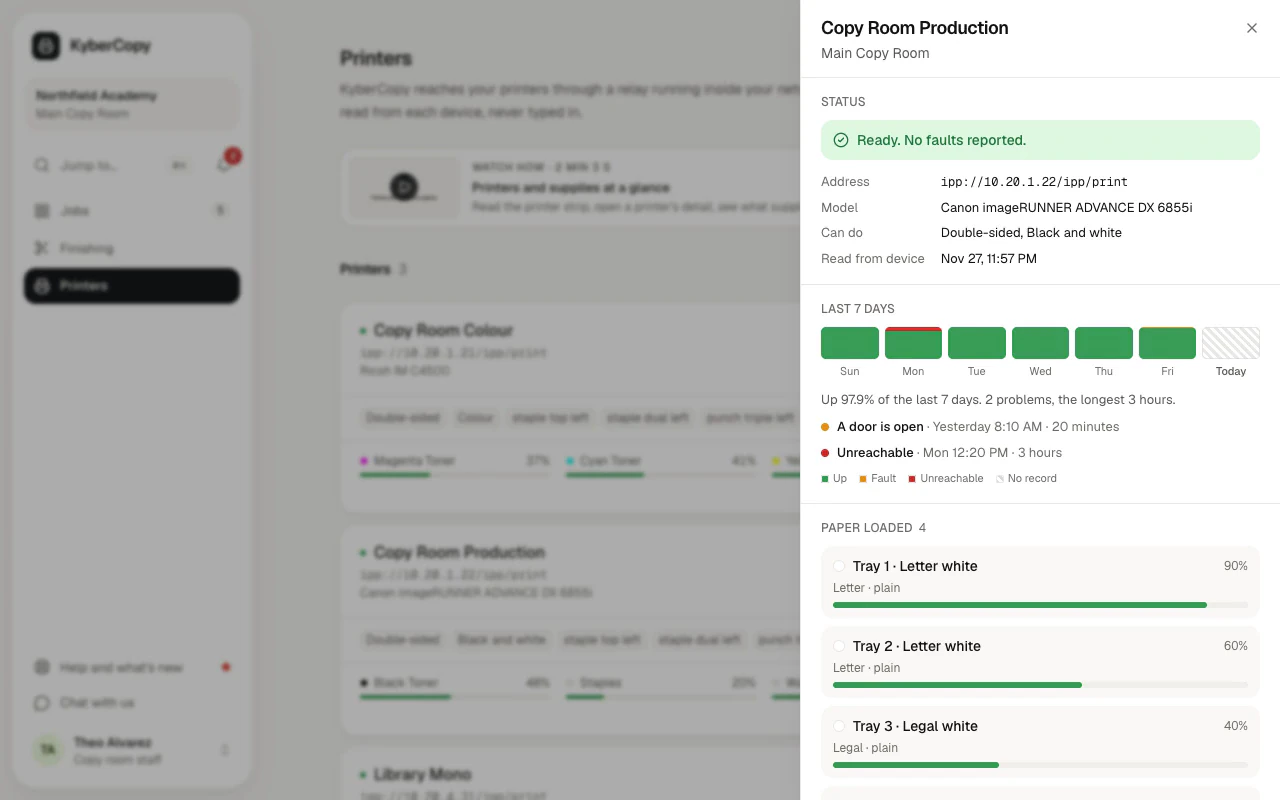
Status is one line, coloured and in words. Ready. No faults reported. means the printer is well. A fault the printer reports itself is named, such as Toner low or Paper jam; a printer the relay cannot reach says so, with what to check. Waiting for a relay to read this printer means it cannot accept jobs yet, and Disabled. Takes no new jobs. wins over everything else.
Under the line sit the address, the model, what it can do, such as Double-sided, Black and white, and when the relay last read that from the device.
Step 3: Read the last 7 days
Last 7 days draws one column per day on the school's clock, today on the right. Each column is split by how long the printer spent in each state, worst at the top: red for Unreachable, amber for Fault, green for Up. A twenty minute door left open is a sliver on a green day, not a red day. Time with no record, such as before the printer was added or later today, is hatched and never counted as up.
Under the columns, one line sums the week, such as Up 98.1% of the last 7 days. 2 problems, the longest 3 hours. The three newest problems follow, each with what it was, when it started and how long it lasted, or how long so far if it is still going on; older ones are counted. Each day is also one sentence for a screen reader, such as Mon Nov 23: unreachable for 3 hours.
The demo school's production copier: one week, two problems, four trays. Step 4: Know what counts as a fault
The relay checks each printer and reports how it is. Not answering is Unreachable. Answering with a reason it cannot go on, such as a jam, an open door or no paper, is a Fault, and so is a stopped printer that gives no reason. Warnings that still print, such as toner low, paper low or a waste bottle nearly full, do not count, so a printer that needs toner next week still has a green week.
A row is only written when the health changes, or when one fault turns into another, such as a jam turning into an open door. That is why the strip shows how long each problem lasted rather than a dot per check.
The demo school's library printer: toner low now, out of paper once this week. Step 5: Check the paper and the supplies
Paper loaded lists each tray as it was recorded on the card: its label, size, type and level, with a bar. A tray under 25 percent reads low, the same rule the job pane uses. No trays recorded says jobs cannot be routed by paper colour or type until someone records them.
Supplies lists every part the printer reports, such as toner, staples and the waste bottle, with its level and when it was read, and links to All supplies. A printer that reports none says to check it by hand.
Step 6: See its recent jobs and its relay
Recent jobs lists the last 20 jobs sent to this printer, newest first, each with its number, who asked, when, sheets and status; each opens the job in the queue. Only the copy room and above see it. A teacher sees Only the copy room can see who printed here., because a teacher cannot read colleagues' requests.
Relay names the relay that reaches this printer, whether it is online, when it last heard from it, how many of its printers it reaches and the computer it runs on. A printer with no relay says nothing can reach it and to pick one under Configure.
Step 7: Know how long the history is kept
The sheet shows seven days. The record behind it is kept for 90 days, then the nightly sweep removes older rows. KyberCopy does not print an uptime report and does not send the week to the service company; it shows you the week so you can.
Administrators and owners are also emailed when a printer reports itself out of toner, out of paper, jammed or with a door open, or cannot be reached for 20 minutes, and printer faults head the list under the bell, as the toner guide explains.
Read next
- Check printer toner levelsEvery printer's toner, staples and waste bottle on one page, and which alerts are emailed.
- Connect printers with the relayThe relay that checks each printer and records its health.
- Network printer offline?When the strip turns red: the usual reasons a printer stops answering.
- Printer troubleshooting checklistWhat to check, in order, when a printer stops, and a fault log for the service call.
- Printer repair formReport a fault the copy room cannot fix and follow the service visit.
- For copy roomsThe queue, the printers and the day summary.
- Fix a failed print jobWhen a job stops on that printer: the reason, Try again and what the teacher is told.
Follow this guide with us on the call.
On the demo call we work through the steps on this page in the demo school, with your printers' names and your staff's departments, and answer what the guide does not.
Book a demo