Guide · 8 steps
Fix a failed print job and get it printed.
Sooner or later a printer jams or drops off the network halfway through a job. KyberCopy does not hide that or quietly send the job again: the job moves to Failed with the reason, the teacher is told, and it waits for someone in the copy room to decide. This guide is for that person, from finding the failed jobs to the copies on the shelf.
You will need
- A copy room staff, administrator or owner account; teachers see only their own requests
- Access to the printer, to clear whatever stopped it
Step 1: Find the failed jobs
Failed jobs are not under To review, Printing or Printed today. Open the All tab, then choose Status and tick Failed, and the list shows only the jobs that stopped. Save view keeps that list one press away.
Each row says Failed in red, with the document, the teacher, how many copies and how it prints, so you can see at a glance whether it is a two-page slip or a 108-copy program.
The demo school's failed jobs, found with the All tab and one Status filter. Step 2: Read why it stopped
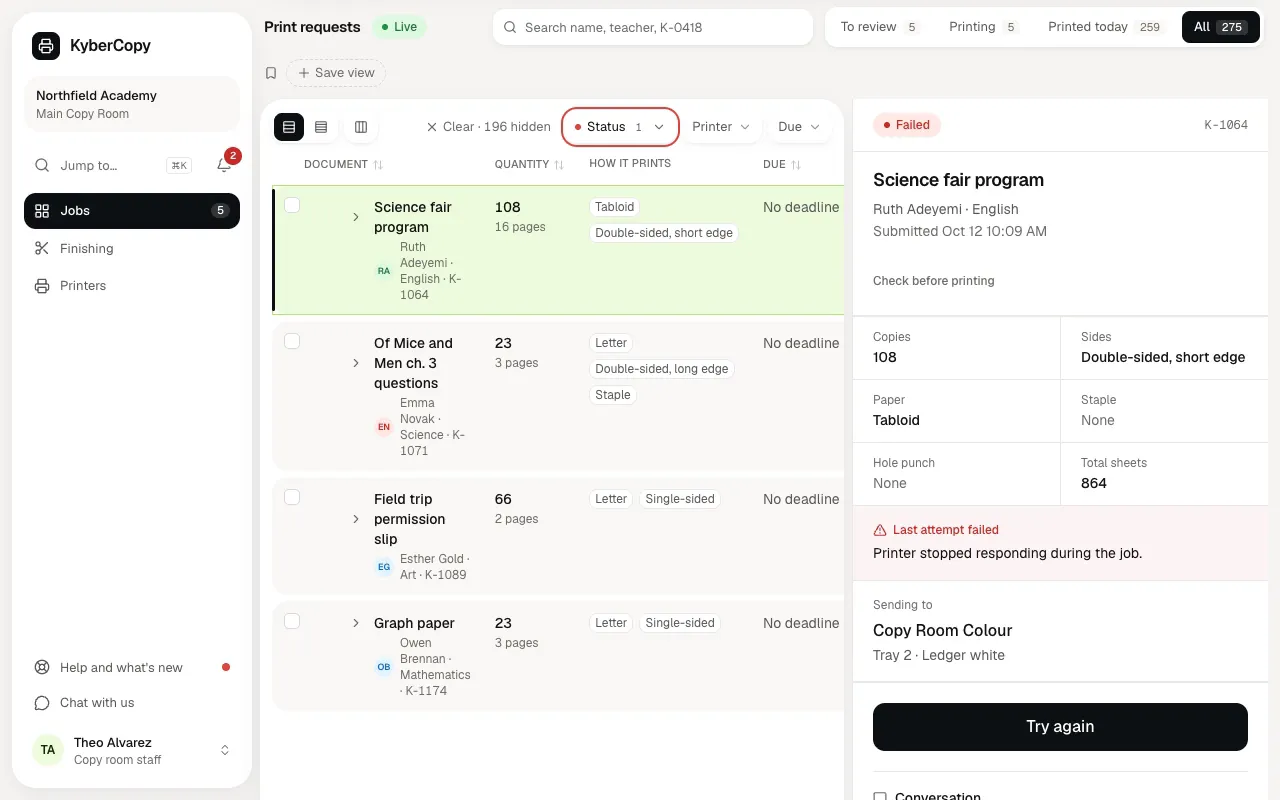
Open the job. A red box headed Last attempt failed gives the reason the relay reported, such as Printer stopped responding during the job. Under it, Sending to names the printer and the tray it was going to.
Show history lists every step with its time: Sent to the copy room, Released to print, Picked up by the copy room printer, Printing started and Printing failed, with the relay's name and the same reason under the failure.
One failed job open in the demo school, with its history shown. Step 3: Fix the printer before you press anything
Pressing Try again on a printer that is still jammed only fails the job a second time. Look at the printer's card on Printers: the line under its name says what it reports, such as Paper jam, Out of paper or A cover is open, or that the relay cannot reach it and what to check.
Clear it at the machine. The relay checks each printer about every two minutes, so the line clears on its own once the printer is well again.
Step 4: Press Try again, or Try on the other machine
Try again sends the job back to the same printer from the start: the error, the sheet count and any shelf are cleared, and the history adds Sent to print again.
When the printer shares a copy room group with another machine, the button reads Try again on its name, and a Try on button appears for each other machine in the group that can do the job and is not down, with how it is doing, such as Ready or 2 jobs ahead. The job's settings are checked again on that machine before it moves.
Step 5: Know what the teacher has already been told
The teacher's request says Failed, with “The printer could not finish this. The copy room has been told and will try again.” Their My requests list can be narrowed to Cancelled or failed.
If the school has Tell the teacher when a job fails ticked, they are also emailed “Could not print” with the title, and told they do not need to resend it. The relay's reason is passed on only when it is short enough to read as a sentence. Each teacher can turn the email off for themselves under My request could not print.
The same failed job as the demo teacher sees it. Step 6: Write to the teacher on the job
When it will be late, or you need to ask whether a smaller run will do, write in the conversation on the job. The message reaches the teacher by email and stays on the job, so the next person in the copy room sees what was said.
Step 7: Cancel what nobody needs any more
A failed job the teacher no longer wants can be cancelled. Tick it and choose Cancel; a batch cancel takes Ready, On hold and Failed jobs, so last week's failures can go in one press.
Step 8: When it printed, but not as asked
Some printers accept a job and quietly change a setting, such as dropping a staple, while reporting success. When the relay sees that, the history adds The printer changed some settings, and the printer's card says “This printer claims” the setting “but was observed not to apply it. Those options are no longer offered for this device.”
From then on a request that needs that setting is refused on that printer at the moment it is sent, with the reason, rather than coming out wrong. Reprint the job on a machine that can do it, or finish it by hand.
Read next
- Print job stuck in the queue?When a job neither prints nor fails: Printing that does not move, Stop job and the spooler.
- Network printer offline?When the reason is that the relay cannot reach the printer.
- Printer keeps jamming?When the same machine fails jobs every morning.
- Read a printer's health historyThe printer's week of faults and outages, before you call the service company.
- Control who can print whereCopy room groups, which decide which machines Try on offers.
- Work the copy room queueThe rest of the day: tabs, holds, finishing and the shelf.
- Choose which emails you getWhere teachers turn the could not print email on or off.
- Printer troubleshooting checklistWhat to check, in order, when a printer stops.
Follow this guide with us on the call.
On the demo call we work through the steps on this page in the demo school, with your printers' names and your staff's departments, and answer what the guide does not.
Book a demo