The copier is on. Its screen is lit, the trays are full, and the teacher in front of it can make a photocopy. But every computer in the building says the printer is offline, and nothing sent to it comes out.
"Offline" is one word for several different faults. This guide goes through what the word means, the five causes worth checking in order, how to tell them apart in a few minutes, and how to stop the most common one from coming back. The last part shows how KyberCopy tells a school copy room which cause it is, so nobody has to guess.
What "offline" means#
A computer marks a network printer offline when it tries to talk to the printer at the address it has stored and gets no useful answer. That is all it knows. It does not know whether the printer is off, asleep, moved to a new address, or refusing the kind of connection the computer is trying.
That is why the same word covers a printer that is unplugged and a printer that is working perfectly for everyone else. The question is never "is the printer offline?" but "why can this computer not reach it at that address?"
There are three different situations that all get reported as offline:
- Offline for everyone. No computer can print to it. The fault is at the printer or on the network near it.
- Offline for one computer, or one room. Others print fine. The fault is in that computer's printer setup, or that part of the network. On Chromebooks, see Chromebook printing at school for how printers are added per device or pushed from the Admin console.
- Offline, but jobs still come out sometimes. The printer is reachable some of the time: it falls asleep, or it changes address and changes back.
Knowing which of the three it is cuts the list of causes in half before you leave your desk.
The five usual causes#
1. It is switched off or asleep#
The simplest cause, and still the most common. A copier in deep sleep may not answer the network until someone touches the panel. Some machines are set to switch off at night and on again on a timer, and the timer is set for a school year that ended.
Check the panel first. If the printer wakes and starts answering, look at its sleep or energy settings and the auto power-off schedule.
2. The address changed#
Most printers get their address from the school's network the same way laptops do, through DHCP. Usually the address stays the same for months. Then the printer is moved, or rebooted after a long power cut, or the lease runs out, and the network hands it a different one. Every computer is still sending jobs to the old address, where nothing answers.
This is the cause behind "it was fine yesterday" and behind the printer that comes back on its own a week later. Print a configuration page from the printer's panel, or read the address from its network menu, and compare it with the address your computers use.
The lasting fix is to give the printer an address that does not change, either a reservation on the DHCP server or a static address set on the printer itself. A reservation is usually easier to keep track of, because the list lives in one place.
3. The name does not resolve#
Some computers reach a printer by a name instead of a number, a hostname or a name the printer announces on the network. If that name stops resolving, the computer has nowhere to send the job. This often shows up after a change of network equipment, or on a computer that joined from a different network.
Try the printer's IP address directly. If the number works and the name does not, the printer is fine and the fault is in how names are looked up.
4. A different subnet or VLAN#
Schools often put printers on their own part of the network, away from student devices. That is good practice, but it means a computer can only reach the printers if the network allows traffic between the two parts. A new switch, a new firewall rule or a laptop on the guest Wi-Fi can all quietly break that.
The sign is that the printer works from some rooms or devices and not others. Compare which network the failing computer is on with one that prints.
5. The printer refuses the connection#
Sometimes the printer is on, at the right address, and answers, but turns the connection away. The usual reason is that the way of printing the computer uses has been switched off on the device. Network printers accept jobs in several ways, chiefly IPP and raw printing on port 9100, and each can be turned on or off in the printer's web settings. A firmware update or a security hardening pass can switch one off. IPP vs TCP/IP printing explains both.
A refused connection is good news in one way: it proves the printer is switched on and reachable. The fix is in the printer's own settings, not the network.
A related case: the computer asks for a secure connection, the ipps form of IPP, and the printer's certificate is expired, self-signed or for a different name. The connection fails before any job is sent.
A ten-minute check, in order#
Work down this list and stop at the first one that fails.
- Look at the printer. Is the panel awake? Is there an error on its screen?
- Print a configuration page from the panel. Write down the IP address it shows.
- Compare that address with the one on the computer's printer settings. Different? That is cause 2.
- From a computer on the same network, ping the address. No reply could mean it is asleep, off, or on a network you cannot reach.
- Open the address in a web browser. Most network printers have a settings page. If it loads, the printer is reachable and the problem is the print path or the computer's setup.
- Try the IP address instead of the name. Works with the number only? That is cause 3.
- Try from a computer in another room. Works there? That is cause 4, or the first computer's setup.
Write down what you found before you change anything. The next time it happens, the note saves the walk. The printer troubleshooting checklist has these checks on one printable page, with jams, faint prints and one-sided copies too, and a fault log to write them in.
How KyberCopy tells you which cause it is#
The hardest part of a printer outage in a school is often not the fix. It is finding out, before someone walks to the copy room with a class set, that the printer is unreachable at all, and why.
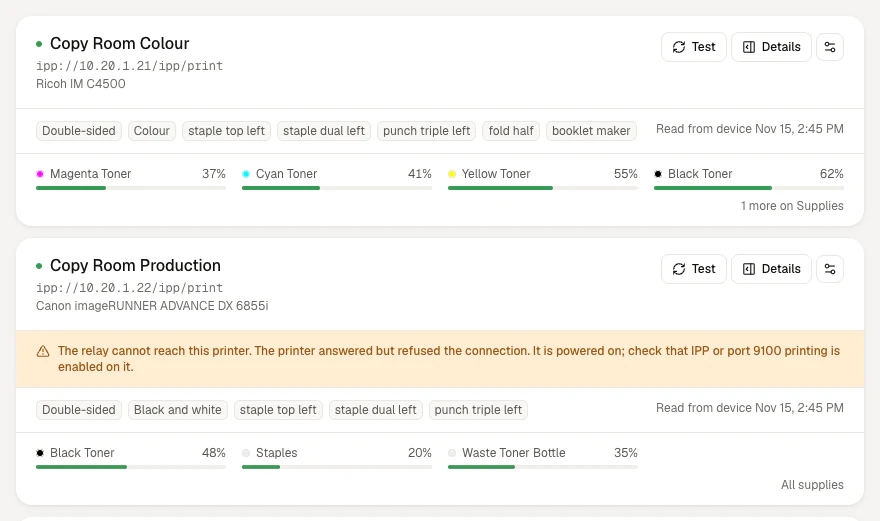
In KyberCopy, a small agent called the relay runs on a computer inside the school, next to the printers. It contacts every printer assigned to it about every two minutes. When a printer does not answer, the relay sends back the reason the connection failed, and the Printers page puts it in a sentence on that printer's card.
The sentence changes with the cause, because each one sends somebody to a different place:
- "That address does not resolve. Check the printer's hostname or use its IP." This is cause 3.
- "The printer answered but refused the connection. It is powered on; check that IPP or port 9100 printing is enabled on it." This is cause 5.
- "Nothing answered at that address. The printer is switched off, asleep, or on a network the relay cannot reach." This is causes 1 and 2, or a network that drops the traffic.
- "The relay has no route to that address. The printer is on a different subnet or VLAN from the relay machine." This is cause 4.
- "The printer demanded a secure connection the relay could not complete. Check the ipps address and the device's certificate." This is the certificate case.
Each one starts with "The relay cannot reach this printer." When the error is one KyberCopy does not recognise, the page shows it exactly as the relay reported it, so there is still something to search for.
Open the printer's details to see the same status with the address the relay is using. That is the address to compare with the configuration page.
When you think it is fixed, press Test on the printer's card. It asks the relay to contact the printer again at its address, and the page updates when the relay answers.
Is it the printer or the relay?#
If one printer is unreachable, the fault is between the relay and that printer. If every printer is, look at the relay first: the computer it runs on may be asleep, restarted, or off the network.
The Relays tab, under Copy room in Settings, shows each relay with how many of its printers it can reach.
A relay that stopped checking in reads "Offline since" and the time it was last seen. One that was installed but never started reads "Never connected — needs the enroll command".
On the relay's computer, kybercopy-relay doctor checks the configuration, the connection to KyberCopy, every assigned printer and whether the relay will start again after a reboot. Each check is one line marked OK, WARN or FAIL. A printer it cannot reach is marked FAIL with its address and the error, and the line "This computer cannot reach that printer."
Being told before a teacher notices#
KyberCopy emails the school's administrators when a printer has been unreachable for more than twenty minutes, so a printer that sleeps for a moment does not set anything off. It also emails when a relay has gone quiet for fifteen minutes. A printer that stays down is not emailed about again every few minutes; a new alert waits until hours have passed or the problem clears and comes back.
When the address changes#
If the printer moved to a new address, change it once on the printer in KyberCopy. An IP address is enough; KyberCopy completes it to the full ipp address. Changing the address clears what KyberCopy knew about the printer, and the relay reads it again from the device at its new address, so the paper sizes and finishing shown are the machine's own.
Then give that printer a reservation, so it does not move again.
Short answers#
Why does my printer say offline when it is on? The computer cannot reach it at the address it has stored. The most common reasons are a printer asleep, an address that changed, or a network the computer cannot reach.
Why is the printer offline on one computer but not others? The fault is in that computer's printer setup or its part of the network. Compare the address it uses, and the network it is on, with a computer that prints.
Why does my network printer keep going offline? Usually sleep settings or an address that changes. Check the energy settings and give the printer a DHCP reservation or a static address.
The printer answers ping but still shows offline. Why? The network is fine, but the way of printing the computer uses may be switched off on the printer, or the computer is using an old name or port. Check IPP and port 9100 in the printer's web settings.
Should a school printer have a static IP address? It should have an address that does not change. A DHCP reservation does that and keeps the list in one place.