Guide · 8 steps
Send a print request to the copy room.
This is the teacher's side of the copy room, from attaching a worksheet to collecting the copies. Each step is one part of the request form or the My requests page, in the order you meet them.
You will need
- A teacher account in your school's KyberCopy
- The final version of the document, because the copy room prints exactly what you send
- How many copies you need and when you need them
Step 1: Attach the document
Open My requests and choose “New request”, then drop in the file. PDF, Word, PowerPoint, Excel, Publisher, OpenDocument, RTF, plain text, CSV, JPEG and PNG all work, and Office files are turned into a PDF when you send.
The title fills itself in from the first file name. Change it to something the copy room will recognise, such as Fractions Unit Test.
The request form a demo teacher fills in. Step 2: Pick how it should print
Under “How should it print?”, pick a preset such as Class Set or Test Packet. Each one is a whole set of settings your copy room wrote once: paper, sides, colour, staples and holes. You do not choose them one by one.
If you see “No presets set up yet”, ask your copy room administrator. A school with more than eight presets shows a search box instead of buttons.
What a demo teacher picks from instead of printer settings. Step 3: Say how many and when
Answer “How many copies?”, then give the date and time under “When do you need it?”. The copy room works urgent jobs first and then in the order they are needed, so a real deadline moves your job up and no deadline keeps it behind those that have one.
Some schools require the date; the field then carries an asterisk. When more than one printer is listed, the preset may choose one for you, and the copy room can move the job to another machine if needed.
Step 4: Ask for hand finishing and leave a note
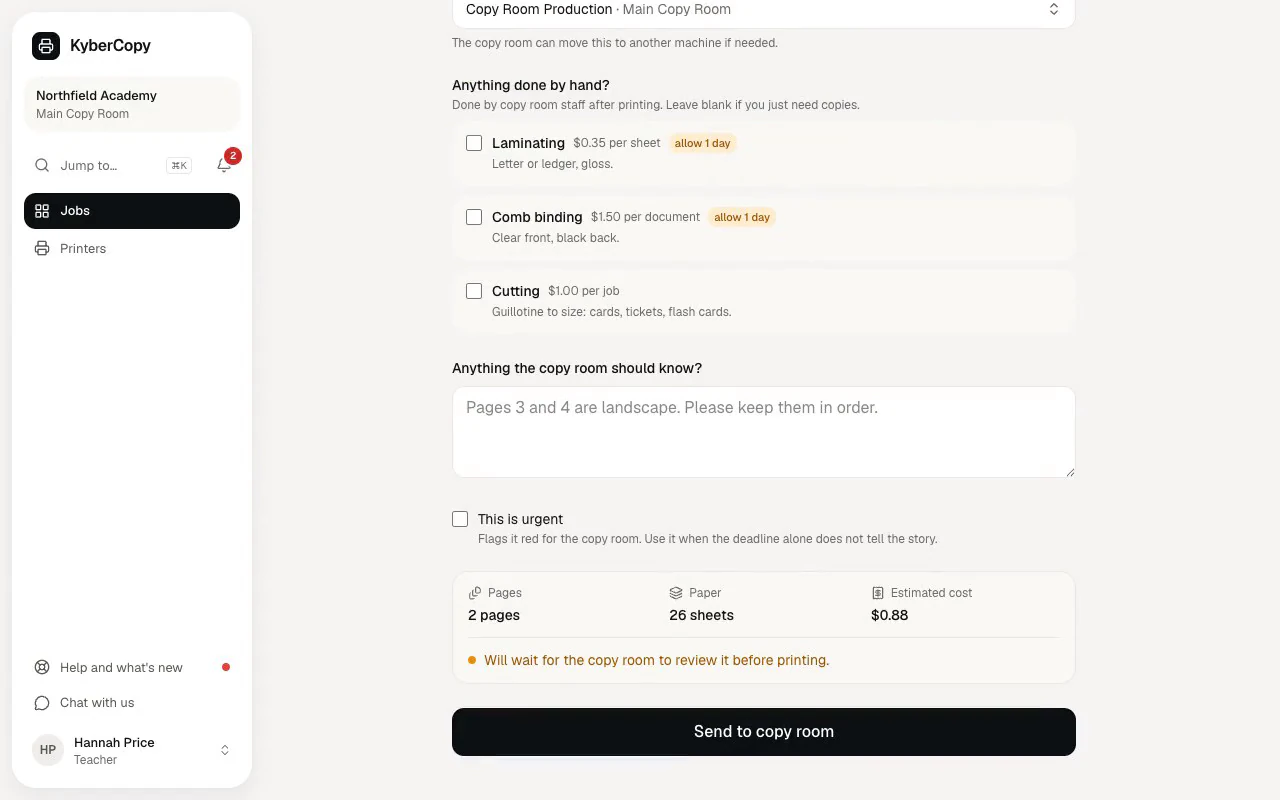
Under “Anything done by hand?”, tick laminating, binding or cutting if your copy room offers them, and say how many. Under “Anything the copy room should know?”, write what the settings cannot say, such as which pages are landscape.
Tick “This is urgent” only when the deadline alone does not tell the story. It shows the job red in the queue.
Finishing, a note and urgent, at the bottom of the demo school's form. Step 5: Send it, and fix what the check finds
Choose “Send to copy room”. Before any paper moves, the request is checked: a file is attached, required questions are answered, the copy count is within your school's limit and the printer can do what the preset asks.
If it cannot, you see “That printer cannot do this job as requested”, with the reasons, while you can still pick another preset or printer.
Step 6: Follow it on My requests
Every request you send is on My requests, newest first, with a status: Awaiting approval while a budget holder decides on the cost, Ready in the copy room's queue, On hold with the copy room's reason, Printing, then Printed.
Search by title or request number, or filter to Waiting, Printing, Printed or Cancelled or failed, to find last term's packet.
My requests for a demo teacher, with search and status filters. Step 7: Withdraw it, or talk to the copy room on the job
Open a request to see how it will print and a timeline of what has happened. “Withdraw request” takes it back until the copy room releases it to a printer, and Undo on the message that follows puts it back where it was.
For anything else, write in the conversation on the request. It reaches the copy room and stays with the job, so nobody has to dig through email for it.
Step 8: Collect it, and send it again next time
When the job is printed the request says “Printed. Ready for pickup on shelf 3”, or in the copy room when your school does not use shelves. If your school has the email turned on, you are told the same thing by email.
Next term, “Send again” repeats the request with the same documents and settings and asks only how many copies. “Edit and send” opens it on the form when more has changed.
One printed request in the demo school, from the teacher's side.
Read next
- For teachersEverything that changes for a teacher, including email requests.
- Copy request form for teachersThe paper version of the same questions, free to print.
- Long edge vs short edgeWhat the sides setting in your preset means.
- Printing from a ChromebookWhy the Chromebook shows only Save as PDF, and how this form gets round it.
- Printing from a school iPadWhy the iPad finds no AirPrint printer, and how to send the file from Safari instead.
- KyberCopy and emailStill emailing the copy room? See what is read from your email and the reply you get back.
- Email a print request insteadWhen your school takes email: how to write it so every setting is read.
Follow this guide with us on the call.
On the demo call we work through the steps on this page in the demo school, with your printers' names and your staff's departments, and answer what the guide does not.
Book a demo