A teacher opens a worksheet on a Chromebook, presses print, and the list of printers says "Save as PDF" and nothing else. On a Windows laptop in the same room, the copier is right there. Chromebook printing is one of the most common printing questions a school IT team gets, and most of the trouble comes from how Chromebooks were designed rather than from anything the teacher did.
This article explains why printing from a Chromebook works differently, the three ways schools usually set it up, what each one needs from IT, and the faults that come up most. The last part shows how KyberCopy handles it: the Chromebook only needs a browser, and the copy room does the printing.
Why Chromebooks print differently#
A Windows computer prints through a driver, a piece of software from the printer's maker that knows the machine's trays, finishers and settings. Schools have spent years pushing those drivers out to laptops, or sharing printers from a Windows print server that holds the drivers in one place.
Chromebooks do not install printer drivers. ChromeOS prints through its own built-in system, and talks to network printers in a standard way instead, mostly over IPP, the Internet Printing Protocol. The Chromebook asks the printer what it can do, the printer answers with its paper sizes, sides and finishing, and the Chromebook sends a standard file. This is often called driverless printing, and the printer has to support it; the printer's web settings or its maker's specification say whether it does. IPP vs TCP/IP printing explains how IPP works and which ports it uses.
Two things follow from that. A Chromebook can only print to a printer it can reach on the network and that answers over IPP. And because there is no driver, settings a driver would normally add, such as a department code the copier asks for, or a particular stapler position, may not be on offer.
Google Cloud Print, the service many schools first used to print from Chromebooks, was switched off at the end of 2020. Anything still written about it is out of date.
Three ways schools set it up#
1. Add the printer on each Chromebook#
A Chromebook can find printers on the same network by itself, or a printer can be added by hand from the printer settings with its address and the IPP protocol. This works for one teacher with one printer. It does not work for a school: every Chromebook needs the same steps, the address has to stay the same, and a student or a new teacher starts again from nothing.
If you do add printers by hand, give each printer an address that does not change first, with a DHCP reservation or a static address. A printer that moves address is the most common reason a Chromebook that printed last week cannot print today.
2. Push printers from the Google Admin console#
Schools that manage their Chromebooks through Google Workspace can add printers in the Google Admin console and push them to users or devices by organisational unit. The teacher signs in and the copier is already in the list. ChromeOS can also be pointed at a print server that shares many printers at once.
This is the right answer for printing straight to a machine, but it still needs the Chromebook and the printer on networks that can reach each other. When students and staff are on separate wireless networks and the printers sit on their own VLAN, IT has to allow IPP traffic, usually port 631, from the Chromebook network to each printer. It also means the copier receives whatever the teacher sends, at whatever time, with nobody checking it first.
3. Send the job to the copy room instead#
Many schools do not want 30 copies of a test printed straight from a Chromebook to the staff room copier at all. They want the work to go to the copy room, where somebody prints it on the right machine with the right finishing. For that, the Chromebook does not need to print in the usual sense. It needs a way to hand over a file with clear instructions.
Email is the usual first step: attach the worksheet, write "30 copies, double sided" and send it to the copy room mailbox. It works until the inbox fills up and nobody can tell what is done (how email print requests compare with a request form). A request form in the browser does the same job with the questions answered every time.
Common Chromebook printing problems#
- Only "Save as PDF" in the list. No printer has been added for this user or device. Check whether the printers were pushed to the organisational unit the teacher or the Chromebook sits in.
- The printer is listed but the job never comes out. The Chromebook cannot reach the printer at its address, or the printer refuses IPP; the five usual causes of a network printer showing offline walk through each. Check that the address is the same as on the printer's configuration page, and that IPP is turned on in the printer's web settings.
- It prints from one room but not another. The two rooms are on different networks. The network the Chromebook joins in that room cannot reach the printers, the different subnet or VLAN cause in the offline printer article.
- Double sided or stapling missing from the options. The printer did not report those options when asked, or the Chromebook added it with a generic setting. Check that the finisher is installed and turned on in the printer's settings, then add the printer again so the Chromebook asks afresh.
- Printing a Google Doc comes out wrong. Check the page size in the document itself. A document set to A4 printed on letter paper is shrunk or cut off, on any computer.
How KyberCopy does it#
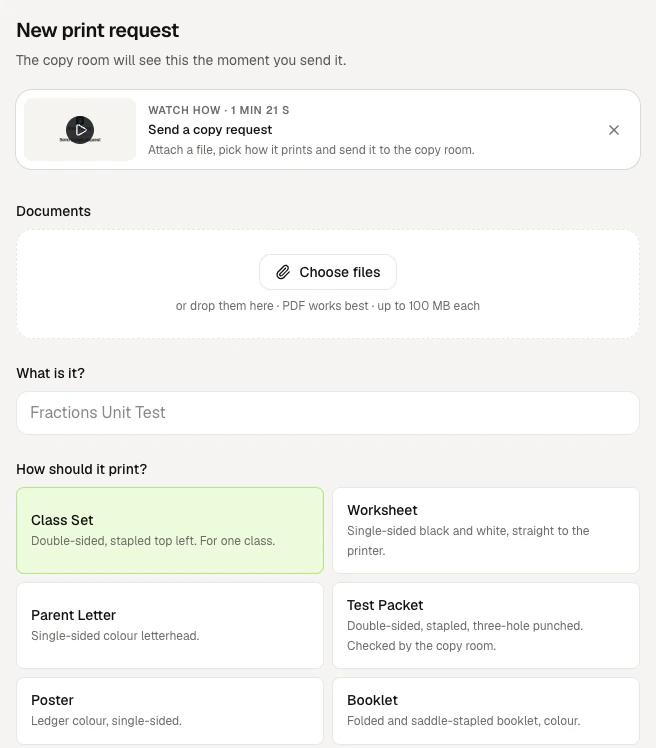
KyberCopy takes the third route. A teacher on a Chromebook sends a request to the copy room from a web page, and a small agent inside the school, the relay, hands the job to the printer. Nothing is installed on the Chromebook, no printer is added to it, and it never has to reach the printers at all.
What the teacher does#
The teacher signs in from Chrome and opens New request. Schools that use Google Workspace can turn on Google sign-in, so the button reads "Continue with Google" and the teacher uses the same account they already have.
They attach the file, pick how it should print from presets the copy room already tested, such as Class Set or Test Packet, and say how many copies and when they need them. PDF works best, but a Word document, a PowerPoint, a spreadsheet or a Publisher newsletter works too: office files are converted to PDF when the request is sent, on the server, so the Chromebook does not need any extra software. The upload limit is set by the school and is 100 MB a file unless the school changes it.
Before anything is sent, the form checks that the chosen printer can really do the job. If it cannot, the teacher sees "That printer cannot do this job as requested" and the reasons, while they can still change it.
Following the job#
My requests lists everything the teacher has sent, with its status: Ready, Printing, Printed, and so on. When the copy room puts finished work on a shelf, the request says which one.
Send again on a finished request makes a new one with the same documents and settings, so next term's reading log is two taps.
What IT sets up#
The relay runs on one computer inside the school that stays on and can reach the printers. It can be the old print server, or any Windows, Linux or Mac machine, but not a Chromebook. It only makes outbound connections to KyberCopy, so there is no port to forward and no inbound firewall rule, and no rule is needed between the Chromebook network and the printers. The printers only have to be reachable from the relay. Connect your printers with the relay walks through it.
Instead of inviting every teacher one by one, an administrator can let the school's Google accounts join on their own. On the Access tab, tick "Let school Google accounts join automatically" and list the school's domains.
Anyone with a working Google account on those domains can then sign in, and joins as a Teacher unless the school chooses otherwise. A public domain such as gmail.com is refused, because anyone can make an address there.
Each person can see where they are signed in under Settings, Account, which helps on shared carts of Chromebooks.
Short answers#
Can you print from a Chromebook at school? Yes. Either IT adds the printers for you, usually from the Google Admin console, or your school uses a request system where you send the file from the browser and the copy room prints it.
Why can my Chromebook not find the school printer? It has not been added for your account or device, or your Chromebook is on a network that cannot reach the printer. Ask IT which one it is.
Does a Chromebook need a printer driver? No. Chromebooks print without drivers, mostly over IPP, so the printer itself has to support it.
Does KyberCopy need anything installed on the Chromebook? No. Teachers use Chrome. The only thing installed is the relay, on one computer that stays on next to the printers.