Guide · 7 steps
Sign in to the copy room, and get back in when it fails.
Every request starts with signing in, so a teacher who cannot get in cannot ask for anything. This guide is for teachers and copy room staff, and for the administrator they ask: the two ways in, the invitation link, a forgotten password, the second step for administrators, and what each refusal means.
You will need
- Your school's KyberCopy address, such as yourschool.kybercopy.com
- Your school email account, or the invitation email from your copy room
Step 1: Open your school's own address
Each school has its own address, such as yourschool.kybercopy.com. Choose Sign in there; on a school's address the page can carry the school's logo and name, so you can see you are in the right place.
Signing in at kybercopy.com works too: someone in one school goes straight to it, and someone in two or more is asked Which copy room? A teacher lands on My requests, where New request opens the request form; copy room staff land on the copy room queue.
Step 2: Continue with Google, or use a password
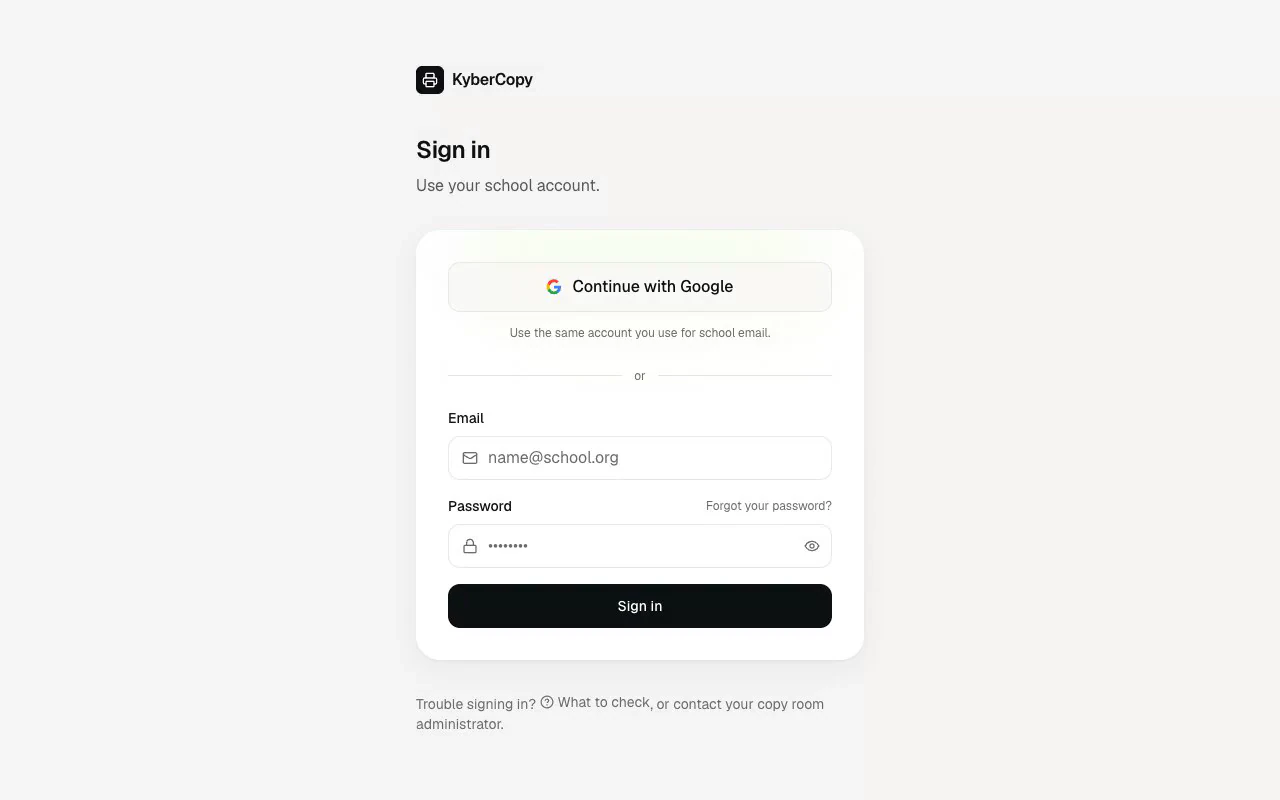
When your school has Google sign-in, the page says “Use your school account.” and shows Continue with Google. Use the same account you use for school email. This is the usual way in for teachers.
Email and password is for accounts an administrator invited, such as copy room staff on a shared machine. If they do not match, the page says “That email and password did not match.” and never says which one was wrong, on purpose.
Signing in on the demo school's address. Step 3: Accept an invitation within a week
An invitation email holds a one-time link. Open it, type your name, which is what the copy room sees on your requests, choose a password of at least 12 characters and confirm it, then Finish setting up.
The link lasts one week and works once. An old link says “This link has expired”; ask whoever invited you to send a new one. If you already have a KyberCopy account at that address, the link asks you to sign in first and then join.
Step 4: Reset a forgotten password
Choose Forgot your password? on your school's sign-in page, type the email you sign in with and choose Send reset link. The answer is the same whether or not the address has an account, and the link in the email lasts one hour and works once.
Started at kybercopy.com, the page asks Which school? first, because password accounts belong to a school. If you sign in with Google, your password is your Google account's: reset it with Google or your school's IT team.
Forgot your password? on the demo school's address. Step 5: Type the code, if you have two-step sign-in
Administrators who set up two-step sign-in are asked, after the password, for the six digits their authenticator app shows. Use a backup code switches to one of the saved codes, and each works once.
After too many wrong codes the page says to wait fifteen minutes, then sign in again.
Step 6: Read “not set up here yet”
“You are signed in, but not set up here yet” means the sign-in worked but the account is not a member of this school. It names the account; check it is your school one and not a personal Google account, and use Sign in with a different account if not.
If you belong to another school, the page lists it with a link, because a bookmarked wrong address is the usual cause. Otherwise ask whoever runs your copy room to add you. Schools can also let their own Google accounts join on their own.
Step 7: Change your name and password on Account
Once in, Account under Settings has the name the copy room sees on your requests and your password. Your email is changed by your copy room administrator, because it is how your access is granted.
Changing your password signs you out everywhere else, which matters on shared copy room machines. Where you're signed in lists each device, with Sign out everywhere else.
A demo teacher's Account page.
Read next
- Send a print request to the copy roomOnce you are in: the request form from file to pickup.
- Invite your school's staffFor administrators: invitations, resending them and letting Google accounts join.
- Secure staff sign-inTwo-step sign-in for administrators, old sessions and the audit log.
- I cannot sign in, in the help centreEach sign-in message in turn, and why a school account was refused. (help centre, opens in a new tab)
- New teacher copy room handoutOne page for each new teacher on where the copy room is and how to send work.
- Get help and see what's newOnce you are in: the Help panel, System status and Chat with us.
Follow this guide with us on the call.
On the demo call we work through the steps on this page in the demo school, with your printers' names and your staff's departments, and answer what the guide does not.
Book a demo