Guide · 5 steps
Get help without leaving the page.
Help in KyberCopy is on every screen, for every role, and it opens beside the work rather than instead of it. This guide shows where it is at a desk and on a phone, what the panel holds, how to tell whether KyberCopy itself is down, and how to reach a person.
You will need
- Any KyberCopy account, teacher, copy room staff or administrator, signed in to your school
Step 1: Open Help and what's new
At a desk, Help and what's new sits at the foot of the left-hand rail, just above Chat with us and your name. On a phone it is the round life buoy button in the header, beside chat and the bell, and it is also in the More sheet.
A small dot on Help means something has shipped that this browser has not opened yet. The dot is kept per browser, not per account, because copy room computers are shared; opening the panel clears it until the next update ships.
The rail foot in the demo school, with the dot that says there is news. Step 2: Read the articles and videos for this page
The panel opens from the right at a desk and from the bottom on a phone, so the page you were on stays where it was. Search the help centre sends what you type to the help centre in a new tab.
For this page lists three help articles chosen for the screen you are on: on Printers, My printer shows offline or unhealthy comes first; on a teacher's My requests, Submitting a print job from the portal. Every list has three, and All guides opens the help centre's home. Under Videos are the narrated tutorials for that page and your role, such as Printers and supplies at a glance on Printers, each with its length. Guides and videos open in a new tab.
The panel on the demo school's Printers page, opened by its owner. Step 3: See what's new
What's new shows the newest three changelog entries, each with its date, who it is for and a short description, and a New tag on anything this browser had not seen when the panel opened. Each entry links to its place on the public changelog, and Full changelog lists every one.
The same panel for a demo teacher on a phone, opened from the header. Step 4: Check whether KyberCopy is down, then reach a person
When something looks wrong, the foot of the panel asks Something not working? and offers System status, which says whether KyberCopy is up for everyone, and Contact support, which opens a ticket form. Both are also on the screen KyberCopy shows if a page fails to load.
Chat with us opens a chat with the KyberCopy team, from the rail at a desk or the header and More on a phone. If your name or email is missing, it first asks Before we chat, so whoever answers can reply by email if you step away; that answer is remembered on this browser for 30 days and forgotten when you sign out. If the chat has not loaded, it opens the help centre instead.
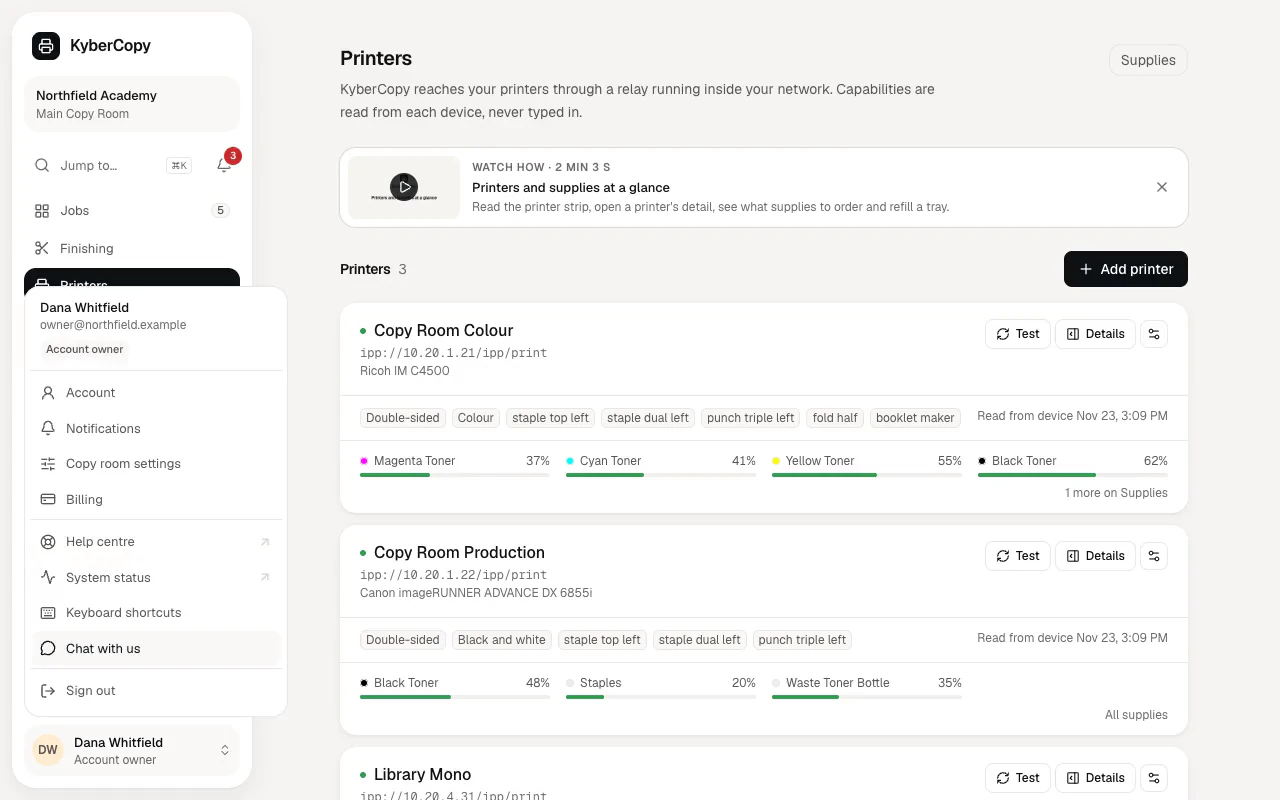
Step 5: Use the avatar menu
Your name at the foot of the rail, or your initials on a phone, opens a menu with who is signed in and their role, then Account and Notifications for everyone, Copy room settings for administrators and Billing for the owner. Below them are Help centre, System status, Keyboard shortcuts (at a desk only) and Chat with us, and Sign out is always last, on its own.
The avatar menu for the demo school's owner.
Read next
- Sign in, and get back inBefore help: Google or a password, the invitation link and a forgotten password.
- Run the copy room from your phoneThe bottom bar, More and the rest of the phone layout.
- Choose which emails you getNotifications, also in the avatar menu: keep the emails you need.
- Video tutorialsEvery narrated tutorial the panel offers, with transcripts.
- ChangelogEverything What's new has ever shown, filterable by desk.
Follow this guide with us on the call.
On the demo call we work through the steps on this page in the demo school, with your printers' names and your staff's departments, and answer what the guide does not.
Book a demo