A teacher sends a six-page quiz for a class of twenty-eight. What comes off the copier should be twenty-eight quizzes, each with pages one to six in order. Sometimes it is six piles instead: twenty-eight copies of page one, then twenty-eight of page two, and someone spends the next ten minutes dealing them out across a table. The difference is one setting, collate, and it is worth knowing what it does before the next class set.
This article explains collated vs uncollated printing with examples, when each one is the right choice, why a copier sometimes ignores the setting, and how to check it. The last part shows how KyberCopy handles it, using the demo school's own screens.
What collate means when printing#
To collate is to put pages together in order as complete sets. On a printer or copier, collated copies come out as whole sets in page order: 1, 2, 3, then 1, 2, 3 again, once for every copy. Uncollated copies come out grouped by page: every copy of page 1, then every copy of page 2, then every copy of page 3.
For three copies of a three-page handout:
- Collated: 1, 2, 3, 1, 2, 3, 1, 2, 3. Three ready sets.
- Uncollated: 1, 1, 1, 2, 2, 2, 3, 3, 3. Three piles to sort.
Both use the same paper and the same toner. The only difference is the order the sheets land in the output tray. Collate only matters when a document has more than one page and more than one copy is printed. A one-page flyer comes out the same either way.
In most print dialogs it is a checkbox called Collate, often with a small picture of two stacked sets beside it, near the number of copies. On a copier's panel it may be called Sort, Collate or Sets, and uncollated may be called Group or Stack.
Collated vs uncollated: which one a school needs#
For most school copying, collated is right.
- Class sets, packets and quizzes. Every student needs one complete document. Collated copies go straight onto desks.
- Anything stapled or hole-punched as a set. A copier's finisher staples a complete set as it comes out. If the copies are uncollated, there is no set to staple. The stapling article covers the rest of what a finisher needs.
- Booklets. A booklet is folded and stapled as one set, so it is always printed collated.
Uncollated has a few real uses:
- Handing out page by page. A teacher who gives out a worksheet one page at a time, across a week, may want piles by page.
- Different coloured paper per page. Pages that go on different paper are sometimes run one page at a time, and the sets are put together by hand.
- Cut-up sheets. Name cards, tickets or flash cards printed several to a page and then cut. Piles by page are easier to stack and trim.
- Forms people fill in separately. A sign-in sheet and a feedback sheet that go to different tables.
When in doubt, ask for collated. Sorting uncollated piles by hand is slow, and a mistake shows up as a student with two page fours and no page five.
Collate and double-sided printing#
Collate works with double-sided printing the same way. A six-page document printed double-sided is three sheets, and collated copies come out as complete three-sheet sets. Uncollated double-sided copies come out as a pile of sheet one, then sheet two, then sheet three.
Collate is not the same as page order. Reverse order printing decides whether the last page comes out first, so a face-up stack ends with page 1 on top. It is a separate setting, and turning it on by mistake makes every set come out backwards. See reverse order printing in the glossary.
Why copies come out uncollated when you asked for collated#
These are the usual reasons, cheapest to check first.
- The box was not ticked. The Collate checkbox is easy to miss. Some apps remember the last setting, so one uncollated job turns into a habit.
- The app and the driver disagree. Some apps send each copy as its own job, while the driver's collate setting says otherwise. The result depends on which one the copier listens to.
- The copier's own setting won. A copier set to Group or Stack at the panel can override what arrived with the job, especially on copies made at the glass.
- The job was too big for the copier's memory. To collate, a copier holds every page of the document and prints it again for each copy. A long document with many pictures can be more than some machines will hold, and they fall back to uncollated or stop the job.
- The copier was sent the number of copies the wrong way. Some copiers read one copy count and print each page that many times before moving on. A copier set up with the wrong driver, or a generic one, can do this even when collate was asked for.
The checks that fix it#
Start at the top and stop when the sets come out right.
- Print two copies of a short document with collate ticked. Two copies of a three-page file shows the order in seconds, without wasting a class set.
- Check the print dialog before printing. Make sure Collate is ticked, and look for the same setting under the printer's own properties or preferences.
- Check the copier's panel for a Sort or Group setting, especially if copies made at the glass are the ones coming out wrong.
- Print from another app or computer. If the sets come out right, the first app or driver is the cause. Reinstall the copier's own driver if the collate option is missing.
- Split a very long job. If only big documents come out uncollated, print fewer copies at a time or ask the copier's service company about its memory.
- Write down which machine, which computer and which app. The printer troubleshooting checklist has a fault log to write it in.
How KyberCopy handles collate#
KyberCopy sits between a teacher's request and the copier. It does not change a copier's panel settings or a computer's driver. What it does is send collated copies by default, so a class set comes out in sets without anyone ticking a box. Everything below is from the demo school, which has made-up staff and data.
Copies are sent collated unless the job says otherwise#
Teachers do not choose collate on the request form, and there is no collate switch to forget. A job's copies are collated unless its settings say otherwise, and a new preset starts with collate on. In the demo school every preset sends collated copies.
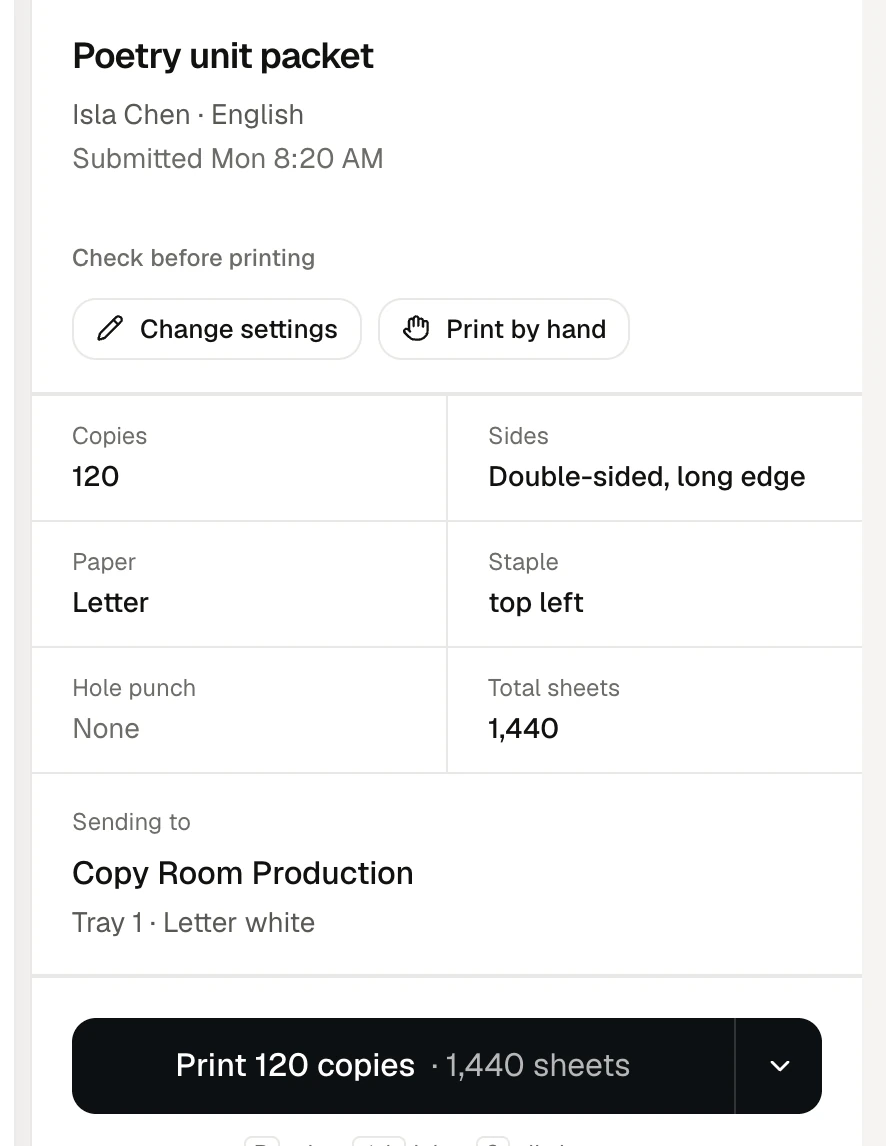
When the copy room opens a job, it sees the copies, the sides, the paper, the staple and the total sheets before printing. The demo school's Poetry unit packet is 24 pages, double-sided, 120 copies: 12 sheets a set, 1,440 sheets in all, on a button that reads "Print 120 copies".
The copier is told to collate with every job#
KyberCopy's relay, a small agent on a computer inside the school, sends each job to the copier. By default it sends over port 9100 and passes the number of copies as both COPIES and QTY. That second line is there because on some copiers COPIES alone prints 1, 1, 2, 2 instead of 1, 2, 1, 2. On the relay's IPP path, a collated job is sent with sheet-collate set to collated, and an uncollated one with uncollated. The copier still has the last word: a panel setting that overrides incoming jobs can still change the order.
Asking for something different#
A teacher who wants piles by page, or sets put together a particular way, says so under "Anything else?" on the request form. The starting form's hint for that box reads "Special paper, how to collate, anything unusual", so the note travels with the job to the copy room.
When a request arrives by email, KyberCopy reads the copies, sides, colour, staple and punch from the message. It does not act on the word "collated". Instead the job is held with "Asked for: collated. Needs a person.", and the teacher's reply says a member of staff will look at it. A person reads the request rather than KyberCopy guessing.
What KyberCopy does not do#
KyberCopy does not change a copier's Sort or Group setting at the panel, does not offer an uncollated choice on the starting request form or in the preset editor, and does not see the order sheets came out in. It sends collated copies, shows the copy room the copies and sheets before printing, and passes a teacher's note to the people who print.
Questions people ask#
What does collate mean on a printer? Collate means printing complete sets in page order, 1, 2, 3 then 1, 2, 3 again, instead of every copy of page 1 and then every copy of page 2.
What is the difference between collated and uncollated copies? Collated copies come out as complete sets ready to hand out. Uncollated copies come out in piles by page, which then have to be sorted by hand.
Should I collate when printing? Yes, for almost anything with more than one page that goes out as a set: class sets, packets, quizzes and anything stapled. Turn it off only when you want piles by page.
Does collate matter for one copy? No. With one copy, or a one-page document, collated and uncollated come out the same.
Does collating use more paper or toner? No. Collated and uncollated copies use the same paper and toner. Only the order of the sheets changes.
How do I turn off collate on a printer? Clear the Collate checkbox in the print dialog, or choose Group or Stack on the copier's panel for copies made at the glass.