Most school copy jobs end the same way: a stack of packets, each one stapled in the corner, often with three holes down the left so it goes straight into a binder. When the copier does that work, the class set comes off the machine ready to hand out. When it does not, someone stands at a table with a stapler and a hand punch.
This guide covers where the staple and the holes go, how to ask a printer to print and staple at the same time, why a job sometimes comes out loose, and how a copy room can decide it once instead of on every request.
What the printer can do on its own#
Many school copiers have a finisher, a unit on the side of the machine that staples, punches or folds sheets as they come out. Smaller printers often have none. What a finisher can do is fixed by the hardware, so the first question is always which machine the job is going to.
The finishing a printer reports usually comes from a short list:
- Staple top left. One staple through the top left corner. The everyday choice for a portrait packet.
- Two staples, left. Two staples down the left edge, for a thicker packet that should open more like a book.
- Two staples, top. Two staples across the top edge, for pages that flip up and over.
- Three-hole punch. Three holes down the left edge, the size US binders take.
- Two-hole punch. Two holes down the left edge, common outside the US.
- Fold in half and booklet. A fold down the middle, and on some machines a fold with staples through the spine.
In the standard printing protocol, IPP, these are values such as staple-top-left, staple-dual-left, punch-triple-left and fold-half. A printer lists the ones it supports when it is asked, which is how software can know before a job is sent whether the machine has a stapler at all.
How to print and staple at the same time#
On a single computer the steps are the same in most print dialogs. Open the printer's properties or preferences, find the tab called Finishing, Output or Staple, choose a position such as top left, and print. If there is no staple option, the computer either does not know the printer has a finisher or is talking to a printer without one.
Three things trip people up:
- The driver does not know about the finisher. The machine has one, but the computer's printer setup was never told, so the option is missing or greyed out.
- Collate is off. A finisher staples complete sets. If the job is sent as every copy of page 1, then every copy of page 2, there is no set to staple.
- The staple is in the wrong place for the sides. A packet stapled top left and printed double-sided needs long edge flipping, or the back of each page reads upside down. See long edge vs short edge.
In a school copy room the person who knows the finisher is rarely the person sending the job. That is why so many teachers write "stapled please" on a request and leave the settings to someone else.
How to select 3-hole punch when printing#
Three-hole punching works the same way as stapling: it is a finishing option, offered only if the printer has a punch unit and the computer knows about it. In a print dialog it usually sits beside the staple choice, named Punch, Hole punch or 3 holes.
Two details matter for punched work:
- Holes go down the left. For a portrait page in a binder, the holes and the staple are on the same side, and double-sided printing should flip on the long edge.
- Pre-punched paper is different. Some schools load paper that already has holes. The printer does not know that, so a margin on the left of the original is the only thing keeping text out of the holes.
If the machine cannot punch, the job has to be punched by hand after printing, and the copy room needs to know that before it starts.
Why a job comes out unstapled#
A copier can accept a job, report success and still skip the staple. Some printers quietly drop a setting they cannot apply, for example when the stack is too thick, the paper type is not allowed in the finisher, or one option cannot be combined with another on that machine. The printer says the job printed, and nobody knows until the paper is in someone's hands.
The other common causes are simpler: the staple cartridge is empty, the job went to a printer with no finisher, or the request never said stapled in the first place.
Set it once with a preset#
Teachers do not need to know which copier has a punch unit. In KyberCopy, a copy room administrator writes a preset once, with the paper, sides, colour and finishing together, and teachers pick it by name on the request form.
The finishing choices in the preset editor are Stapled, Double stapled, Three-hole punched and Folded. Under them the editor says: "Only offered on printers that proved they can do it." In the demo school, the Class Set preset is letter paper, double-sided, black and white, stapled. The Test Packet preset adds three-hole punching, so a teacher who picks it gets both without choosing either.
When a preset is saved, it is checked against every printer, and any printer that cannot print it is named with the reason. A preset that asks for something only one machine can do says so on the day it is written.
Which printers can staple, read from the printer#
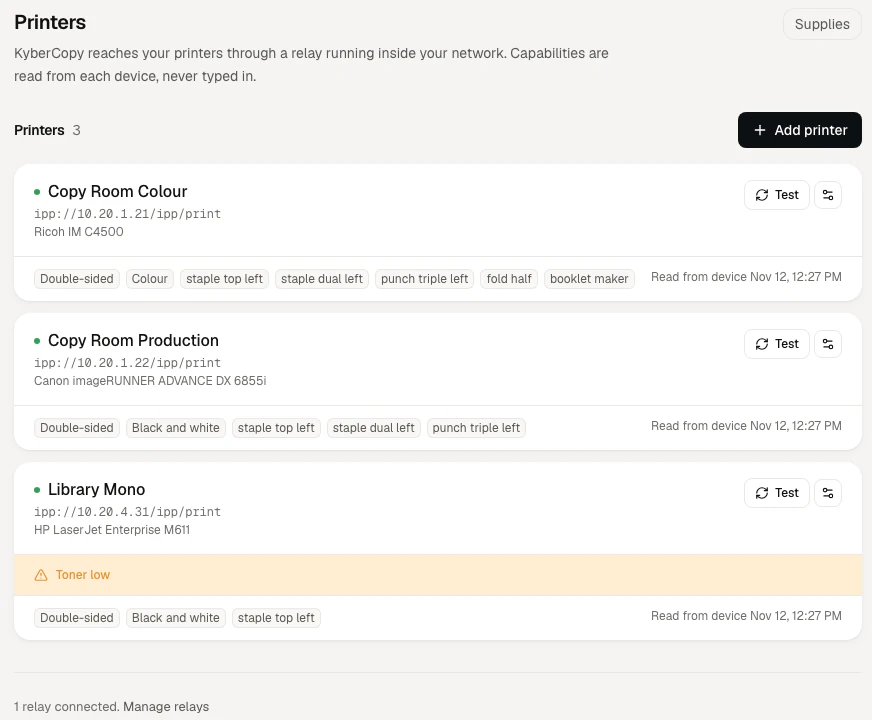
Nobody types in what a printer can do. When a printer is added, the relay inside the school network asks the printer for its capabilities, and the Printers page shows what came back as tags with the time it was read.
In the demo school, Copy Room Colour reports staple top left, staple dual left, punch triple left, fold half and booklet maker. Copy Room Production reports staple top left, staple dual left and punch triple left. Library Mono reports staple top left only, so a Test Packet sent there could be stapled but not punched.
When a teacher sends a job, the settings are checked against the chosen printer before it is accepted. If that printer cannot do the job, the teacher sees "That printer cannot do this job as requested" with the reasons, while there is still time to pick another printer.
The Supplies page shows the staple levels a printer reports alongside toner, so an empty cartridge can be seen before a stapled job is sent to that machine.
When a printer has been seen to skip a staple#
Claimed support is not proof. When the relay sees a printer accept a job but say it substituted or ignored a setting, KyberCopy records that against the printer and stops offering that option on that machine. A teacher who picks that printer is told why, for example: "This printer reports Staple top-left but was observed not to apply it. Choose another printer or finish by hand."
From then on, a preset that needs the staple is reported as not printable on that printer when it is checked, so the next class set goes to a machine that has stapled for real.
Stapled and punched requests by email#
Teachers can also email a request to the copy room. KyberCopy reads the email with fixed rules, not a language model. Words such as stapled, staple or corner staple are read as stapled, and phrases such as hole punched, 3 hole, three hole or for the binders are read as three-hole punched. Unstapled, no staples, no holes and don't punch are read the other way.
Every reading is written into the job note with the words it came from, so the copy room can see why the job will print the way it will.
An email asking for binding, folding or laminating is not guessed. It is held with a note so a person reads it.
When the finisher cannot do it#
Some work needs a person after printing: laminating, binding or cutting, and staples or punching on a machine without a finisher. KyberCopy calls these hand-finishing services. A teacher ticks them under Anything done by hand? on the request form, and the work appears on the Finishing page, the station board, as soon as the job is sent.
A job with hand finishing is not finished when it comes off the printer, so the teacher is not told it is ready until the finishing is marked done.
A checklist before the class set#
- Will the packet be stapled, punched, both, or neither?
- Does the printer it is going to report that finishing?
- Is collate on, so the finisher sees complete sets?
- Does the sides setting match where the staple goes?
- Is there anything the machine cannot do that someone has to finish by hand?
- Has one copy been printed and checked?
In KyberCopy, the first four are decided once in the preset and checked against the printer. The last two still need a person.
Short answers#
What does staple top left mean? One staple through the top left corner of a portrait page, the usual choice for a packet or test.
Why is there no staple option in my print dialog? The printer has no finisher, or the computer was never told about it.
Can a printer staple and punch the same job? Yes, if it has both a stapler and a punch unit. In the demo school, two of the three printers report both.
Do stapled copies use more paper? No. Stapling and punching do not change the number of sheets.