Name tents, lab book covers, flash cards, certificates. Every school copy room is asked to print on cardstock, and sooner or later a stack of it jams halfway, comes out curled, or quietly prints on plain paper from the wrong drawer.
This guide explains what cardstock is, which settings matter, which tray to use, and why it jams or will not print at all. The last part shows how KyberCopy records cardstock, using the demo school's own screens.
What cardstock is#
Cardstock is thick, stiff paper: heavier than copy paper, lighter than cardboard. It is used for anything that has to stand up or be handled a lot, such as name tents, covers, cards and signs. Copier and stationery suppliers also call it card stock or cover stock.
Its weight is the number on the pack: pounds in the US, as with copy paper, and grams per square metre, gsm, in most other countries. The glossary entry on paper weight has the short version.
What matters is whether your printer can take it. Every copier manual lists the heaviest paper each tray accepts; find that page before the first cardstock job, not after the first jam.
The paper type setting#
The single most useful setting when printing on cardstock is the paper type. Print dialogs and copier panels call it Paper type, Media type or Paper settings, and offer choices such as Plain, Heavy, Thick, Cardstock or Cover.
On most laser printers and copiers, a heavier type slows the sheet and runs the fuser hotter, so toner melts into the thicker paper. Left on Plain, cardstock can come out with toner that smudges, or not feed at all.
Two things need to agree for it to work:
- The tray's paper type on the copier. Most copiers remember what is loaded in each drawer. If a drawer holding cardstock is still set to Plain, the copier treats it as plain paper.
- The paper type in the job. If the job asks for cardstock and no tray is set to cardstock, many copiers stop and ask someone to load it, or hold the job at the panel until someone does.
Menus differ by printer maker, but the principle is the same: tell the printer what is in the tray, and tell the job what it needs.
Which tray to use#
Many copiers cannot feed heavy stock from every drawer. The main drawers are built for copy paper, and the heaviest sheets go through the bypass tray, the fold-down tray on the side, also called the manual feed or multi-purpose tray. Its path through the machine is straighter, so stiff paper bends less on the way in.
The bypass tray takes a small stack at a time, which suits small runs such as name tents or certificates. For a large run, check whether a drawer is rated for the weight. If it is, keep cardstock in that drawer and label it, so nobody loads copy paper on top.
How to print on cardstock, step by step#
- Check the weight against the manual. Find the heaviest paper the tray accepts and compare it with the number on the pack.
- Load it the right way up. Most trays print on the side facing down in a drawer and facing up in the bypass tray, but the tray itself usually has a small symbol showing which way. For pre-printed or textured stock, run one sheet first.
- Set the tray's paper type on the copier. When you load the tray, the panel usually asks for the size and type. Choose the heavy or cardstock setting, not Plain.
- Set the paper type and the tray in the print dialog. Open the printer's own settings or properties, not just the program's print screen, and set the paper type to match. If there is a Paper source or Tray choice, pick the tray that holds the cardstock.
- Print one copy first. One sheet shows whether the print is straight, the toner has stuck and the sheet came out flat.
- Then run the rest in small batches. A full bypass tray of heavy stock feeds less reliably than a short stack.
Why cardstock jams#
Cardstock jams for a handful of reasons, and most of them have nothing to do with the printer being faulty.
- It is heavier than the tray allows. The rollers cannot grip or bend it. Check the manual and move to the bypass tray, or use lighter stock.
- The paper type is still set to Plain. The sheet goes through at the wrong speed for its weight.
- The stack is too tall. Heavy sheets fill a tray quickly. Load less than the line on the tray guide.
- The sheets are curled or stuck together, or the guides are loose. Fan the stack, keep packs flat and sealed, and push the side guides up to the stack.
- It is going through the duplexer. Turning a sheet over means bending it back through the machine. Many printers cannot do that with heavy stock.
The last one catches schools out, because most school presets are double-sided. See printer not printing double sided for the duplex checks. If both sides are needed, print one side, turn the stack by hand and print the other.
Why the printer will not print on cardstock at all#
Sometimes nothing jams; the printer just will not take the job, or prints it on plain paper instead. Usually one of three things is going on:
- No tray is set to cardstock. The job asked for cardstock, the copier found no tray holding it, and it is waiting at the panel for someone to load it.
- The job never asked for cardstock. The tray holds cardstock but the job said Plain, so the copier pulled from a plain drawer instead.
- The size does not match. A Letter job and a tray recorded as another size will not meet, whatever the paper type.
Look at the copier's panel first. It usually says exactly which paper and tray it is waiting for.
On coloured cardstock, remember that colour toner is not opaque: yellow print disappears on yellow card. Black text reads well on light colours; run one sheet before the set.
How KyberCopy handles cardstock#
KyberCopy sits between a teacher's request and the copier, so the steps above still apply at the machine. What it does is record what is loaded, read paper from requests, and let the copy room run a cardstock job by hand. Everything below is from the demo school, which has made-up staff and data.
Trays are recorded with their paper type#
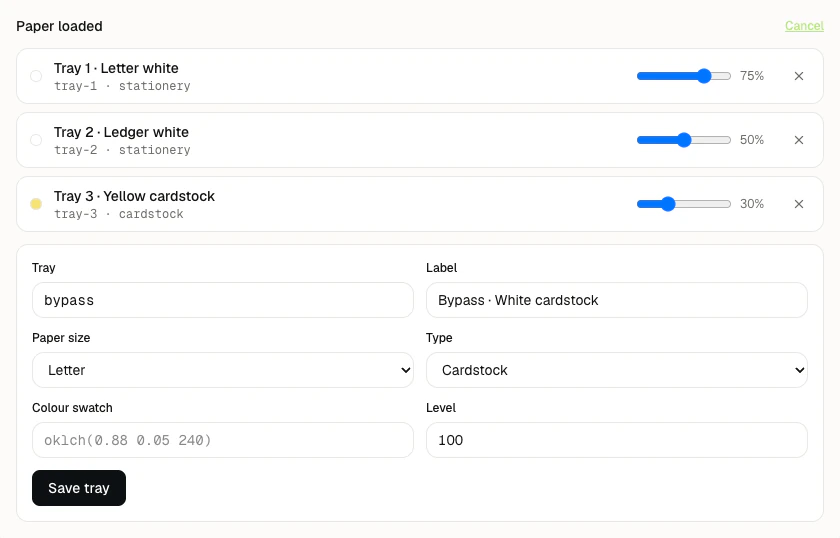
On the Printers page, under Paper loaded, the copy room records each tray: the name the printer uses for it, a label people recognise, the paper size, the type and how full it is. The type is one of Plain, Cardstock, Labels, Transparency or Envelope. In the demo school, Copy Room Colour holds Yellow cardstock in Tray 3, at 30 percent.
Until a tray is recorded, the page says: "No trays recorded. Until you say what is loaded, jobs cannot be routed by paper colour or type." The printer reports which paper types it can take, but only a person knows what is loaded today. Of the demo school's three printers, Copy Room Colour reports plain paper, cardstock and labels, Copy Room Production reports plain paper and cardstock, and Library Mono reports plain paper only.
When a job's paper size and type match a recorded tray on its printer, the job's detail shows the tray it will draw from, and when that tray is below 25 percent it asks the copy room to check it holds enough for the run. Paper weight is not recorded, so a heavier stock is told apart by its type or by the tray's label.
A school's form can ask for paper type#
A school's request form is built in KyberCopy's form builder, and a question can be tied to a job setting. Paper type is one of them, beside paper size, colour and sides, so a school that prints a lot of cardstock can ask for it as a question of its own, such as "Which paper?", rather than hoping for a note. The starting form does not ask it; under "Anything else?" it reads "Special paper, how to collate, anything unusual".
Email requests read the paper asked for#
When a teacher emails the copy room, KyberCopy reads the message with fixed rules, not a language model. "Cardstock", "card stock" and "cover stock" are each read as the paper asked for, and so is "on yellow paper".
The paper is not set on the job from the email. It is written into the job's note with the words it came from, so the copy room sees it and sends the job to the right tray. Choosing a tray from a few words in an email would be a guess, and a wrong guess on cardstock means a stuck job or a stack of wasted card.
Print by hand for anything you want to watch#
Cardstock runs are often better done by a person standing at the machine. On a waiting job the copy room can press Print by hand, which takes the job off automatic printing so nothing is sent to the printer by KyberCopy.
The panel says it plainly: "Takes this job off automatic printing so you can run it yourself — card stock, binding, or anything you want to watch. Nothing is sent to the printer until you say it is done." The note is shown on the job. When the run is finished, Mark printed tells the teacher it is ready.
Print one copy first#
On a large job, the Print menu offers Print one to check first, which sends a single copy and puts the job back in the queue: the sheet that shows whether the toner stuck before the whole stack is committed. The guide to checking print jobs before printing explains when it is offered.
What KyberCopy does not do#
KyberCopy does not set the copier's own tray menus, choose a fuser temperature or clear a jam. It does not record paper weight, only type. Those stay on the copier and with whoever loads it.
Short answers#
What setting do I use to print on cardstock? Set the paper type to the heavy or cardstock setting, both on the copier for the tray and in the print dialog for the job. Names differ by printer maker.
Can a regular printer print on cardstock? Many can, up to the weight the manual lists for each tray.
Which tray should cardstock go in? Usually the bypass tray, which has the straightest path. Use a drawer only if the manual rates it for that weight.
Why does cardstock keep jamming? Most often it is too heavy for the tray, the paper type is still Plain, the stack is too tall, or the job is double-sided. Fix those in that order.
Can I print double-sided on cardstock? Some printers can with lighter stock; many cannot. If it jams or comes out on one side, print one side, turn the stack and print the other.