A class set comes off the copier single-sided, even though double-sided was chosen. Thirty packets now use twice the paper, the staple is through a stack that is twice as thick, and the teacher needs them in ten minutes.
This guide goes through why a printer prints on one side when you asked for two, in the order worth checking: the print dialog, the driver, the paper, the printer itself, and the route the job took to get there. Then it covers how a school copy room can stop deciding it per job.
First, what kind of problem is it?#
There are three different faults that all get described as "not printing double sided":
- Every page is on its own sheet. The printer never duplexed. Most of this guide is about this one.
- Both sides printed, but the back is upside down. The printer did duplex, on the wrong edge. That is a long edge or short edge setting, not a fault. See long edge vs short edge.
- Some sheets are double-sided and some are not. Usually a mixed document: a page of a different size or orientation in the middle, or a cover page set to print on its own.
Knowing which one you have saves trying fixes for the wrong problem.
The print dialog never asked for it#
The most common cause is also the simplest. The job was sent single-sided because single-sided is what the print dialog sent.
Every program has its own place for the setting. In a typical print dialog it is called Print on both sides, Two-sided, Duplex or Double-sided, and it often sits under a Layout, Finishing or Printer properties section that is closed by default. A browser printing a PDF, a word processor and a PDF reader on the same computer can each remember a different choice, so the setting that was right yesterday in one program is not necessarily the one in use today in another.
Two things are worth checking:
- The setting in this print dialog, this time. Not the printer's defaults, not the last document. Open the dialog and look before pressing Print.
- Manual two-sided. Some dialogs offer "Print on both sides manually" or "Manual duplex". That prints the fronts, then waits for someone to turn the stack over and feed it back. On a busy school copier it looks exactly like a single-sided job.
The driver does not know the printer can duplex#
If the two-sided option is missing or greyed out, the computer probably does not know the printer has a duplex unit.
Printer drivers keep a list of installed options: extra trays, a finisher, a duplexer. If that list was never updated when the printer was set up, the driver hides choices it thinks the machine cannot do. On Windows this usually sits under the printer's properties, on a tab such as Device Settings or Configuration, as something like Duplex unit, Installed. On a Mac it is under the printer's Options and Supplies. A generic or basic driver may not offer two-sided printing at all.
This is also why "printer not printing double sided when selected" happens. The option was ticked in the program, but the driver behind it does not pass it on in a form the printer understands, so the printer receives a plain job and prints it one side at a time.
The paper cannot go through the duplexer#
A printer turns a sheet over by pulling it back through an internal path. Not every paper can make that trip. Depending on the machine, heavy cardstock, labels, transparencies, envelopes and some paper sizes cannot be duplexed. Some printers refuse the job; many quietly print it single-sided instead.
So check:
- The paper type set for the tray. If the tray is recorded as cardstock or labels, the printer may switch duplex off for every job from it, even when plain paper is loaded.
- The paper size. A duplexer that handles Letter and Legal may not handle Ledger.
- The tray the job pulled from. On some copiers the bypass tray does not feed the duplexer, so a job drawn from it comes out on one side.
The printer itself said no#
Some printers simply cannot print on both sides. Others can do long edge but not short edge. A printer that cannot do what was asked has three choices: refuse the job, print it the closest way it can, or print it single-sided and say nothing. Many take the last two.
The printer can usually tell you what it supports, if something asks it. In the standard printing protocol, IPP, a printer lists the sides values it accepts: one-sided, two-sided-long-edge and two-sided-short-edge. A printer that lists only one-sided has no duplexer, or has one that is switched off.
In KyberCopy, nobody types this in. The relay inside the school network reads what each printer reports, and the Printers page shows it as tags, with the time it was read. A printer that reports any two-sided value is tagged Double-sided; one that does not is tagged Single-sided only.
The tag is not the whole story. In the demo school, Library Mono reports one-sided and two-sided-long-edge, but not two-sided-short-edge. It can print an ordinary double-sided packet. It cannot flip a landscape booklet on the short edge.
When a job asks a printer for a sides setting it does not report, KyberCopy does not pretend. The job is marked with a warning such as "Double-sided, short edge is not supported by this printer." and the setting it would print with instead, Single-sided, before anyone presses Print. The same check runs when an administrator saves a preset.
It says it printed double-sided, and it did not#
The hardest version is "printer not printing double sided even though it says it is". The printer accepted the job, reported success, and printed one side.
That is a real behaviour, not a misunderstanding. Some printers accept a setting they cannot apply, drop it, and still answer that the job went fine. Over IPP, a printer can admit it with a status that means it ignored or substituted an attribute, without saying which one. Over a plain port 9100 connection the printer says nothing back at all.
How the job reached the printer matters#
Many school printers are set up "by IP address", which sends the file over port 9100. That path has no conversation: the file goes in and the printer prints what it can. The sides setting rides along as an instruction at the start of the job, in a printer language called PJL, as DUPLEX=ON with BINDING=LONGEDGE or SHORTEDGE. A printer that does not understand those lines ignores them and prints single-sided, and nothing is reported back to anyone.
The KyberCopy relay sends jobs over port 9100 by default, because it is the path schools already trust, with exactly those PJL lines for the sides the job asked for. IPP is kept for reading what the printer can do, where it is reliable.
What KyberCopy does when a printer drops it#
When the relay sees a printer answer that it substituted or ignored a setting, KyberCopy records it against that printer. The Printers page then says the printer claims the option but was observed not to apply it, and a line is added to the job's history.
From then on, every double-sided job resolved for that printer carries this warning: "This printer has been observed to ignore the duplex setting. Check the first copy before running the full job." The copy room can send the work to another machine, or print one first.
Print one before thirty#
Whatever the cause, the cheapest check is one copy. Print it, pick it up, and turn it over before sending the rest.
In KyberCopy, a job of 20 sheets or more by default offers Print one to check first in the menu beside Print. It sends a single copy and returns the job to the queue with "Test copy printed. Check it, then press Print for the full run." A copier that drops duplex costs one sheet that way, not a class set.
Stop choosing it per job#
Most single-sided surprises start in a print dialog that someone opened in a hurry. KyberCopy keeps the sides setting in a preset instead. An administrator writes Class Set once as letter, double-sided, black and white and stapled, and teachers pick Class Set by name.
In the Sides box of the preset editor the choices are Single-sided, Double-sided, and Double-sided, flip short edge. Plain Double-sided is long edge, because that is what most school work needs. The preset is checked against every printer when it is saved, and any printer that cannot print it is named with the reason.
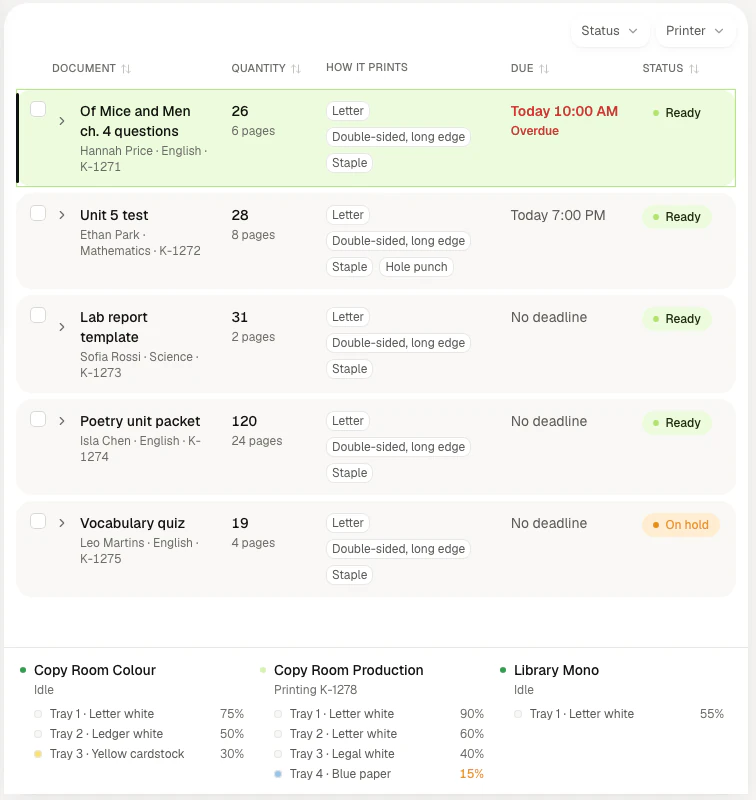
The queue then shows how each job will print before anything is sent: in the demo school, the Unit 5 test reads Letter, Double-sided, long edge, Staple and Hole punch.
Double-sided requests by email#
Teachers can also email the copy room. KyberCopy reads the request with fixed rules, not a language model. Double sided, two-sided, duplex, front and back, back to back and both sides are read as double-sided, long edge. Single sided, one-sided, simplex and not double sided are read as single-sided, and the negative is checked first, so "not double sided" is never read as double.
Every reading is written into the job with the words it came from, so nobody has to guess why a job is set the way it is.
That request is 8 pages and 28 copies. Double-sided, it comes to 112 sheets. Single-sided, the same job would be 224, which is the stack someone finds on the output tray when duplex is dropped.
A checklist when it comes out single-sided#
- Was two-sided chosen in this print dialog, this time?
- Is it manual two-sided, waiting for the stack to be turned?
- Does the driver know a duplex unit is installed?
- Is the paper type or tray one the duplexer can take?
- Does the printer report two-sided at all, and on that edge?
- Was it sent by IP address on port 9100, where the printer may ignore the setting without saying so?
- Has one copy been printed and turned over?
Short answers#
Why is double-sided greyed out? The driver does not think the printer has a duplex unit. Check the installed options in the printer's properties.
Why does it print the back upside down? It is duplexing on the other edge. Choose long edge for portrait packets, and see long edge vs short edge for landscape and booklets.
Why does cardstock come out single-sided? Many duplexers cannot turn heavy paper, so the printer drops duplex for that tray.
Does double-sided save toner? No. It roughly halves the paper, because each sheet carries two pages, but the same number of sides are printed.