Permission slips on pink, the parent newsletter on yellow, a test version on blue so nobody swaps copies with a neighbour. Colored paper is one of the most ordinary requests a school copy room gets, and one of the easiest to get wrong: the job comes out on white, or comes out on the right color with half the print washed out.
This guide covers where colored paper goes, which settings matter, what happens to ink and toner on tinted stock, and how to stop colored jobs landing on white. The last part shows how KyberCopy records colored trays, using the demo school's own screens.
Colored paper is not color printing#
The two get mixed up all the time, so it is worth saying first. Colored paper is the sheet: pastel blue, bright yellow, pink, green. Color printing is the toner or ink. A black and white job on blue paper costs the same in toner as one on white; only the paper is dearer.
That matters at the copier, too. Choosing Color in the print dialog does not pick colored paper, and choosing Black and white does not stop the copier pulling from a colored drawer. The paper is chosen by the tray, not by the color setting. For the cost side of color toner, see colour vs black and white printing.
Where colored paper goes#
There are two common ways a copy room handles colored paper, and both work.
- A drawer kept for one color. Schools that print a lot on one color, such as blue for test versions or yellow for newsletters, keep a whole drawer of it. The drawer is labeled on the outside so nobody tops it up with white.
- The bypass tray for short runs. For thirty copies on pink, load a stack in the bypass tray, the fold-down tray on the side, print, and take what is left out again.
A drawer is less work day to day, but it ties up a tray. The bypass tray keeps every drawer free, but someone has to stand at the machine. Many copy rooms do both: one standing colored drawer for the color they use most, and the bypass tray for everything else.
Most colored copy paper is the same weight as white copy paper, so it feeds from the same drawers. Bright, heavily dyed paper and colored card are often heavier; for those, check the tray's limit in the copier manual and read how to print on cardstock.
The settings that matter#
Two settings decide whether a job lands on colored paper.
- Paper source, or tray. In the print dialog this is usually under the printer's own Properties or Preferences, not the program's main print screen, and is called Paper source, Tray or Input tray. Choosing the tray that holds the colored paper is the most reliable way to get it.
- Paper color or paper type on the copier. Many copiers let you record what each tray holds when you load it, including a color. If the job asks for a color, such as Blue, and a tray is set to Blue, the copier pulls from that tray. If no tray is set to that color, many copiers stop and wait at the panel.
Left on Auto, the copier picks any tray holding the right size, which almost always means white. That is the single most common reason a colored job comes out on white paper.
Menus differ by printer maker, and some copiers do not offer a paper color setting at all. Where it is missing, the tray is the only control you have.
How to print on colored paper, step by step#
- Load the paper in the right tray. A labeled colored drawer, or the bypass tray for a short run. Fan the stack first so the sheets separate.
- Tell the copier what is in the tray. When you close the drawer or load the bypass tray, the panel usually asks for the size, and on some machines the type and color. Set them to match.
- Pick the tray in the print dialog. Open the printer's Properties or Preferences and set Paper source to that tray, not Auto.
- Check the document's own colors. Light grey text, yellow highlighting and pale photos can disappear on colored stock. Black text reads well on light colors.
- Print one copy first. One sheet shows whether it came from the right tray and whether everything on the page is still readable.
- Take the leftover paper out of the bypass tray. Otherwise the next person's job may come out on pink.
Why it printed on white anyway#
When a colored job comes out on white, the cause is nearly always one of these:
- Paper source was left on Auto. The copier chose a white drawer holding the same size.
- The tray was not set on the copier. The drawer holds blue, but the copier still has it recorded as plain white, so a job asking for Blue never finds it.
- The size does not match. A Letter job will not draw from a tray recorded as Legal, whatever color is in it.
- The request never said colored paper. It was in an email or a sticky note, and nobody passed it on to whoever pressed print.
The last one is not a printer problem at all, and in a busy school it is the most common.
What happens to print on colored paper#
Toner and most office ink are not opaque: they let the paper show through. On white paper that does not matter. On colored paper it changes how the print looks.
- Black stays black. Black text and line drawings are the safe choice on any light color.
- Colors shift. Color print takes on the tint of the paper. Blue on yellow paper looks green; red on blue paper looks dark and muddy.
- Same-color print disappears. Yellow on yellow, or light blue on blue, can vanish.
- Nothing prints white. An ordinary copier or printer has no white toner, so white text on colored paper is not possible this way. Where white appears in a document, the paper color shows instead.
- Dark paper hides everything. On dark blue, black or deep red paper, black print is hard to read.
So for colored paper, keep to black or dark print on light or pastel stock, and print one sheet before the set.
Some teachers ask for pastel paper for students who find it easier to read than white. The copy room's part is the same as for any colored job: the right tray and black print. Which color suits a student is a question for the teacher and the student, not the copier.
How KyberCopy handles colored paper#
KyberCopy sits between a teacher's request and the copier, so the steps above still apply at the machine. What it does is record which tray holds which paper, show that tray on the job, and pass colored paper from a request to the copy room. Everything below is from the demo school, which has made-up staff and data.
Trays are recorded with a label and a swatch#
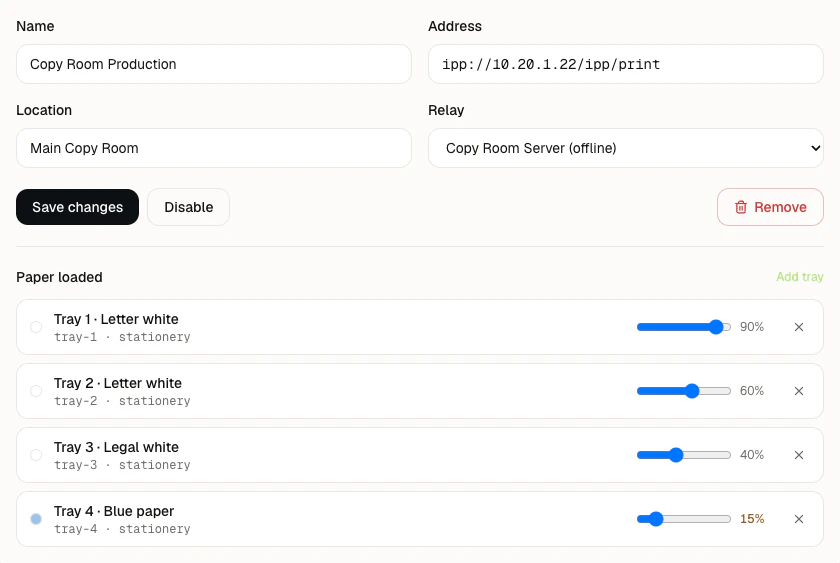
On the Printers page, under Paper loaded, the copy room records each tray: the name the printer uses for it, a label people recognise, the paper size, the type, a colour swatch and how full it is. In the demo school, Copy Room Production keeps Blue paper in Tray 4, recorded as Plain with a blue swatch, at 15 percent.
There is no separate color field: the color lives in the label and the swatch. The type stays one of Plain, Cardstock, Labels, Transparency or Envelope, so blue copy paper is Plain and yellow card is Cardstock. Until a tray is recorded, the page says: "No trays recorded. Until you say what is loaded, jobs cannot be routed by paper colour or type."
The printer rail shows every tray at a glance#
Under the copy room's queue, the printer rail lists each printer with its trays, their swatches and their levels. A tray below 25 percent shows its level in amber, so a nearly empty colored drawer is noticed before a long run, not halfway through it.
When a job is matched to a tray on its printer, its detail shows the tray it will draw from, with the swatch beside it, and asks the copy room to check the tray holds enough for the run when it is below 25 percent.
Email requests read the paper asked for#
When a teacher emails the copy room, KyberCopy reads the message with fixed rules, not a language model. "Colored paper", "coloured paper", "construction paper" and "Astrobrights" are each read as the paper asked for, and so is "on pink paper" or "on blue paper".
The paper is not set on the job from the email. It is written into the job's note with the words it came from, so the copy room sees "pink paper" and loads or chooses the pink tray. Choosing a tray from a few words in an email would be a guess, and a wrong guess means a set of permission slips on white.
On the request form, colored paper goes in the note#
A school's request form is built in KyberCopy's form builder, and a question can be tied to a job setting. Paper type is one of them, but it holds types like Plain and Cardstock, not colors, and there is no paper color setting to tie a question to. So a teacher asks for colored paper in the note box on the request form, "Anything the copy room should know?", and the note is shown on the job in the copy room's queue. That is where "on pink, please" belongs today.
Print by hand for the bypass tray#
For a short run fed through the bypass tray, the copy room can press Print by hand on a waiting job. It takes the job off automatic printing so KyberCopy sends nothing to the printer, and Mark printed tells the teacher it is ready when the run is done.
What KyberCopy does not do#
KyberCopy does not set the copier's own tray or paper color menus, and it does not pick a tray from a color named in an email or a form answer. It does not change the colors in a document or print white. Loading the paper, setting the drawer and choosing the source stay with the copier and with whoever loads it.
Short answers#
Can you print on colored paper? Yes. Ordinary colored copy paper feeds like white paper on almost any copier or printer.
How do I make the printer use colored paper? Load it in a tray, set that tray's size and type on the copier, then choose that tray as the Paper source in the print dialog instead of Auto.
Why did my job print on white instead of colored paper? Usually Paper source was on Auto, or the tray holding the colored paper was not set up on the copier.
Can I print white text on colored paper? Not on an ordinary copier; it has no white toner, so the paper shows through where white should be.
What color print works best on colored paper? Black, on light or pastel paper. Colored print takes on the paper's tint, and print in the same color as the paper can disappear.