Guide · 6 steps
Write print presets for your teachers.
A preset is a named way to print: paper, sides, colour and finishing in one word your teachers already use. Write a handful well and teachers stop choosing six settings per job, and the copy room stops fixing them.
You will need
- The five or six jobs teachers send most, with how each should print
- Which printers can staple, punch or fold
- An administrator account in KyberCopy
Step 1: Name it the way teachers say it
On the Presets page choose New preset. Use the name teachers already say out loud, such as Class Set or Parent Letter, and write one line of description they will read under it, for example Double-sided, stapled, black and white.
Step 2: Pick a default printer, or let the teacher choose
If one machine always does this job, name it as the default. If any printer will do, choose Let the teacher choose, and the copy room can still move the job later.
Step 3: Set paper, sides and colour
Paper is Letter, Legal, Ledger or Tabloid, A4 or A3. Sides is single-sided, double-sided, or double-sided flip short edge. Colour is black and white, colour or automatic.
Short edge is for pages turned over the top, such as folded booklets and landscape sheets stapled at the top; almost every portrait handout wants long edge.
Step 4: Add finishing only where a printer can do it
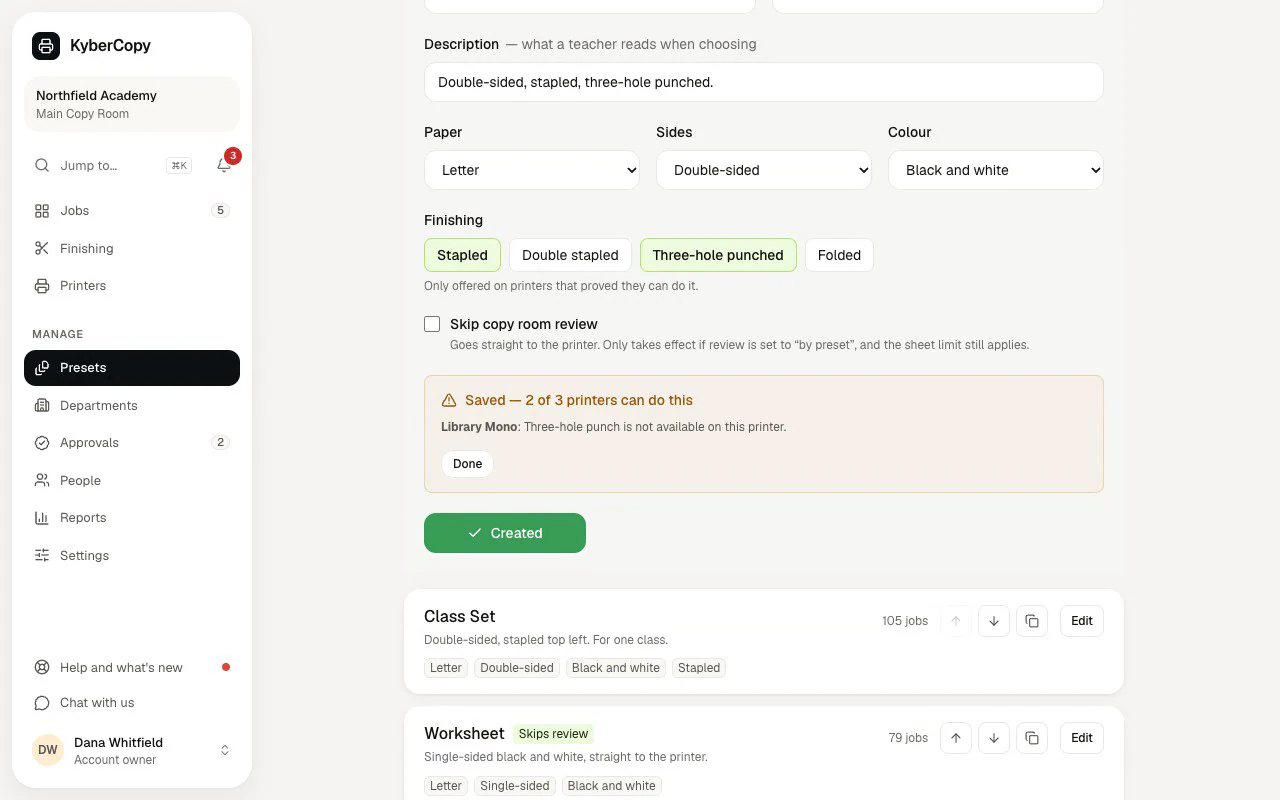
Stapled, double stapled, three-hole punched and folded are only offered on printers that reported they can do them. If no machine in the building punches holes, the option is not there to pick.
Step 5: Save, and read the printer check
When you save, the preset is checked against every printer and the page says how many can do it. Any printer that cannot is named with the reason, such as black and white only or no stapler.
If a teacher later sends the preset to a printer that cannot do it, they are told before they send, not after the copies come out wrong.
Booklet saved in the demo school: one of three printers can make it, and why not the others. Step 6: Put the everyday one first
The first preset in the list is the default on new requests and the one used for requests that arrive by email. Move the one teachers use most to the top.
Editing a preset later changes new requests only; jobs already in the queue print exactly as they were sent.
What a demo teacher picks from instead of printer settings.
Read next
- PresetsWhat a preset holds and how it is checked, on one page.
- Long edge vs short edgeWhich sides setting each kind of job needs.
- How to print a bookletWhat a Booklet preset has to hold, from paper size to fold and staple.
- How to print on 11x17 paperSetting tabloid once in a preset so the copier stops printing it on Letter.
- Printer not printing double sided?Why a double-sided preset can still come out one sided, and what to check in it.
- Stapled and 3-hole punched copiesStaple and punch positions a preset holds, and which printers can do them.
- How to reduce paper waste in schoolsWhy a double-sided preset at the top of the list saves more paper than any poster.
- For teachersWhat a teacher sees when they pick a preset.
Follow this guide with us on the call.
On the demo call we work through the steps on this page in the demo school, with your printers' names and your staff's departments, and answer what the guide does not.
Book a demo