A class set of reading quizzes comes back from the copy room and the last forty pages are so pale the students cannot read the questions. The first pages were fine. Nothing jammed, nothing beeped, and the panel showed no error. The copier simply printed lighter and lighter until someone looked.
A printer printing faded pages is one of the most common copy room complaints, and most of the time it is not a broken machine. It is low toner, a setting that asks for less toner, the wrong paper type, or a worn part. This guide covers what faded printing looks like, the usual causes in the order worth checking, the checks that fix it, and when to call for service. The last part shows how KyberCopy lets a copy room see low toner before the class set is printed, using the demo school's own screens.
What faded printing looks like#
Faded is not one fault, and the pattern on the page is the best clue to the cause.
- The whole page is light grey instead of black. Usually toner that is nearly out, or a toner save setting.
- The page starts dark and gets lighter through the run. A cartridge running out mid-job.
- One side or one band down the page is pale. Toner that has settled to one end of the cartridge, or a drum that is wearing unevenly.
- Pale marks or spots that repeat at the same distance down the page. A worn or scratched drum, or a mark on a roller. The distance between repeats matches the roller's size.
- Light print that rubs off with a finger. The toner was not fused into the paper: the paper type setting is wrong for the stock, or the fuser is wearing.
- Copies are faded, prints are not. The original or the scanner glass, not the printer.
Why a printer prints faded#
These are the usual causes, cheapest to check first.
- The toner is low. Laser toner is a powder. As a cartridge empties there is less of it to reach the drum, and the page goes pale long before it goes blank. Many printers keep printing well past their own low warning, which is how a run of three hundred faded pages happens.
- Toner save or draft mode is on. Toner save mode puts less toner on each page on purpose, so black text comes out light grey. It can be on at the copier's panel, in the print driver's preferences on one computer, or in a saved preset in the driver. If only one person's prints are faded, look at their computer first.
- The document asked for grey. Text set in a dark grey font, a scanned page used as the original, or a PDF exported with a light background all print exactly as light as they are. Print a test page from the copier itself: if that is dark, the printer is fine and the file is the cause.
- The paper type does not match the paper. A copier sets its heat and speed by the paper type. Cardstock or glossy sheets printed on a Plain setting can come out light or with toner that smudges, because the toner was not fused properly. See how to print on cardstock.
- The paper is damp. Paper that has taken up moisture does not take toner evenly, and prints can look blotchy or pale in patches.
- A new cartridge was not prepared. Some cartridges ship with a seal or strip to pull, and most need a few gentle shakes side to side to spread the toner. A brand new cartridge printing faded is often one that was not shaken or still has its seal.
- The drum is worn. The drum is where the page is drawn before toner goes on. On some machines it is part of the cartridge; on others it is a separate part that outlasts several cartridges. As it wears, print goes pale or shows repeating marks even with fresh toner.
- The fuser is wearing. The fuser melts toner into the paper. A tired fuser leaves print that looks faded and rubs off.
The checks that fix it#
Start at the top and stop when the page comes out dark.
- Read the toner level on the copier's panel or its web page, or on the copy room's supplies list. If it is low, replace it, or take the cartridge out and rock it gently side to side to get a few more pages while a new one is ordered.
- Print the copier's own test or configuration page. If it is dark, the printer is fine and the cause is the file or the computer. If it is faded too, the cause is in the printer.
- Look for toner save, eco mode or draft at the panel and in the driver's preferences on the computer that printed. Turn it off for handouts that will be read by a class or copied again.
- Check the paper type at the copier matches the stock in the tray, and that the paper came from a sealed ream.
- Check a new cartridge's seal and shake it gently before it goes back in.
- Wipe the scanner glass and the feeder's glass strip if only copies are faded or streaked.
- Note the pattern. Write down which machine, which tray, whether marks repeat and how far apart. The printer troubleshooting checklist has a section for faint, streaked or smudged pages and a fault log to write it in.
When to call for service#
Call when the page is still faded with a fresh cartridge, toner save off and the right paper type; when marks repeat down every page; when toner rubs off a page printed on plain paper; or when the panel shows a drum or fuser message. On a leased copier, drums, fusers and often toner are part of the service contract, so check it before buying parts. See copier lease vs buy for what a contract usually covers.
How KyberCopy handles faded printing#
KyberCopy sits between a teacher's request and the copier, so it cannot change a cartridge or turn a copier's toner save off. What it does is show the copy room every printer's toner on one page before a long run, flag a cartridge that is running low, and offer one copy to check before the whole job prints. Everything below is from the demo school, which has made-up staff and data.
Supplies shows low toner before the run#
KyberCopy's relay, a small agent on a computer inside the school, reads each printer's state from the machine itself. A printer that publishes its supplies sends each cartridge and part by name with its level, and KyberCopy keeps what the printer last said. Nothing is estimated from pages printed.
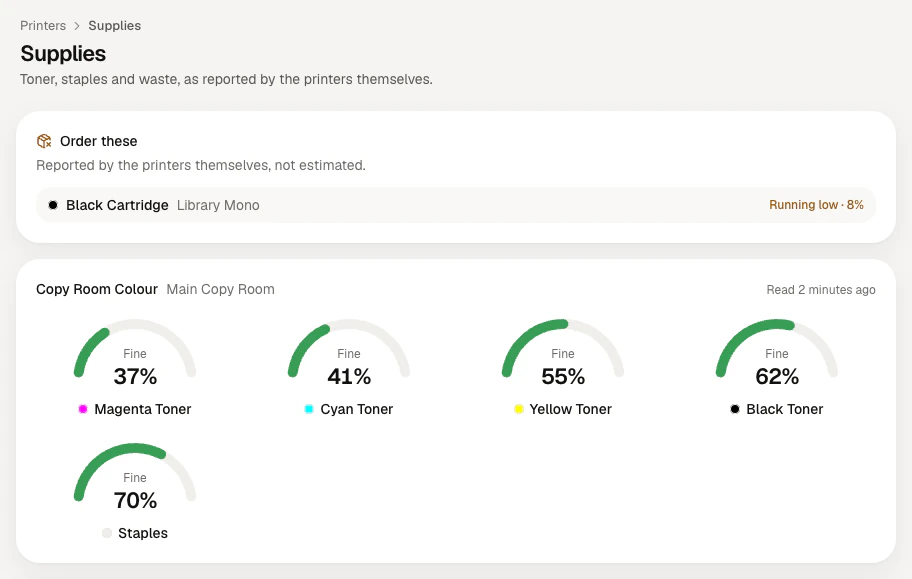
On the Supplies page, anything that needs ordering is pulled to the top under Order these, "Reported by the printers themselves, not estimated." A cartridge reads Running low at or below the printer's own low mark when it publishes one, otherwise at 15 percent, and Empty at zero. A printer that reports its drum or fuser has those listed too, after toner, staples and the waste bottle. In the demo school, Library Mono's Black Cartridge at 8 percent is Running low, so a long run is better sent to another machine until it is changed.
The printer card says Toner low in the printer's own words#
Each printer's card on the Printers page shows the problem the printer reports about itself, such as Toner low, and ends with a strip of its supply levels.
The bell at the top of the app lists the same low parts for everyone signed in, for example Black Cartridge on Library Mono: Running low · 8%. Running low is not emailed; it stays on Supplies and the bell until someone orders. When a printer reports itself out of toner, KyberCopy emails the school's administrators and owners. The check runs every ten minutes, and the same printer is not emailed again for twelve hours.
Print one copy to check first#
On a job of 20 sheets or more, the menu beside Print offers Print one to check first. One copy goes to the printer, and when it comes out the job goes back on hold with "Test copy printed. Check it, then press Print for the full run."
That one copy is where a pale page is caught, before the other 119 sets. Test copies are on by default; a school that only prints short jobs can turn them off.
Toner settings and colour#
By default the relay prints over port 9100 and sends only copies, sides and colour with the document, so the copier's own toner save and density settings apply to every job. A job set to black and white is sent as grayscale. On the relay's IPP path, a job's print quality, draft, normal or high, is sent when it has one. Either way, the copier's panel settings still matter.
What KyberCopy does not do#
KyberCopy does not order toner, change a cartridge, turn a copier's toner save or density on or off, or service a drum or fuser. It cannot see a faded page or read a printer that does not publish its supplies; those are listed under Not reporting supplies and checked by hand. It reports what the printer reports.
Questions people ask#
Why is my printer printing faded? Usually low toner or a toner save setting. A wrong paper type, damp paper, an unprepared new cartridge or a worn drum are the next causes to check.
Why is my printer printing faded with a new cartridge? The seal may still be in place, or the toner has not been spread: rock the cartridge gently side to side. If it stays faded, check toner save and the drum.
Why is my printer printing light grey instead of black? Toner save or draft mode is on at the copier or in the driver, or the document's text is grey. Print the copier's own test page to tell which.
Why is my printer printing faded on one side? Toner has settled to one end of the cartridge, or the drum is wearing unevenly. Shake the cartridge gently; if the band stays, call for service.
Why is my printer printing faded lines? Pale or dark lines that repeat down the page point to the drum or a roller. Lines only on copies point to dirty scanner glass.