Guide · 6 steps
Bill printing back to departments each month.
Once a school prices its printing, the business office's job each month is the same: what did each department spend, how much of its budget is left, and what goes on the internal bill. This guide walks one month through the Chargeback report, from picking the dates to the email that arrives on the 1st without anyone signing in.
You will need
- Charge back turned on, with your rates entered
- An administrator or owner account; the copy room's staff do not see Chargeback
- The month you are billing, and who should receive it
Step 1: Check that printing is priced
Chargeback only appears once the school charges back. In Copy room settings, on the Cost tab, “How much does money feature?” is set to Charge back, with rates per black and white side and per colour side, paper per sheet and any finishing you charge for.
Each job is priced once, when it finishes, and keeps that price. Changing the rates in March does not re-price September, so last month's bill reads the same whenever it is opened.
The demo school's price list, set once by the business office. Step 2: Open Chargeback and pick the month
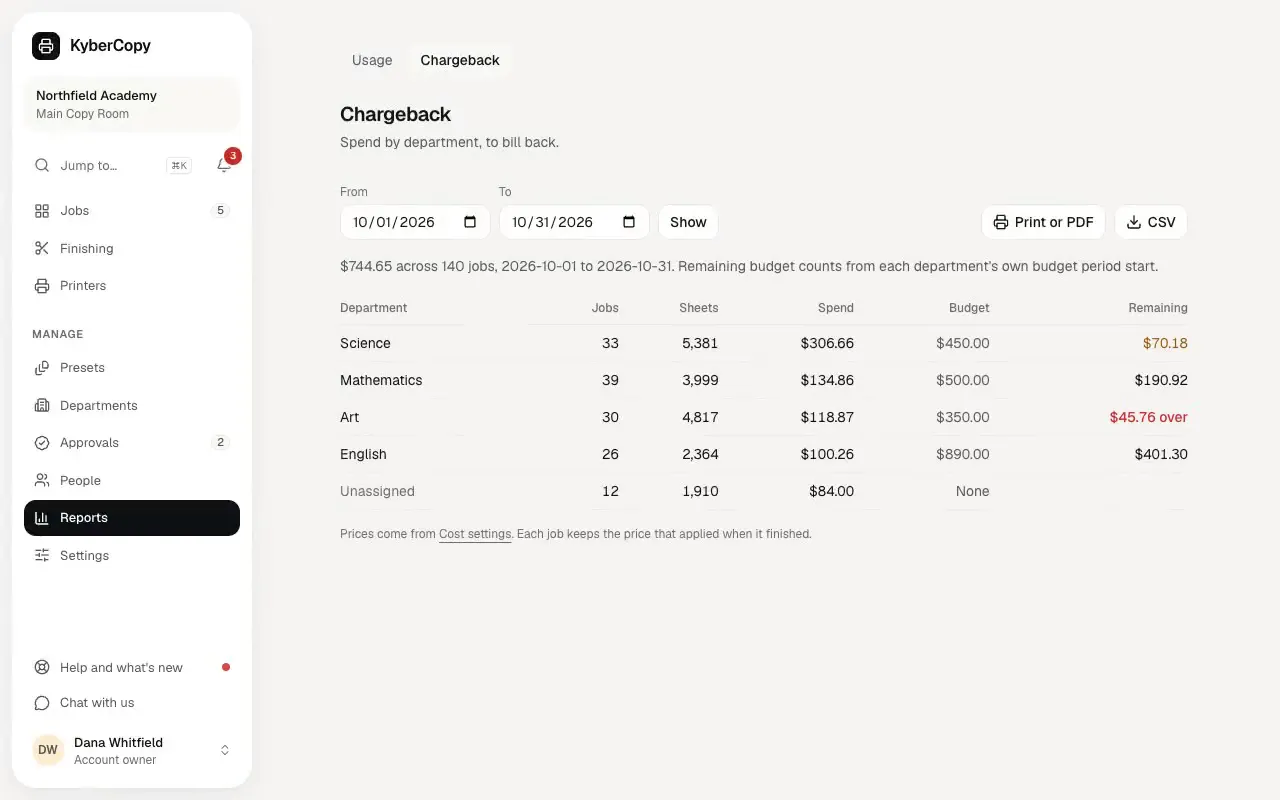
On Reports, choose the Chargeback tab, next to Usage. It opens on this month so far. To bill October, set From to the 1st and To to the 31st and press Show; the dates stay in the address, so the page can be bookmarked.
The line above the table gives the total and the job count for the dates chosen. A reversed range, or one longer than two years, falls back to this month rather than running a report nobody asked for.
October in the demo school, ready to bill. Step 3: Read spend against what is left
Each row is a department, biggest spender first. Jobs, Sheets and Spend count work finished between the two dates. That is the figure to bill.
Budget and Remaining answer a different question: they count from each department's own budget period start, or from 1 January when none is set, because $70 left for the year matters whatever month is being billed. Remaining turns amber past 80% of the budget and red, with “over”, once it is spent.
A department with a budget that printed nothing still gets a row, so “untouched” is an answer too.
Step 4: Clear the Unassigned row
Unassigned, always last, is printing by people with no department. A job takes its department from the person who sent it, at the moment they sent it.
On People, filter to see who has “No department”, tick them and use Set department. That fixes their next request; jobs already finished keep the department they were sent under, so bill this month's Unassigned by hand or to a general budget.
If a yellow note says some finished jobs have no sheet count, those jobs are not in the totals. Ask the copy room to check them before you send the bill.
Step 5: File it as a PDF or a spreadsheet
Print or PDF opens the month as a document headed with the school's name and the dates, adding colour sheets, spent this budget period and budget used, with a total row. Use the browser's Print or Save as PDF for the file.
CSV downloads the same columns, plus unpriced jobs, ready for the finance system. A department name that starts like a formula is written as text, so the spreadsheet never runs it.
The same month as a document for the demo school's file. Step 6: Have it emailed on the 1st
Under Settings, Scheduled reports, tick “Send a report by email on a schedule”, choose Chargeback and Monthly, and list up to ten addresses. They can be outside the school and do not need an account: the spreadsheet is attached.
The line under the form says what will happen and when the next one goes. Monthly sends the whole of last month on the 1st, in the school's own time zone; Weekly sends the last seven days on the day you pick.
A monthly chargeback for the demo school's business office, filled in before saving.
Read next
- Set department budgets and approvalsRates, budgets and budget holders, before the first bill.
- School print budget templatePlan each department's budget for the year in a spreadsheet.
- Printing cost per pageWhy a bill counts sides, not sheets, with a worked example from one price list.
- Copier meter reading logCheck the copier invoice against your own monthly readings before the month is billed.
- Printing cost per page calculatorTry your rates on a few jobs in a spreadsheet before you type them into the Cost tab.
- Printer usage reportHow to read the Usage tab this bill is built from, and check it against the meters.
- Copier lease calculatorWhen the copier contract is up, compare the quotes at the volume these bills show.
- For the business officePrice lists, usage reports and chargeback by department.
Follow this guide with us on the call.
On the demo call we work through the steps on this page in the demo school, with your printers' names and your staff's departments, and answer what the guide does not.
Book a demo