Guide · 5 steps
Set department budgets and approvals.
Department budgets work when the people spending can see the price before they send, and the person holding the budget only hears about the requests that matter. This guide sets both up, from the price list to the 80% email.
You will need
- Your rate per black and white side and per colour side
- Each department's budget for the period and the day the period starts
- One budget holder per department who will approve larger requests
- An administrator account in KyberCopy
Step 1: Turn on charge back and set your rates
Budgets need prices. In Copy room settings, on the Cost tab, choose Charge back, decide whether to charge by department, by person or both, and enter your rates per black and white side and per colour side.
Prices for stapling, punching, folding, booklets and trimming can be added per finished copy.
The demo school's price list, set once by the business office. Step 2: Give each department a budget and a start date
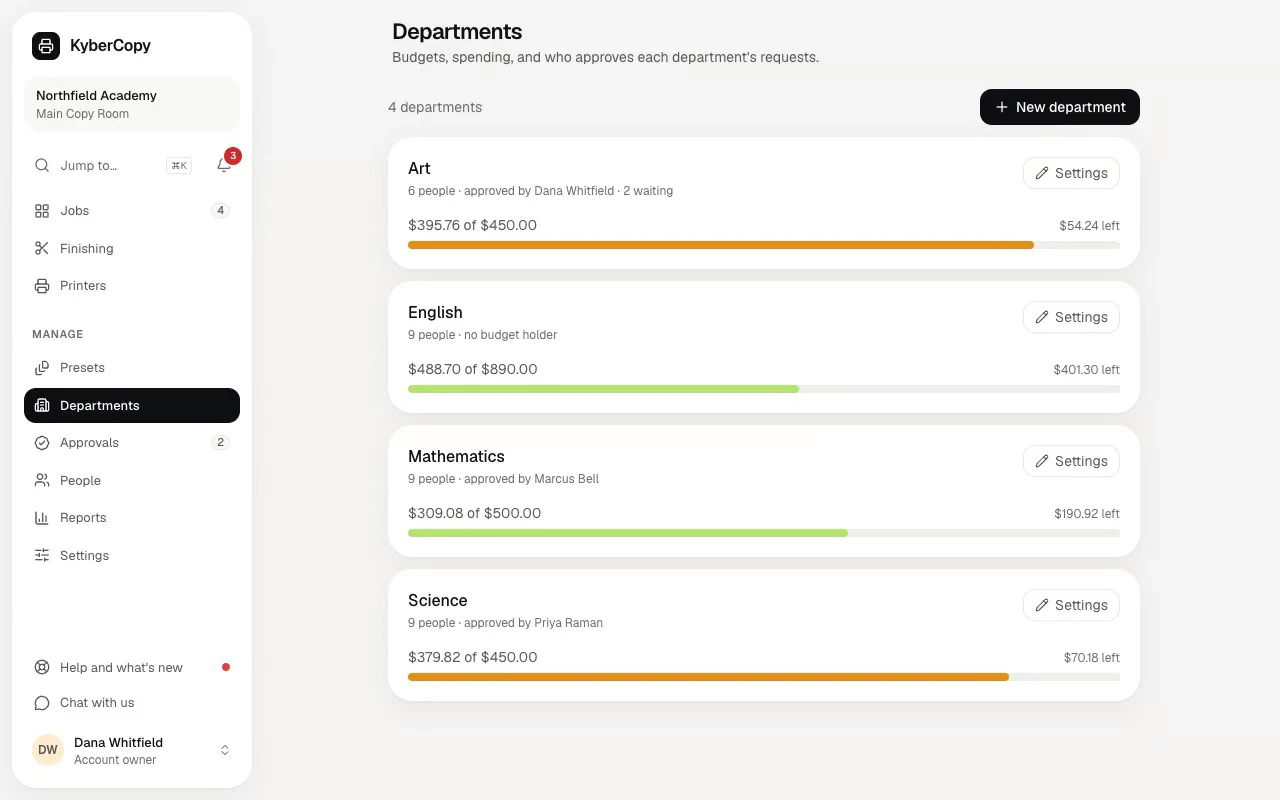
On the Departments page open a department and enter its budget for the period and the day the period started. Departments rarely share a calendar, so each one counts from its own date; with no date, spending counts from 1 January.
The page then shows spent against budget on a bar that turns amber past 80% and red once the budget is used up.
Science's budget in the demo school, past 80% and still under. Step 3: Name a budget holder and a hold limit
The budget holder approves the department's requests before the copy room sees them. Set Only hold requests over an amount so small jobs go straight through; leave it empty and every request from that department waits.
A budget holder's own requests do not wait for themselves, and a department with nobody named never holds a request.
Art's budget holder and hold limit in the demo school. Step 4: Approve or decline from one page
Waiting requests appear on the Approvals page with their cost and what the department has spent and has left. Approve sends the job to the copy room; Decline asks for a reason the teacher will read.
Tick several requests to approve or decline them in one go. Before you press, the tray shows the total and any department the batch would take over budget.
Two Art requests waiting in the demo school, both over budget. Step 5: Read the 80% and 100% emails
The budget holder gets one email when a department reaches 80% of its budget and one at 100%, each at most once a period. A single large job that jumps past both sends only the 100% email.
Starting a new period clears the slate, and the next 80% is announced again.
The 80% email, as the demo school's Science budget holder gets it.
Read next
- Department budgetsBudgets, periods and alerts on one page.
- Print approvalsWho approves what, and how a batch is decided.
- For the business officeReports, price lists and chargeback.
- Bill printing back to departmentsThe monthly chargeback, from the report to the email on the 1st.
- Approve print requestsThe guide to send each budget holder: the email, the card, batches and declines.
- Printing cost per pageWork out the rates per side you enter on the Cost tab, from your own invoices.
- Printer usage reportCheck what each department really printed last term before you set its budget.
Follow this guide with us on the call.
On the demo call we work through the steps on this page in the demo school, with your printers' names and your staff's departments, and answer what the guide does not.
Book a demo