Guide · 7 steps
Choose which copy room emails you get.
Everyone in a school gets some mail from the copy room, and nobody wants all of it. In KyberCopy each person chooses their own, on one page, and the school decides what is allowed at all. This guide is for the teacher who wants fewer emails, the copy room that wants to hear about new work, and the administrator deciding what the whole school is sent.
You will need
- A KyberCopy account at your school, in any role
- An administrator or owner account, only to change the school's own switches
Step 1: Open Settings, Notifications
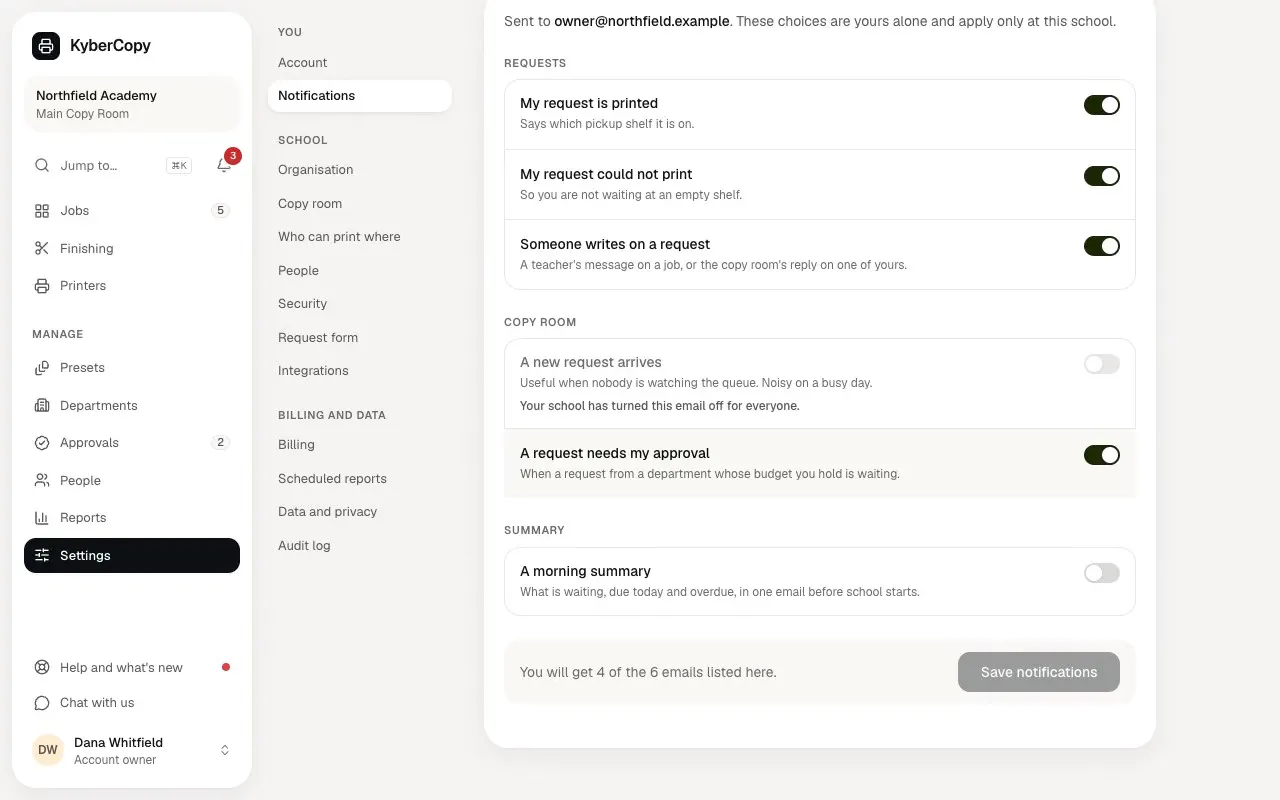
It sits under You in Settings, beside Account, and every role has it. The page says which address the mail goes to, and that “These choices are yours alone and apply only at this school.”
Copy room emails end with a Change which emails you get link, which opens the same page.
Step 2: Choose the emails about your own requests
Under Requests there are three switches. My request is printed says which pickup shelf it is on. My request could not print is there “So you are not waiting at an empty shelf.” Someone writes on a request brings the copy room's message about one of your requests.
A morning summary, under Summary, is off until you turn it on. On a school weekday morning it lists your requests still open, in one email before school starts, and when nothing is open it is not sent.
Settings, Notifications for a demo school teacher. Step 3: Copy room staff: choose whether new requests reach you
Copy room staff, administrators and owners see a Copy room group as well. A new request arrives is “Useful when nobody is watching the queue. Noisy on a busy day.”
For them, A morning summary lists what is waiting, due today and overdue, in one email before school starts.
Step 4: Budget holders: keep approval emails on
If you hold a department's budget, A request needs my approval is in the Copy room group: “When a request from a department whose budget you hold is waiting.” Administrators and owners see it too, for departments with no budget holder.
A held request is not shown to the copy room until someone decides, so turn this off only if you check your approvals every day.
The same page for the demo school's owner, who holds the Art budget. Step 5: Read the line at the bottom, then save
Under the switches the page counts what will arrive, such as “You will get 3 of the 4 emails listed here.” While a change is not saved it starts with Unsaved.
Save notifications keeps the choice on your own account at this school only. Nobody else can change what you receive.
Step 6: Administrators: set what the whole school allows
Copy room, Notifications holds three switches for everyone: Tell the teacher when their job is printed, Tell the teacher when a job fails, and Tell the copy room when a job arrives. The first two start on and the third starts off.
A switch the school turns off stays off for everybody. On each person's page that row is greyed out with “Your school has turned this email off for everyone.”, so nobody flips a switch that does nothing.
The school's own three switches, on the demo school's Copy room, Notifications tab. Step 7: Know which emails are not on the page
A few emails are not a choice. A teacher is always told when a held request is approved or not approved. A department's budget holder, administrators and owners hear once when it reaches 80% and once at 100% of its budget. Administrators and owners are told when a printer or relay needs attention. Invitations and password resets always go.
Read next
- Send a print requestThe request whose printed and failed emails this page controls.
- Approve print requestsFor the budget holder: what the Approval needed email leads to.
- Work the copy room queueThe queue that A new request arrives and the morning summary point to.
- Check printer toner levelsThe out of toner email administrators and owners always get.
- For teachersEverything that changes for a teacher, from the form to the shelf.
Follow this guide with us on the call.
On the demo call we work through the steps on this page in the demo school, with your printers' names and your staff's departments, and answer what the guide does not.
Book a demo