Resources
Everything for running the copy room.
Step-by-step guides, plain answers and reference pages for teachers, copy room staff, administrators, the business office and IT. Search them all, or pick your desk.
11 resources (guides, for IT).
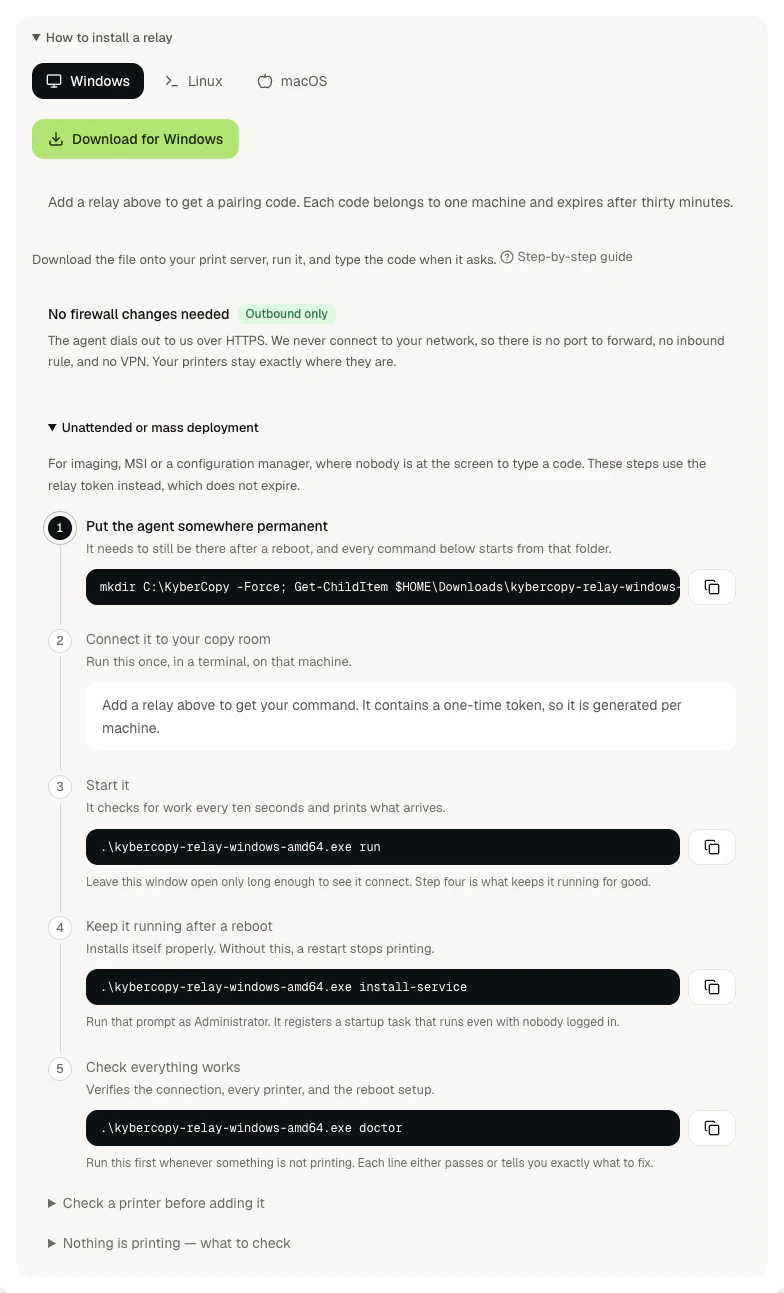 GuideConnect your printers with the relayInstall the outbound-only relay on a school computer, pair it, keep it running after a reboot, then add each printer and the paper in its trays.6 steps
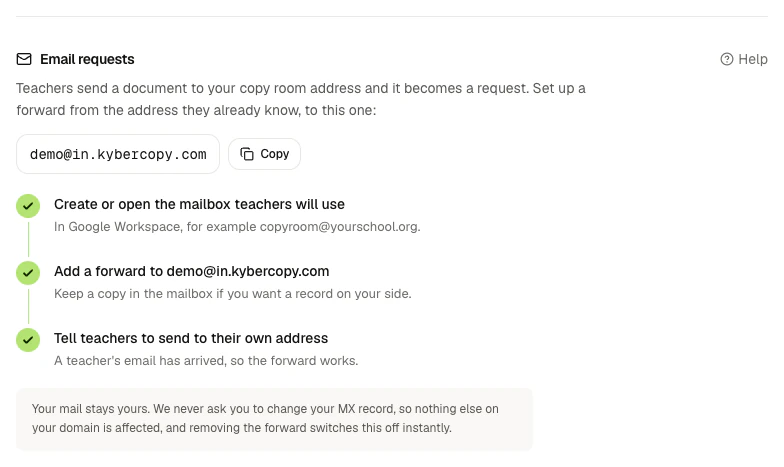 GuideSet up email print requestsLet teachers email documents to the copy room mailbox they already use: turn on email intake, add one forward, and check the first request arrives.5 steps
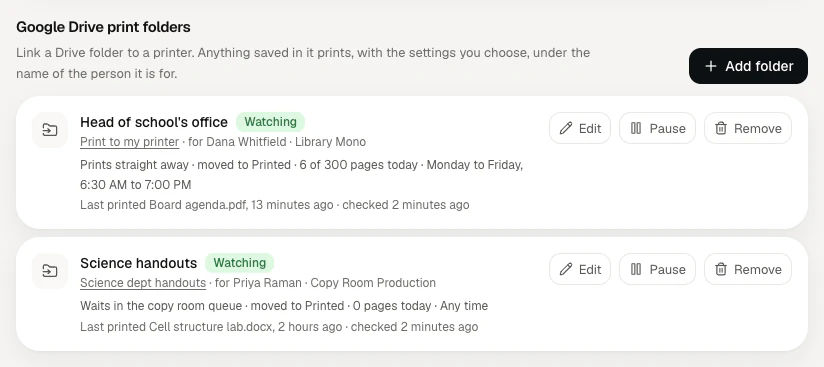 GuidePrint from a Google Drive folderLink a Google Drive folder to a school printer so anything saved in it prints by itself: share it, Verify, choose the settings and hours, then watch it.7 steps
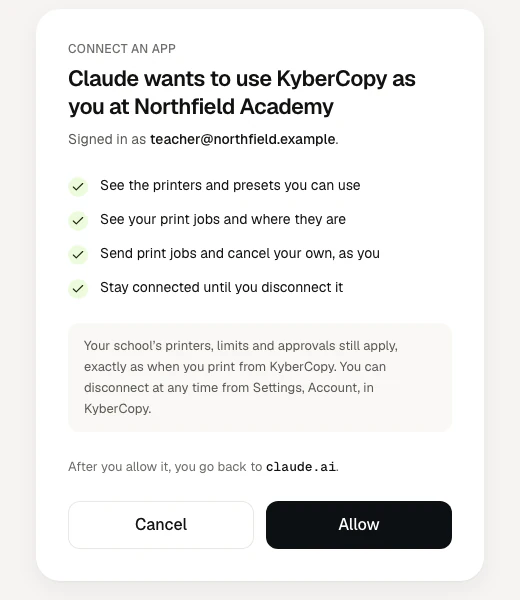 GuidePrint from ClaudeAdd KyberCopy to Claude, connect it as yourself, then ask Claude to print, preview, check or cancel jobs at your school, with its limits and approvals.7 steps
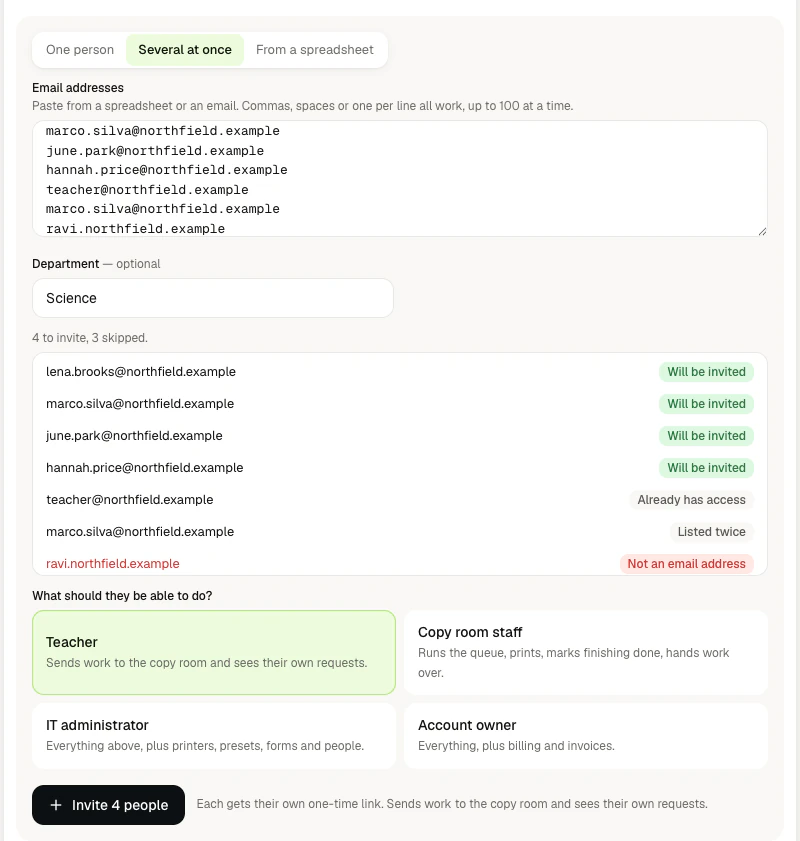 GuideInvite your staff and give each the right roleGet school staff into KyberCopy: invite one person, paste a list or import a spreadsheet, pick each role, follow up invites and let Google accounts join.7 steps
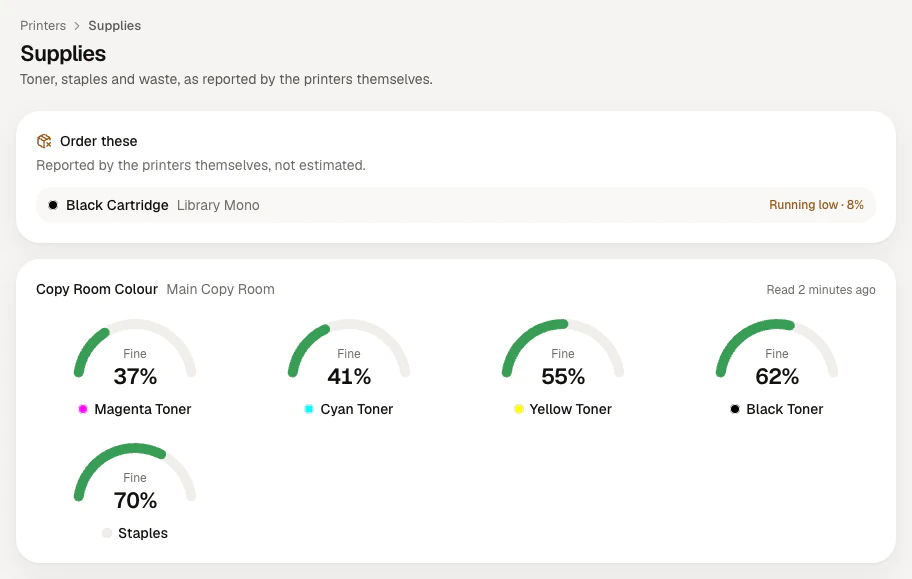 GuideCheck printer toner levels for every copier on one pageHow a school copy room checks printer toner levels on one page: what each copier reports, when low means order, waste bottles, and printers that stay silent.8 steps
- GuideConnecting your printers with the relay agentInstalling the outbound-only relay and checking it can reach each printer.Help centre (help centre, opens in a new tab)
- GuidePrinter capabilities, supplies and silent substitutionsAdding a printer, what it reports about itself and paper levels.Help centre (help centre, opens in a new tab)
- GuideSetting up email intakeForwarding the copy room mailbox, reversible in one click.Help centre (help centre, opens in a new tab)
- GuideSecurity and network postureThe questions a school IT director asks before approving KyberCopy.Help centre (help centre, opens in a new tab)
- GuideMy printer shows offline or unhealthyEach message on the Printers page and what to check for it.Help centre (help centre, opens in a new tab)
Rather see it than read about it?
On the demo call we set up the demo school with your printers' names and walk through the guide you came here for, as a teacher, the copy room and the business office.
Book a demo