A unit's slides turned into a revision handout, a deck with the teacher's own notes under each slide, a set of slides for a substitute to follow. Slides are made for a screen, so printing them takes a decision a document never needs: how many slides go on each page, and whether the notes come too.
This guide covers how to print PowerPoint slides on Windows and a Mac, the four layouts PowerPoint offers, how to print speaker notes, how to print several slides to a page, the white border around widescreen slides, colour and greyscale, and how to send slides to the copy room so they print the way you meant. It ends with how KyberCopy takes PowerPoint files, using the demo school's own screens.
How to print PowerPoint slides, step by step#
- Open the presentation and click through it once, looking for hidden slides, comments and slides you do not need on paper.
- Choose File, then Print, or press Ctrl and P on Windows, Command and P on a Mac.
- Pick the printer at the top of the screen.
- Set the copies in the box next to the Print button.
- Choose the slides: all of them, the current slide, a selection, or a custom range such as 1-5 or 2, 7, 9.
- Choose the layout: full page slides, notes pages, outline or handouts.
- Set sides, collation and colour, check the preview page by page, then choose Print.
The layout in step six decides almost everything about how the printed pile looks, so it is worth knowing what each one does.
The four print layouts#
On Windows the layout menu sits under Settings and starts out as Full Page Slides. On a Mac, choose Show Details in the print dialog and look for Layout.
- Full page slides prints one slide on each page, as large as the paper allows. Good for a slide shown on a wall or a poster, wasteful for a handout.
- Notes pages prints one slide at the top of each page with that slide's speaker notes underneath.
- Outline prints only the text from the slide titles and text boxes, with no pictures. Useful as a script, rarely as a handout.
- Handouts prints 1, 2, 3, 4, 6 or 9 slides on each page, in rows that read left to right or top to bottom. The 3 slides layout puts ruled lines beside each slide for students to write on.
Under the same menu sit Frame Slides, which draws a thin line around each slide, Scale to Fit Paper, which makes the slides as large as the page allows, and Print Comments, which adds a page of comments after the slides they belong to.
How to print PowerPoint with speaker notes#
Choose Notes Pages as the layout. Each slide prints on its own page with its notes below it. Notes print as they look in Notes Page view, and a note too long for the page does not run onto a second one: whatever does not fit is cut off at the bottom, so check long notes in the preview.
There is no layout that puts several slides and their notes on one page. On Windows there is a way round it: choose File, then Export, then Create Handouts, and pick Notes next to slides. PowerPoint opens a Word document with three slides on each page and the notes beside them, which can be edited and printed like any other document. On a Mac, the usual route is to save the notes pages as a PDF and print that PDF two pages to a sheet.
How to print several slides on one page#
Choose Handouts and the number of slides per page. A few things to weigh before a class set:
- 3 slides with lines is made for note-taking. Each slide is small, but the lines beside it are the point.
- 6 slides is the usual revision handout. Slide titles are still readable; small text in a chart is not.
- 9 slides works for a picture-led deck and for a contact sheet of the whole presentation, not for reading.
Print one page first and read it at arm's length. If the smallest text on a slide is hard to read at six to a page, try four. For a deck with very little text, the pages per sheet article shows how the same idea works in a PDF.
Double-sided handouts#
On Windows, change Print One Sided to Print on Both Sides and flip on the long edge for most handouts. On a Mac it is a Two-Sided tick box, or under Layout. Pages of handouts are portrait, so the long edge is the right choice; the long edge vs short edge article explains why a landscape page wants the other edge.
The white border around widescreen slides#
Most decks today are widescreen, 16 by 9, and a Letter page is much closer to square. Printed full page, a widescreen slide leaves a wide white band above and below it. Two settings help:
- Scale to Fit Paper makes the slide as large as the paper allows. It cannot change the shape, so some white edge always stays.
- Slide Size, under Design, can be changed to Letter Paper before printing. PowerPoint then asks whether to maximise or ensure fit; check every slide afterwards, because pictures and text boxes move.
Printers also cannot print to the very edge of the paper, so a thin white margin stays whatever the settings say.
Colour, greyscale and dark backgrounds#
The colour menu offers Color, Grayscale and Pure Black and White. Grayscale turns colours into shades of grey and usually leaves dark slide backgrounds out, so text stays readable. Pure Black and White drops nearly all shading, which suits a text-heavy deck and can lose detail in charts and photographs.
A deck with a dark background printed in colour uses a great deal of toner and often comes out muddy. For handouts, Grayscale is the usual choice. If colour slides keep coming out grey when you asked for colour, the black and white article has the checks.
Google Slides#
In Google Slides, choose File, then Print preview. The menu at the top offers 1 slide without notes, 1 slide with notes, and handouts with 1, 2, 3, 4, 6 or 9 slides to a page. Choose Print from there and Chrome's own dialog decides double-sided and paper size. Download as PDF from the same preview keeps the layout you picked.
Getting slides to the copy room#
The safest way to send slides to someone else to print is a PDF in the layout you want. Choose File, then Print, pick the handout layout, then choose Microsoft Print to PDF as the printer on Windows, or PDF and Save as PDF on a Mac. Open the PDF and check it.
That file carries the layout with it, so nobody has to remember you wanted six to a page. Name it for what it is, such as Unit 4 revision handout, and say the copies, sides and date you need it by.
How KyberCopy handles PowerPoint files#
KyberCopy sits between a teacher's request and the copier. It does not open PowerPoint or choose a handout layout. It takes the file, counts its pages, checks the job against the printer before it is sent, and turns PowerPoint files into PDF for printing. Everything below is from the demo school, which has made-up staff and data.
Attach the handout PDF, or the deck itself#
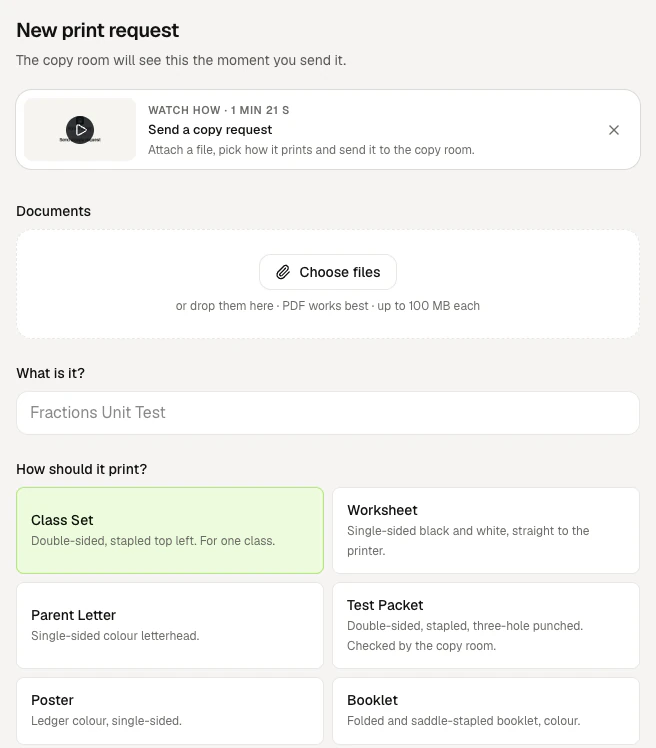
A teacher signs in, opens New request and attaches the file. The form says PDF works best, and for slides that matters more than for most files. A PowerPoint file works too: Word, PowerPoint, Excel and Publisher files are turned into PDF on the server when the request is sent, and the original is kept beside it.
The conversion runs on KyberCopy's own server with LibreOffice and makes one page for each slide. It does not make handouts or notes pages. A 30-slide deck sent as it is becomes 30 pages, and 30 single-sided copies of it are 900 sheets. The same deck saved from PowerPoint as a six-to-a-page handout is 5 pages: 150 sheets single-sided, or 90 sheets double-sided. The pages are counted from the PDF, so the copy room, budgets and approvals see the real number either way.
If a file does not convert, the request is not refused. The original is kept and a note says it "could not be converted. The copy room will open it by hand." A PowerPoint file over 30 MB, which decks full of photographs often are, is not converted at all and gets the same treatment, so a large deck is better saved as a PDF first.
Presets carry the sides and paper#
Teachers do not set double-sided, stapling or paper in a print dialog. They pick a preset the school wrote once, such as Worksheet or Class Set, and the request is checked against the printer before it goes.
A preset can ask for 2 pages per side, but the relay sends jobs over the printer's raw printing port by default, which carries no such setting, so the job is set back to one page per side with the reason kept. That is one more reason to lay the handout out in the PDF before sending it.
A Google Slides file saved in a school's Google Drive print folder is exported to PDF by Drive and printed with that folder's settings.
What KyberCopy does not do#
KyberCopy does not lay slides out several to a page, add notes, scale slides or remove a dark background. Each page prints at the size it was made. Those choices are made in PowerPoint or Google Slides, before the file is sent.
Questions people ask#
How do I print PowerPoint slides? Choose File, then Print. Pick the printer and copies, choose which slides, choose a layout (full page slides, notes pages, outline or handouts), check the preview, then choose Print.
How do I print PowerPoint with notes? Choose Notes Pages as the layout. Each slide prints with its speaker notes underneath. For several slides and their notes on a page, use File, Export, Create Handouts on Windows.
How do I print multiple slides on one page? Choose Handouts as the layout and pick 2, 3, 4, 6 or 9 slides per page. The 3 slides layout adds lines for notes.
How do I print PowerPoint without the white border? Tick Scale to Fit Paper. For less white edge, change the slide size to Letter Paper under Design before printing, then check every slide.
Why is my PowerPoint printing so small? A handout layout with many slides per page is chosen, or the slides are widescreen on a squarer page. Choose fewer slides per page or Scale to Fit Paper.