A unit test written in Word on a laptop at home, a newsletter a colleague started years ago, a worksheet with a reviewer's comments still in the margin. Word is still where a great deal of school paperwork is written, and printing it is usually quick. The result depends on a handful of settings on one screen, plus a few that live inside the document itself.
This guide covers how to print from Microsoft Word on Windows, a Mac, an iPad and Word in a browser, the settings worth checking, how to print without comments, how to send a Word file to the copy room so it prints the way it looks, and why a Word document sometimes prints wrong. The last part shows how KyberCopy takes Word files, using the demo school's own screens.
How to print a Word document, step by step#
- Open the document in Word and scroll through it once, looking for comments, tracked changes and pages that have run on.
- Choose File, then Print, or press Ctrl and P on Windows, Command and P on a Mac.
- Pick the printer at the top of the screen. If the one you want is missing, it has not been added to this computer.
- Set the copies in the box next to the Print button.
- Work down the Settings list: which pages, one side or both, collated, orientation, paper size, margins and pages per sheet.
- Check the preview on the right, page by page, with the arrows underneath it.
- Choose Print.
That is the whole job when the document was set up for the paper in the printer. The rest of this guide is about the cases where it was not.
The settings on the print screen#
On Windows, Word puts every setting that matters on one screen under Settings, top to bottom:
- Print All Pages can be changed to the current page, a selection, or a custom range typed in the Pages box, such as 1-3 or 2, 5. The same menu holds Print Markup, which decides whether comments and tracked changes print.
- Print One Sided can be changed to Print on Both Sides, flipping on the long edge or the short edge, or Manually Print on Both Sides for a printer that cannot turn the sheet over itself. Long edge suits most handouts; the long edge vs short edge article explains the difference.
- Collated prints each copy in full before starting the next. Uncollated prints every copy of page one, then every copy of page two.
- Orientation, portrait or landscape.
- Paper size, Letter for most US schools. This changes the page in the document too, so check the preview afterwards.
- Margins, Normal unless someone changed them.
- Pages per sheet prints two or more pages shrunk onto one side. Underneath it, Scale to Paper Size prints the document on a different paper without changing it.
Printer Properties, under the printer's name, opens the printer's own settings: trays, paper type, colour and stapling, depending on the machine.
Printing from a Mac, an iPad and Word online#
On a Mac, File, then Print opens the Mac's own print dialog. Copies and pages are at the top. Two-sided is a tick box or sits in the Layout section, and Word's own options, including whether comments print, are in a Microsoft Word section of the same dialog.
On an iPad or iPhone, open the document in the Word app, tap the three dots menu, then Print. That opens the AirPrint sheet, which lists only printers on the same network that speak AirPrint. At school the copier is often on a network the iPad cannot reach, which is covered in printing from a school iPad.
In Word in a browser, File, then Print makes a PDF of the document and opens it to print from the browser. The browser's dialog then decides double-sided and paper size, as it does for Google Docs. On a Chromebook this is the usual way to print a Word document.
How to print a Word document without comments#
Comments, tracked changes and the balloons beside them print when Print Markup is on. To leave them out:
- On Windows, open the Print All Pages menu and untick Print Markup.
- On a Mac, look in the Microsoft Word section of the print dialog and choose to print the document without markup.
- To keep them out for good, accept or reject the tracked changes and delete the comments, then save. A copy sent to anyone else then has nothing to print.
To print the comments on purpose, leave Print Markup on. The page is shrunk to make room for them in the margin.
Getting a Word document to the copy room#
The safest file to send someone else to print is a PDF, because a PDF keeps the fonts, the page size and every line break exactly where they were.
- Save it as a PDF. Choose File, then Save As, and pick PDF as the type, or File, then Export. Open the PDF and check it before you send it.
- Name the file for what it is, such as Unit 4 test, not Document1.
- Say the page count and the settings you want: copies, double-sided, stapled, by when.
A Word file opened on another computer can lay out differently. That computer may not have the same fonts, so lines wrap differently and a page runs on. The printing checklist has the checks worth making before a class set goes.
Why a Word document prints wrong#
The usual reasons, in the order worth checking:
- The bottom line is cut off. The document is A4 and the paper is Letter. Change the size under Layout, then Size, or use Scale to Paper Size. The A4 on letter article goes through both.
- It prints smaller than on screen. Pages per sheet is more than one, or Scale to Paper Size is set to a different paper.
- Comments printed down the side. Print Markup is on.
- Text near the edge is missing. The margins are narrower than the printer can reach.
- The background colour or a picture behind the text is missing. Word leaves them out unless Print background colors and images is ticked, under File, then Options, then Display.
- It printed one-sided. Print on Both Sides was not chosen, or the printer did not offer it. The double-sided article has the checks.
- Pages break in odd places on another computer. The fonts differ. Send a PDF instead.
How KyberCopy handles Word documents#
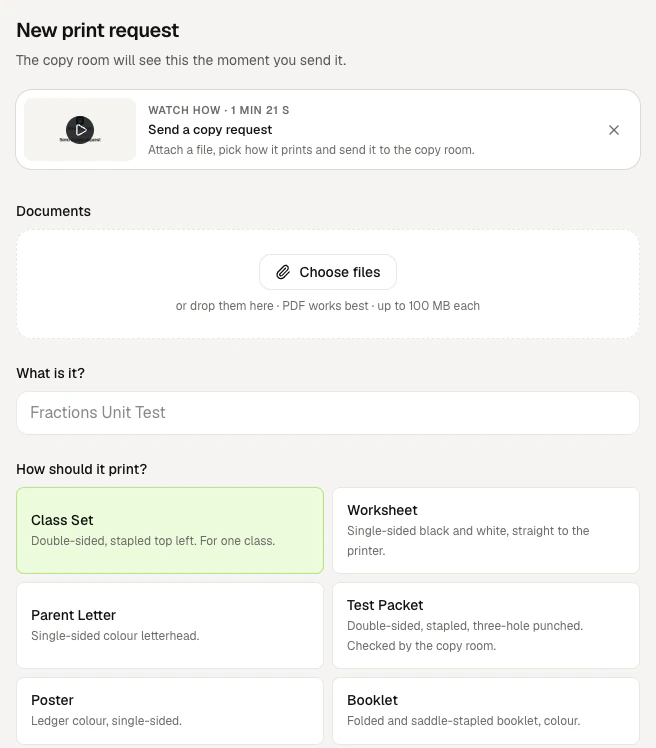
KyberCopy sits between a teacher's request and the copier. It does not open Word or change a document's page setup. It takes the file, counts its pages, checks the job against the printer before it is sent, and turns Word files into PDF for printing. Everything below is from the demo school, which has made-up staff and data.
Attach the Word file or its PDF#
A teacher signs in, opens New request and attaches the file. The form says PDF works best, and a PDF saved from Word is the surest. A Word file works too: Word, PowerPoint, Excel and Publisher files are turned into PDF on the server when the request is sent, and the original is kept beside it.
The conversion runs on KyberCopy's own server with LibreOffice, not an outside converting service. Its pages are counted from the PDF it makes, so the copy room, budgets and approvals see a real page count rather than a guess. A converted file can still differ from what Word showed, most often because of a font the server does not have, which is why a PDF saved from Word is the safer file.
If a file does not convert, the request is not refused. The original is kept and a note says it "could not be converted. The copy room will open it by hand." A Word file over 30 MB is not converted at all and gets the same treatment, so a very large file is better saved as a PDF first. The upload limit itself is set by the school and is 100 MB a file unless the school changes it.
Presets carry the settings#
Teachers do not set double-sided, stapling or paper in a print dialog. They pick a preset the school wrote once, such as Class Set or Test Packet, and the request is checked against the printer before it goes.
A Word document saved in a school's Google Drive print folder is downloaded and converted by the same step, then printed with that folder's settings.
What KyberCopy does not do#
KyberCopy does not scale pages or set margins: each page prints at the size the document was made. It does not change an A4 document to Letter, remove comments that were saved into a PDF, or fix a font that is missing. Those are fixed in Word, before the file is sent.
Questions people ask#
How do I print from Word? Choose File, then Print, or press Ctrl and P (Command and P on a Mac). Pick the printer, set the copies, work down the Settings list, check the preview, then choose Print.
How do I print a Word document double-sided? On the print screen, change Print One Sided to Print on Both Sides and choose to flip on the long edge for most handouts. If only Manually Print on Both Sides is offered, the printer cannot turn the sheet over itself, or Word does not know that it can.
How do I print a Word document without comments? On Windows, open the Print All Pages menu and untick Print Markup. On a Mac, choose to print without markup in the Microsoft Word section of the print dialog.
Why is my Word document printing smaller than on screen? Pages per sheet is above one, Scale to Paper Size is set to a different paper, or comments are printing and the page was shrunk to fit them.
Why won't my Word document print correctly on another computer? The other computer is missing a font, or has a different default paper size, so the text reflows. Save the document as a PDF and send that instead.