Guide · 7 steps
See who sends what to the copy room, one person at a time.
Before a budget conversation, someone usually asks who is sending all this. The People page answers it: everyone in the school ranked by what they printed over a period, and a page for each person with their months, the hours they send, the settings they keep asking for and their recent requests. This guide reads both pages, from the demo school.
You will need
- A copy room staff, administrator or account owner account in KyberCopy
- Cost set to Charge back, if you want spend in money as well as sheets
- A period in mind, such as this term or the last 90 days
Step 1: Open People
Open People to see who is sending work to the copy room, and how much. Copy room staff, administrators and the account owner can open it. A teacher who opens it is told “Only copy room staff can see what other people have sent.” and pointed to their own requests.
This page is about activity, not access. Who can sign in and with which role stays under Settings, People.
Step 2: Pick the period
Choose 30 days, 90 days, 180 days or 1 year above the list; 180 days is where it starts. The line at the right counts who sent something and who did not, such as 36 sending, 4 quiet.
Opened from a department on Reports, the page keeps that report's exact dates as a chip that leads back to it, and the department as a chip with a cross that shows everyone again.
Step 3: Read the list, most sheets first
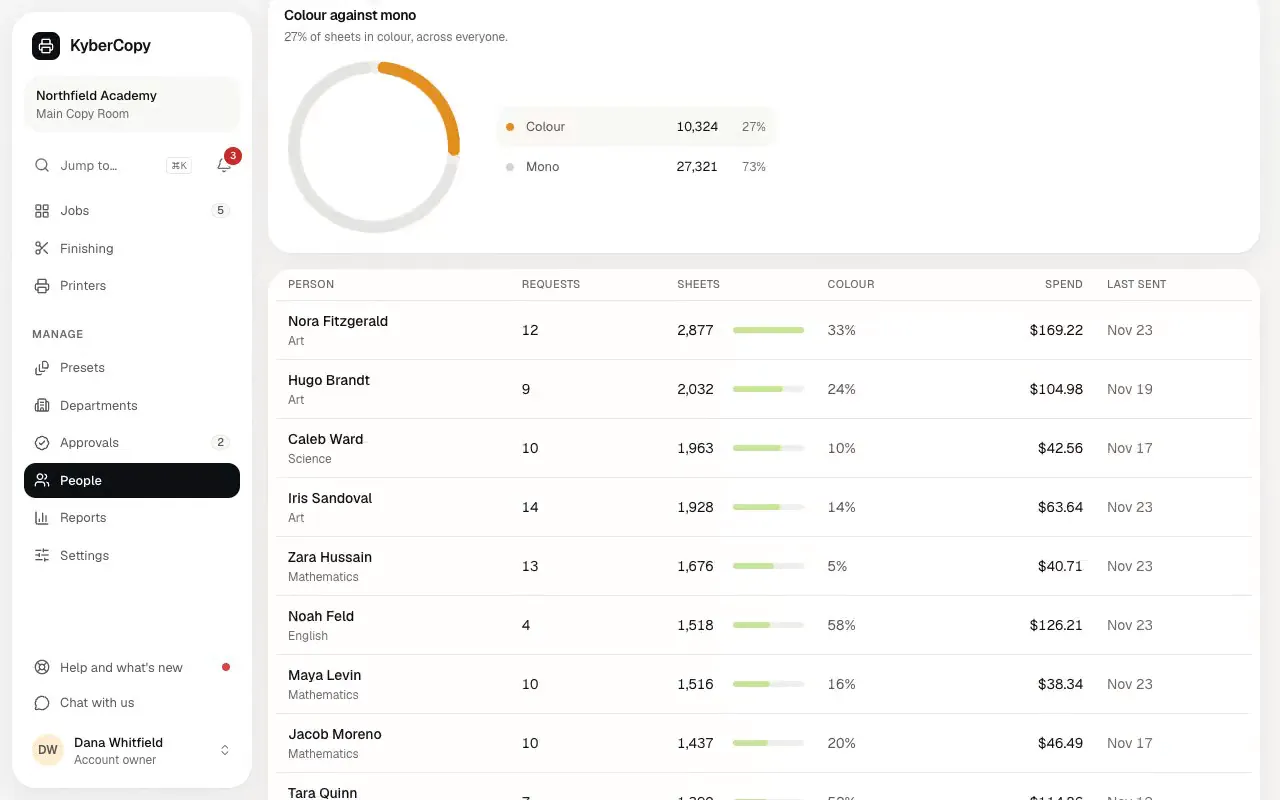
Everyone in the school is listed, sorted by sheets printed, so the first rows answer who is printing all this. Each row has the person with their department, Requests, Sheets with a bar to compare at a glance, the share in Colour, Spend when cost is set to Charge back, and Last sent, or Never.
Only printed requests count towards the figures, and people who sent nothing stay at the bottom, because who is not using the copy room is a real question too. The Colour against mono ring above the list gives the share across everyone.
Everyone in the demo school, ranked by sheets over 180 days. Step 4: Open one person
Choose a name to open their page: department, role and email under the name, and the same periods as 30d, 90d, 180d and 1 year. Four figures lead: Requests, Sheets with the share in colour, Printing in money at your school's rates (with finishing added underneath when there is any), and Typical wait from submitted to printed.
Typical wait is the median, so one job left overnight does not skew it. If any of their jobs failed at the printer, the figure says how many. Without charge back, Printing is replaced by Colour sheets against black and white.
One demo teacher's last 180 days. Step 5: See when they send
When they send places each request on a grid of weekdays and hours, darker where there are more, with the busiest slot named, such as Mon at 09:00. Hours are in your own computer's time zone, so Monday at eight means the eight on your wall.
The grid counts every request sent in the period, not only printed ones, so its total can be higher than Requests above it. A teacher who always sends on Monday morning is a habit you can staff for.
Step 6: Find the settings they keep asking for
What they usually ask for lists paper, sides and colour combinations they printed more than once, up to five, with a count, such as Letter, double-sided 5×. Long edge and short edge both read double-sided, so one habit is not split in two.
As the page says, a combination that keeps coming up is worth saving as a preset, so the next request is one choice instead of several.
When a demo teacher sends, and what they ask for most. Step 7: Check the recent requests before you talk
Recent requests lists the newest 50 in the period: the document with its reference, printer and colour, when it was sent, copies, sheets, cost under charge back, and a status of Waiting, On hold, Printing, Printed or Failed.
The page reports and does not judge. Use it to bring the facts to a conversation about a budget or the colour printer, and to spot a big job that was printed in colour when black and white would have done.
Read next
- Read the copy room usage reportThe school's totals for a period, and the department links that open this page.
- Bill print costs back to departmentsTurn on charge back so Spend and Printing show in money.
- Write print presetsSave a setting someone keeps asking for as a preset.
- Colour vs black and white printingWhy the colour share matters, and how to keep colour for what needs it.
- For the business officeReports, price lists and chargeback for the people who pay for printing.
Follow this guide with us on the call.
On the demo call we work through the steps on this page in the demo school, with your printers' names and your staff's departments, and answer what the guide does not.
Book a demo